Parts and Device:
Wire Connection:
After install the V2.1 Robot Car or 2WD Robot Car framework, please insert to OSOYOO ESP32 Wifi/Bluetooth Shield into the UNO board. Connect the H-Bridge Motor board to Arduino Pins as per following picture:
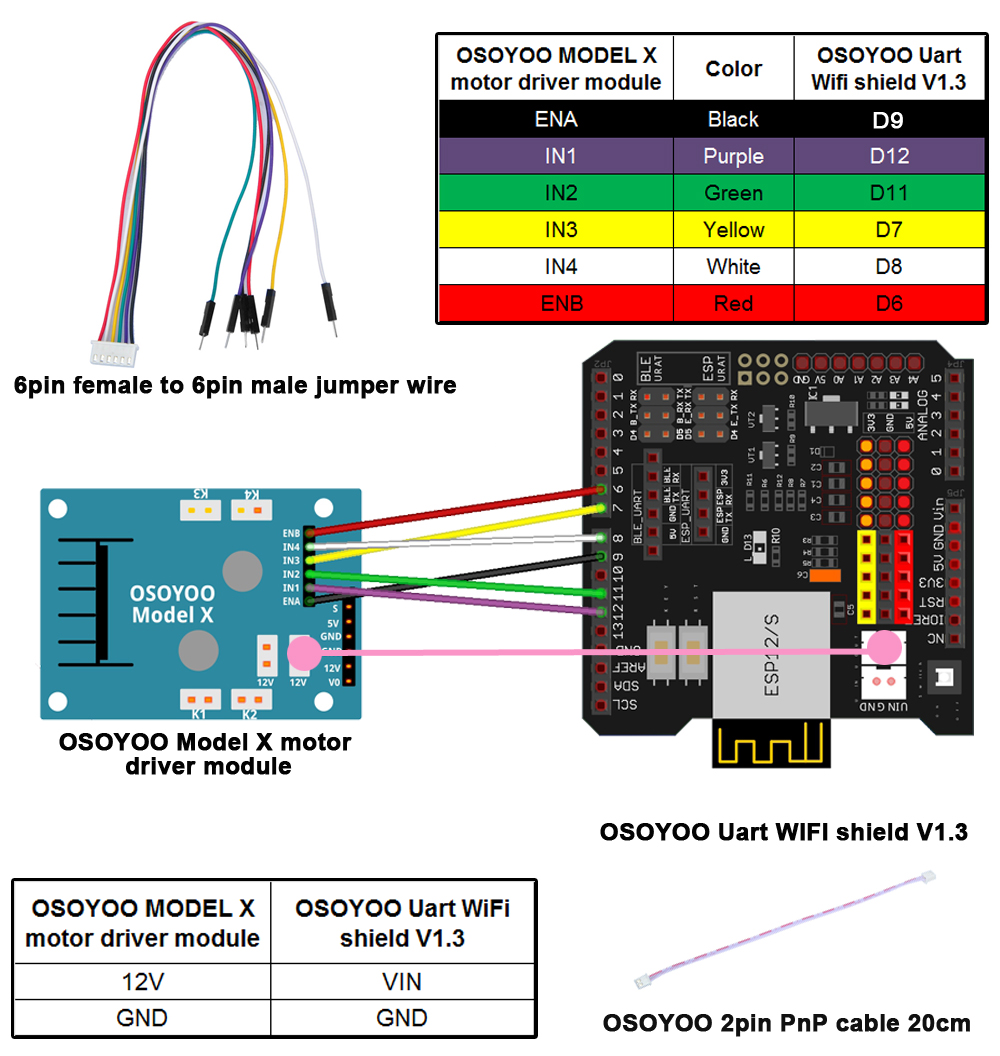
Use Jumper cap to Connect D4 to ATTX and D5 to ATRX pin in ESP32 Shield
Download The Arduino Code from following link:
https://osoyoo.com/download/e32_mockdrive.zip
Unzip the e32_mockdrive.zip file, double click e32_mockdrive.ino file and open it in Arduino IDE.
Step 1) Found the the BLE device address
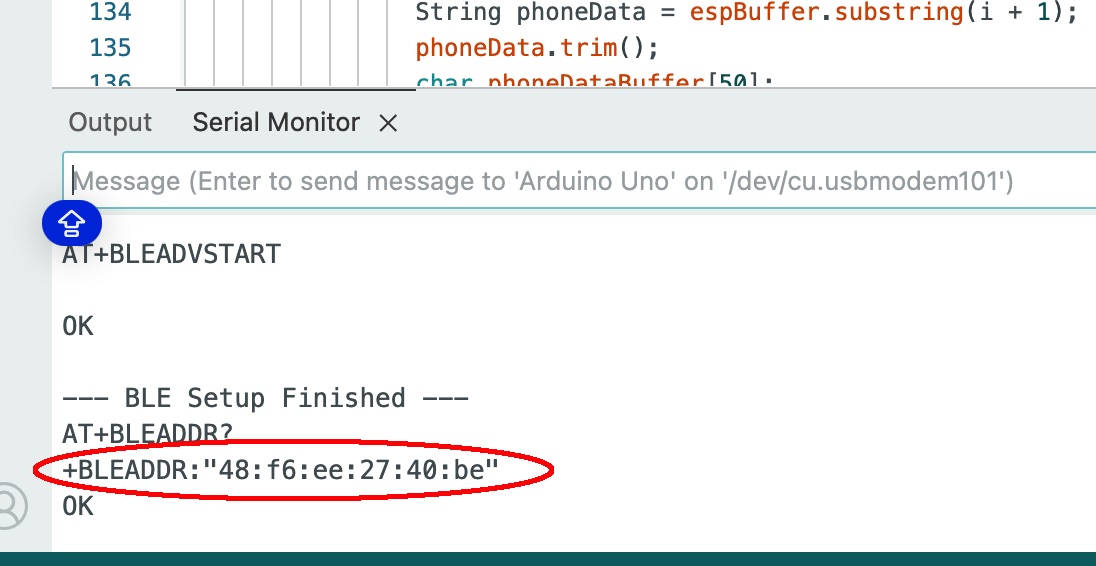
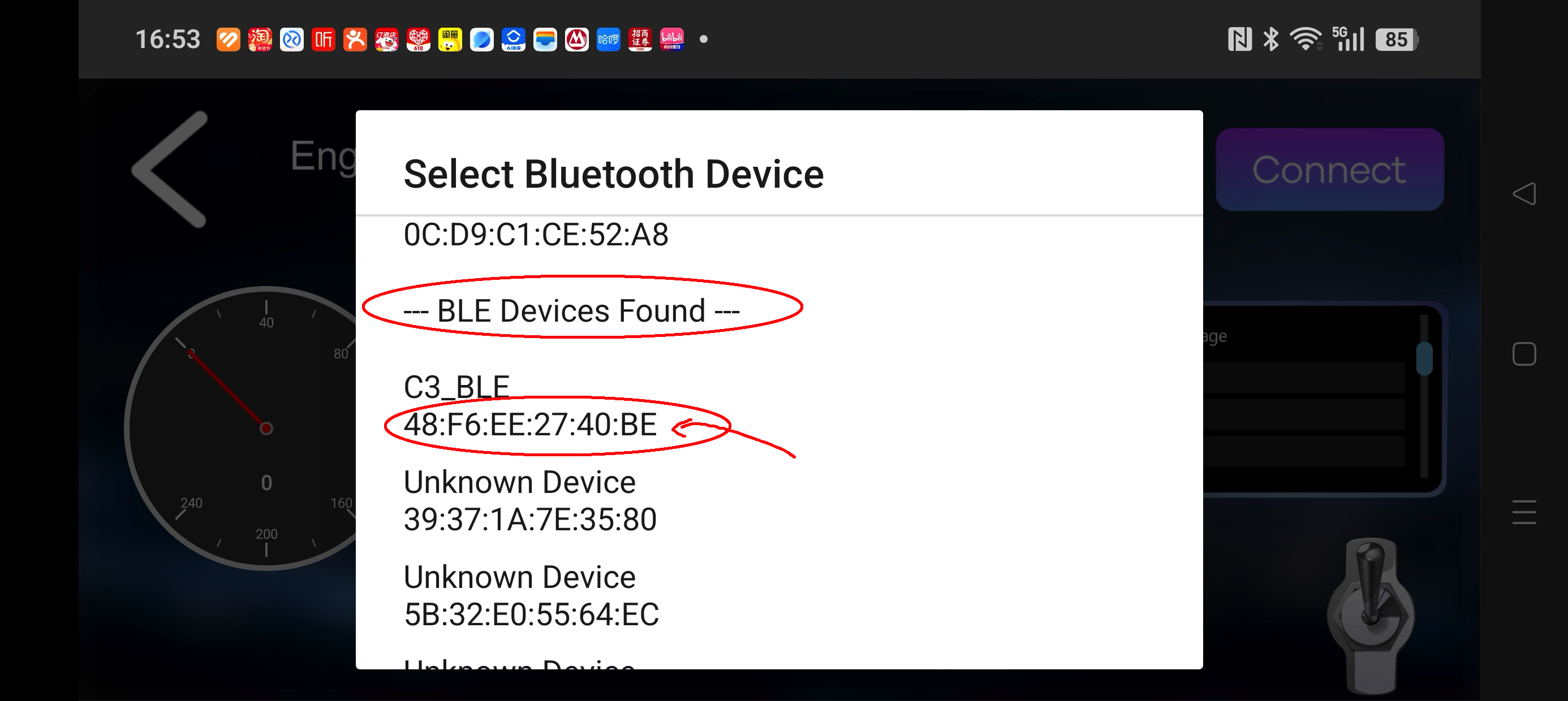
Write down the BLE Address shown in above red circle. You need to connect this BLE device in the Imitation Driving APP.
Finally, please put the robot car on the ground and turn on the battery.
Step 2) Download and Install OSOYOO Imitation Driving APP
| OSOYOO imitation driving Robot APP |
 |
search “OSOYOO imitation driving” in
Google Play Google Play or Apple APP store
(Note: If you can not find this APP in Google Play,
you can directly download the APP from following link: https://osoyoo.com/test/mockdrive.apk ) |
After Install Above APP in your cell phone. Please put your robot Car on the ground, turn on the battery power. Wait until the D13 LED (in the central of the ESP32 Wifi board) Blink 3 times which means E32 BLE signal is ready for connection.
Step 3) Connect Robot Car BLE device to mobile Phone
Open the APP and Click Connect Button as following:
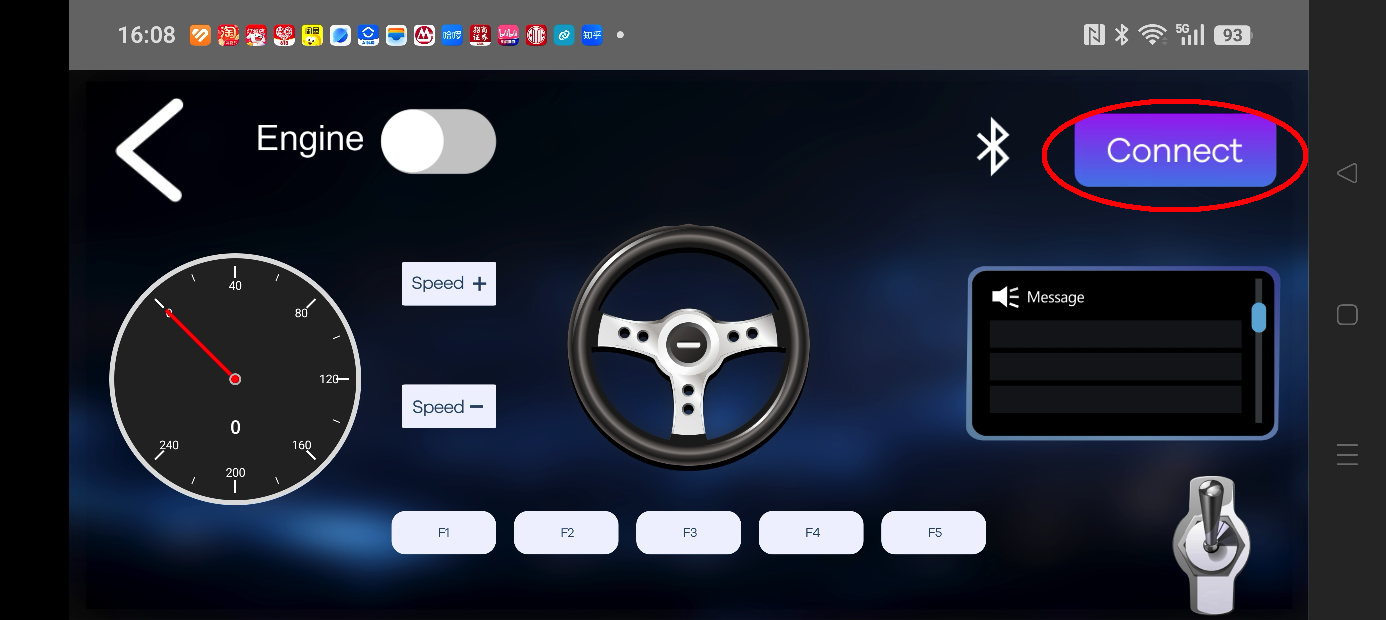
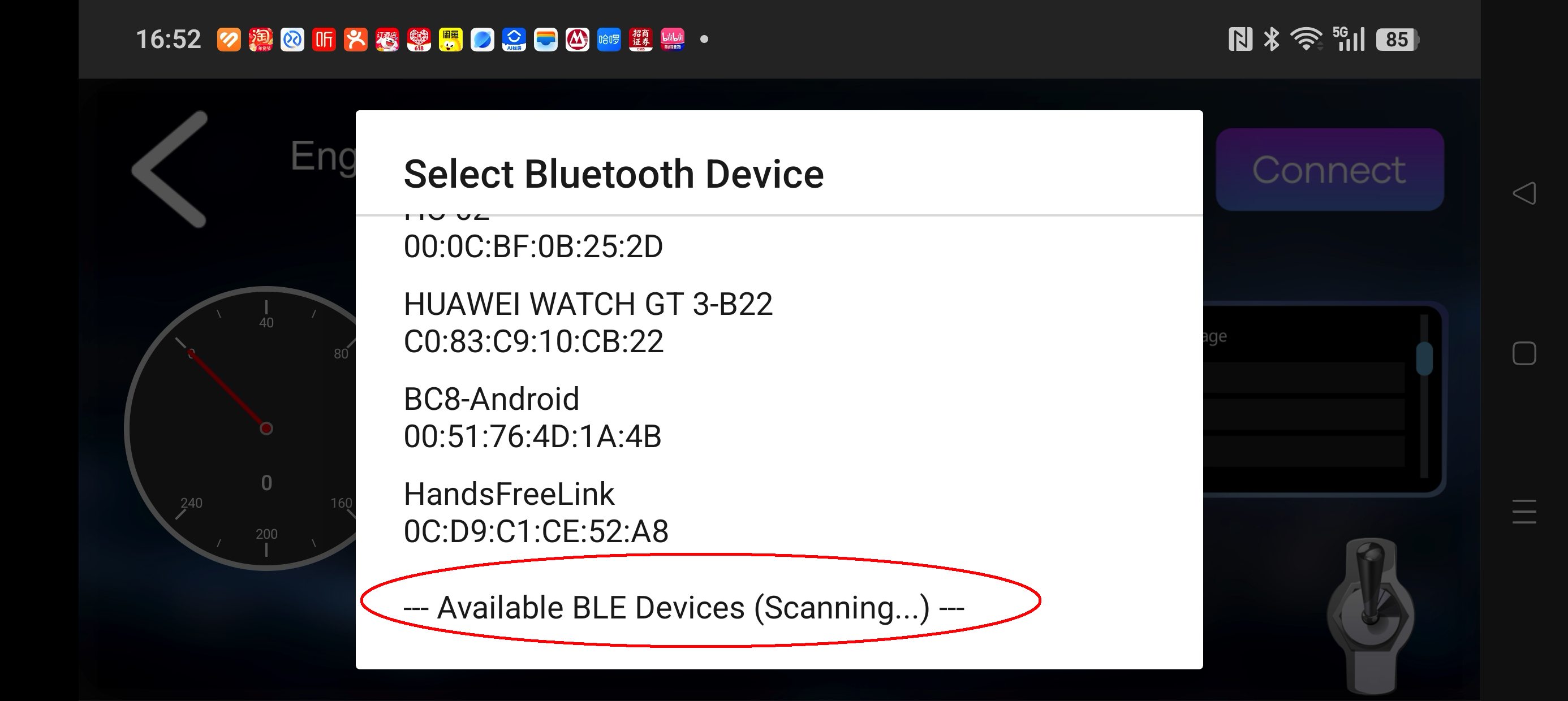
After Clicking Connect, a Bluetooth device list manual will pop up. As ESP32 is a BLE device, the list will show BLE device Scanning as following picture:
After about one minute, BLE device scanning will change to BLE Device Found, please select the BLE device whose address matches the address shown in Step 1). If you are using iPhone, select the Device name “C3_BLE” or “OSOYOO_BLE” or the name you set in the Arduino Code.
Once the BLE is connected, you can DRIVE the car with APP.
Control Button in the APP
- Engine toggle : When Engine toggle is set to OFF(white), car will stop and all buttons in the APP will be disabled. When Engine toggle is set to ON(red), car will start to move. All other movement control buttons will active.
- Forward/Backward gear switch: This gear switch can control the car is moving ahead or reverse like real car gear.
- F1,F2,F3,F4,F5 customized button. In this lesson, we only use F5 which pause the the car movement. The difference between F5 and Engine OFF button is that Engine OFF button when touched, all other buttons will be disabled. You should toggle Engine button again to enable other button. On the other hand, when F5 is clicked, the car will stop but all other buttons is still active. Even you do not touch any button just change your cell phone angle position(like you move the steering wheel), the car will move again.
- Direction Steering Wheel : When you rotate your mobile phone angle, the steering wheel will change angle as per your mobile phone rotation angle. This will make your car change direction. For example, when steering wheel make clockwise rotation, car will move to left. Remember, the steering and Forward/Backward gear should work together same as you are driving a real car. For example, when you want back your car to a right side packing lot, you need set Gear to R position and rotate your steer to count-clockwise direction.
- Speed+: Make the robot car speed up
- Speed-: Make the robot car slow down
Trouble Shooting
Question:
My Robot Car power is ON, but the D13 LED does not blink and my iPhone APP can not find C3_BLE device name and my Android Phone does not find the BLE address in Arduino IDE?
Answer:
This problem happens when initializing of ESP32 does not complete properly. You need press the EN button in the ESP32 for 10 seconds, turn off power for 5 seconds and turn on battery again. Then Robot Car will try to initialize ESP32 BLE again. Once you see the D13 LED blink 3 times, you can use APP to connect it.



