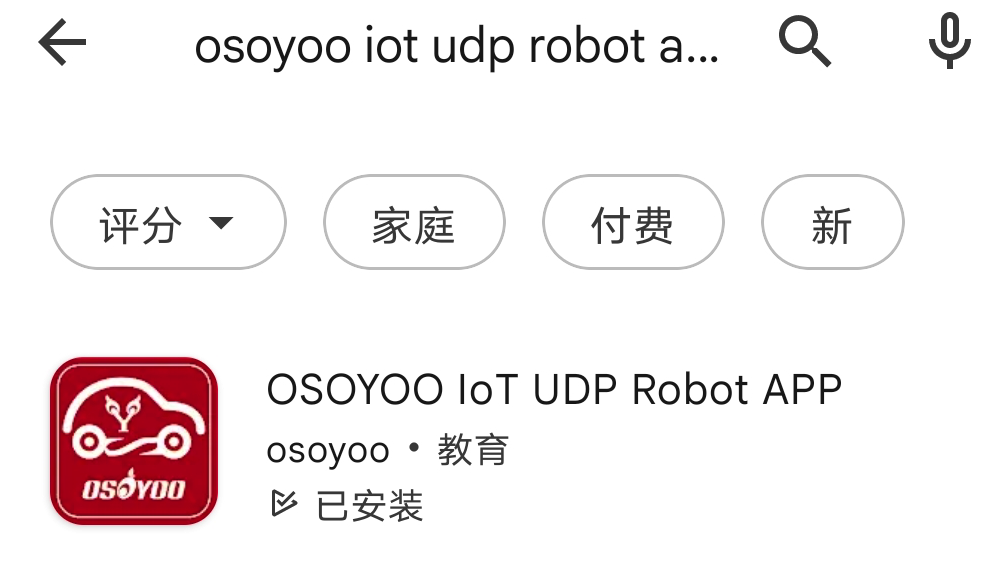
search “Osoyoo IoT UDP Robot APP” in
Google Play or Apple Store(If you can not find this APP in Google Play,
you can directly download the APP from following link: https://osoyoo.com/driver/udp-app.apk)
1) Download OSOYOO Wi-Fi UDP Robot Car control APP
In Google Play or Apple APP Store, please search keywords “OSOYOO IoT UDP Robot APP”, you will find a red icon APP as following (Note: If you can not find this APP in Google Play, you can directly download the APP from following link: https://osoyoo.com/driver/udp-app.apk ):
2) Here we instroduce a way to control 2 robot cars at the same time: to control 2 cars in STA mode
3Control 2 cars in STA mode
1. Install Hardware
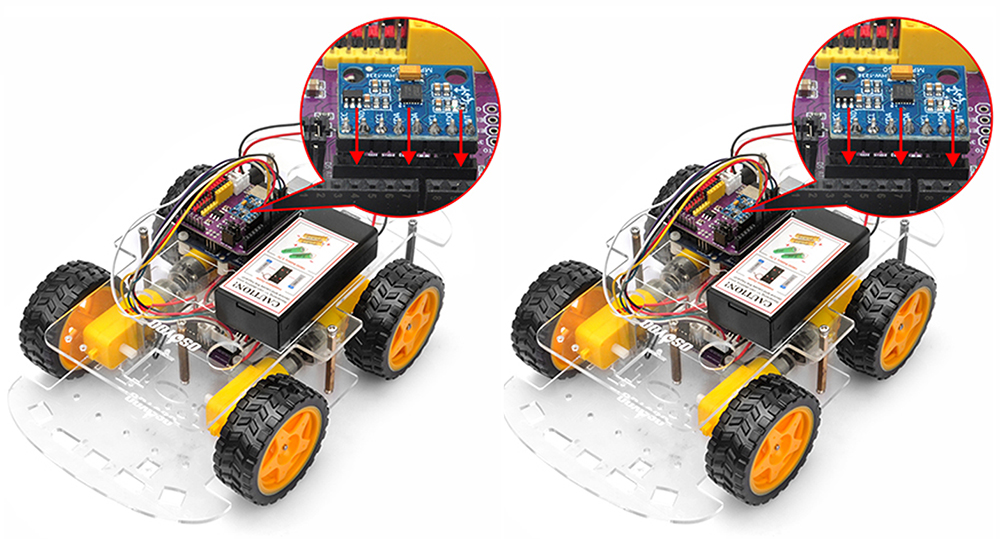
At least prepare two robot car, and install these robots basic framework as robot car Lesson 2 . If you have already completed hardware installation of other lessons , just keep it as is.
2. Upload code
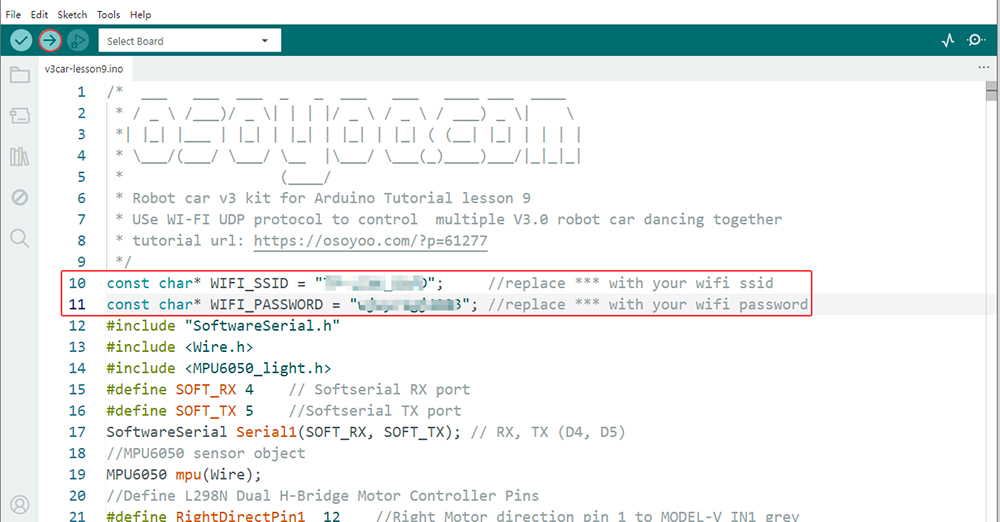
Step 1. Please download sample code for Lesson 9 from here, extract the contents and you will get a v3car-lesson9.ino in the folder v3car-lesson9. Open the v3car-lesson9.ino sketch in the Arduino IDE.
Step 2. You need change the code Line 10 and Line 11 : const char* WIFI_SSID = “***”; //replace *** with your wifi ssid const char* WIFI_PASSWORD = “***”; //replace *** with your wifi password
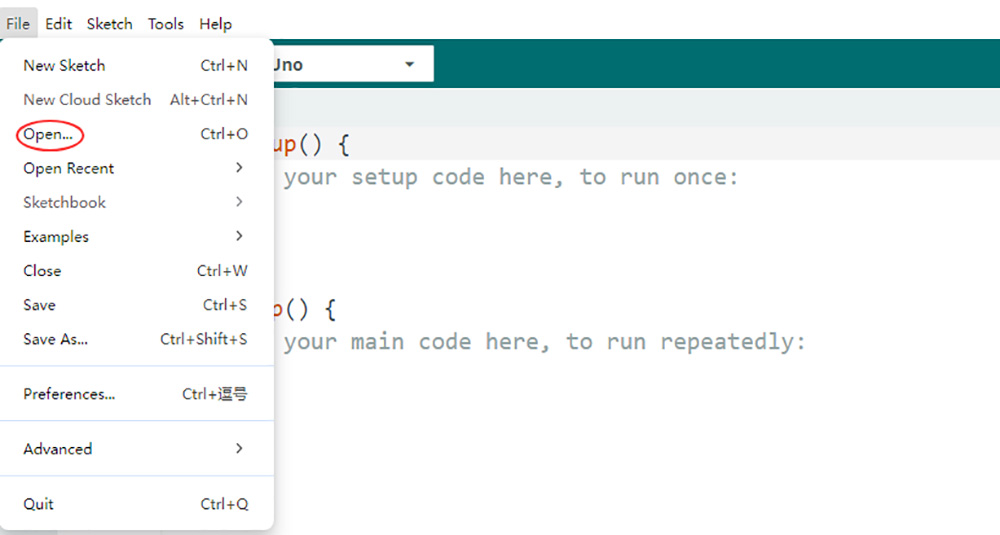
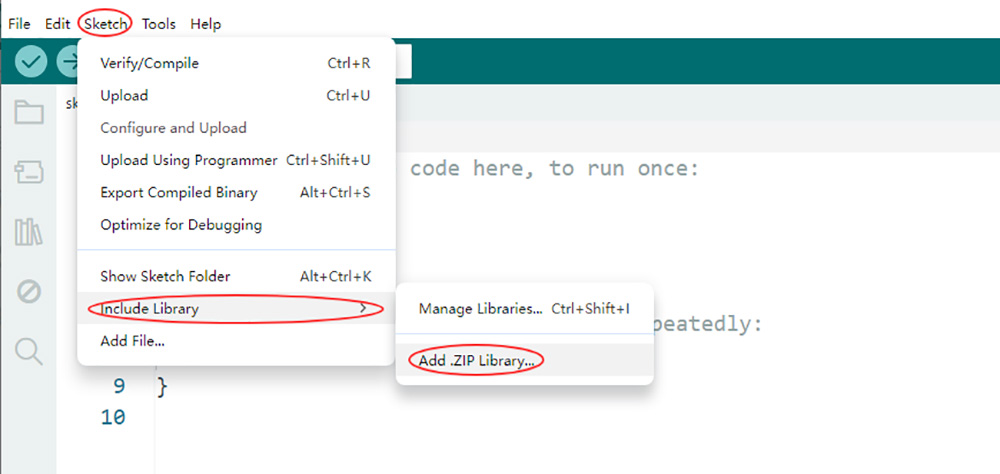
Second, do NOT unzip them, open Arduino IDE ->Sketch ->Include Library ->Add Zip Library. Then upload above zip files to Arduino.
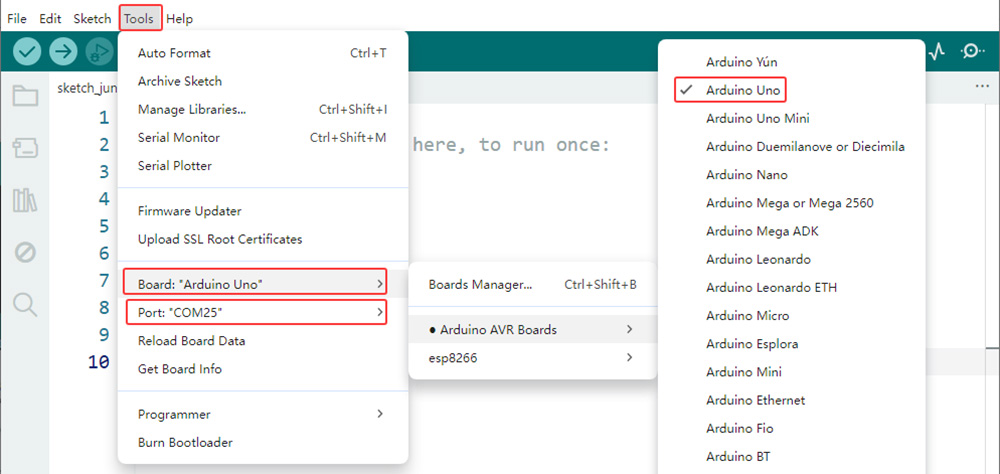
Step 4. Navigate to Tools > Board and select Arduino Uno. Then, go to Tools > Port and select the appropriate serial port for two robot car.
Step 4. Upload the sketch to two robot cars.
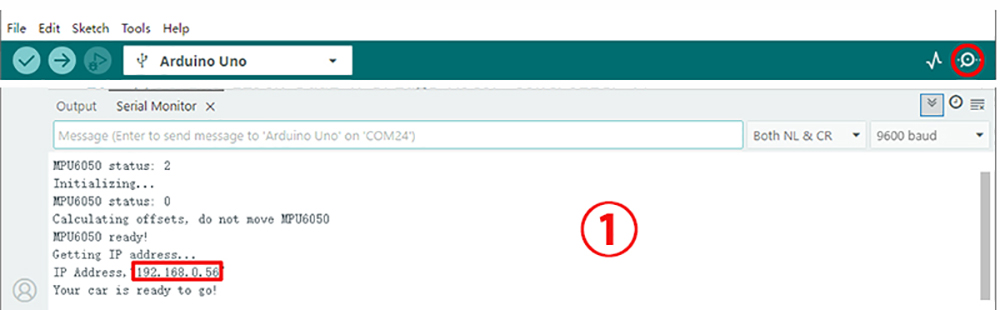
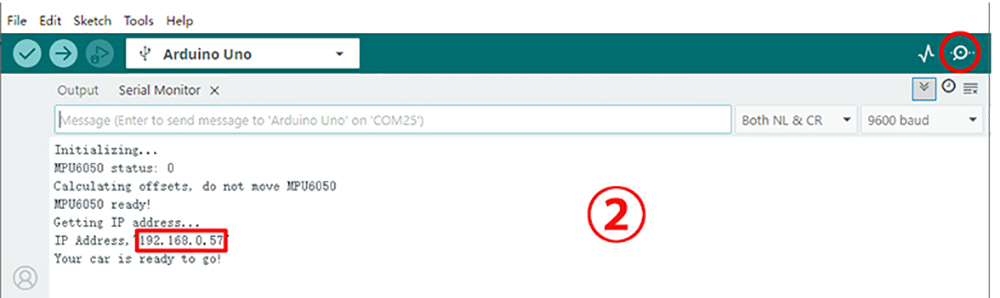
Step 6. click the Serial monitor in upper right corner of IDE, you will see following result:
3. Osoyoo IoT UDP Robot APP setting
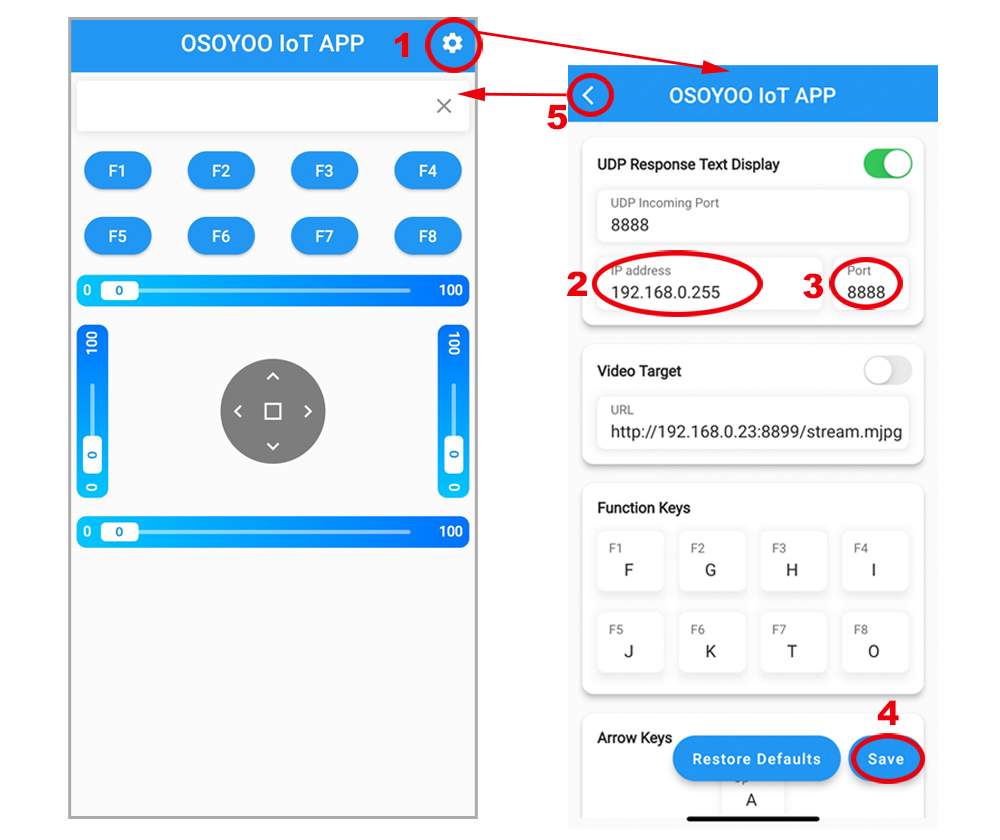
Turn on the power of all robot cars, you need connect cell phone to the same LAN ssid of your robot car and set IP address same as the Robot IP showed in Serial Monitor.
Based on the IP address from robot car, you can set a broadcasting IP address in OSOYOO Wifi UDP APP.
For example, My robot cars IP addresses are 192.168.0.56 and 192.168.0.57 (as the upper serial monitors shown), normally the broadcasting IP is 192.168.0.255. Once press ◄ ► ▲ ▼ keys in the APP, all the robot cars will get the same control signal.
4. Test the cars:
1)Turn on the power of all robot cars
2)Set APP ip address to the broadcast IP address
3)Click the ◄ ► ▲ ▼ direction keys to control all the cars like them dancing.