In this lesson, we will use a mobile APP to control our robot car and make an imitation driving. Since it is a mock driving, we will use a virtual steering wheel and gear in our APP to imitate their counterparts in the real car.
You must complete lesson 1 before you continue on with this lesson.
OSOYOO ESPro Robot car chassis x1
OSOYOO Wheels x2
OSOYOO DC motors x2
OSOYOO ESPro motor driver board x1
OSOYOO Voltage meter x1
OSOYOO MG90 servo motor x 1
OSOYOO Mount holder x1
OSOYOO Ultrasonic module x1
OSOYOO Battery box x1
OSOYOO 3pin female to female jumper wire x1
OSOYOO 4pin female to female jumper wire x1
18650 Batteries (3.7 V) x2
Battery charger x1
You must complete lesson 1 (assembling the car) before you continue on with this lesson.
search “OSOYOO imitation driving” in
Google Play Google Play or Apple APP store(or Directly download the APP from the link: https://osoyoo.com/test/mockdrive.apk)
Connect ESPro motor driver board to PC with USB cable, Open Arduino IDE -> click file -> click Open -> choose code “espro-lesson6.ino” in lesson folder.
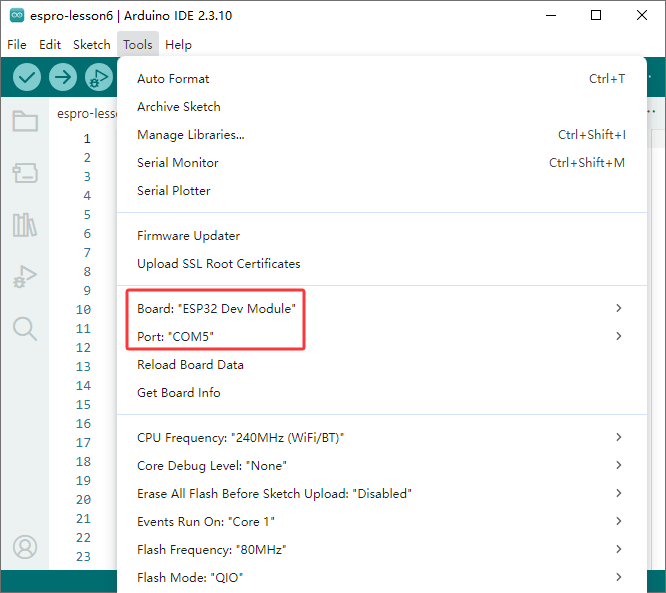
Board and Port Selection: Select Tool->Board, select esp32 ->ESP32 Dev Module,
Last select correct port which matches ESP32 board,upload the sketch to the board.
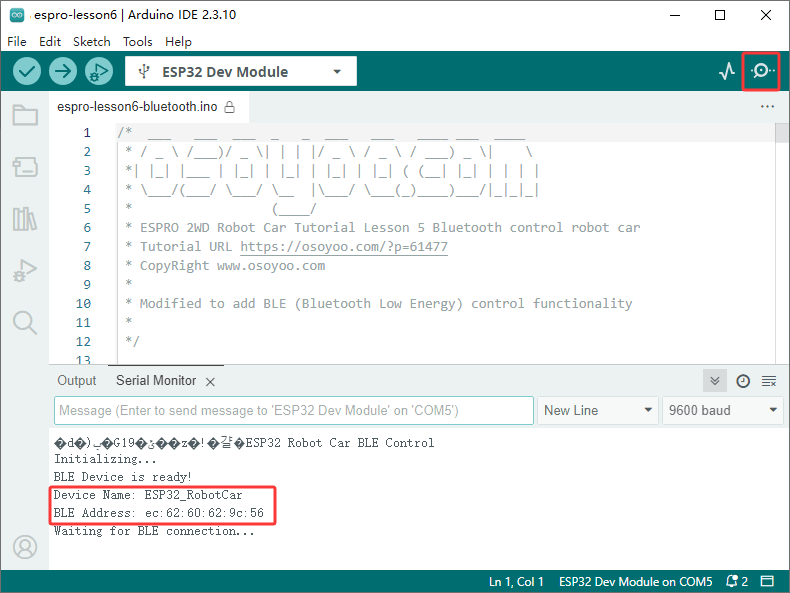
In Serial monitor, you will see the Espro Device name and BLE address(see above picture). Please write down these information. You will use the name/address to connect Espro board in OSOYOO Imitation APP.
If the Name and Bluetooth address don’t show up in the Arduino IDE serial monitor, press and hold the Espro motor driver board reset button on the main board for 3–5 seconds and release it to unlock the serial port.
Step 5: Mobile APP:
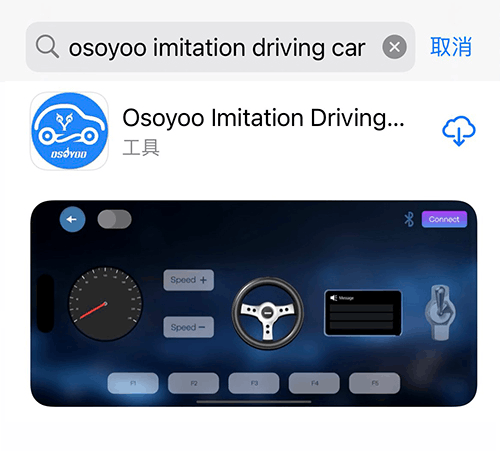
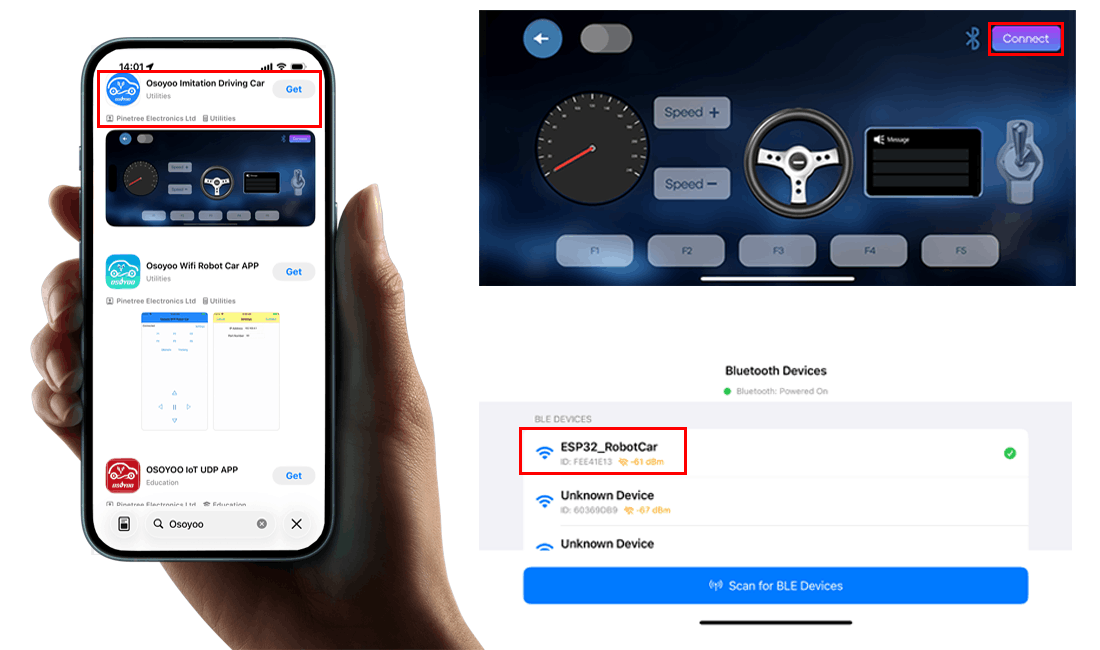
Go to your Google Play or Apple APP store and search APP name “OSOYOO imitation driving car”, Download the APP as following and install it in your smartphone.
Step 6: Connect Esp32_RobotCar in your mobile APP.
Simply click Connect button, If it does not appear ESP32_RobotCar, please click ‘Scan for BLE device. a Esp32_RobotCar device will show up in a pop-up list. Click that Esp32_RobotCar device to connect Bluetooth module to your Phone. Then the Connect button will change name to Disconnect.
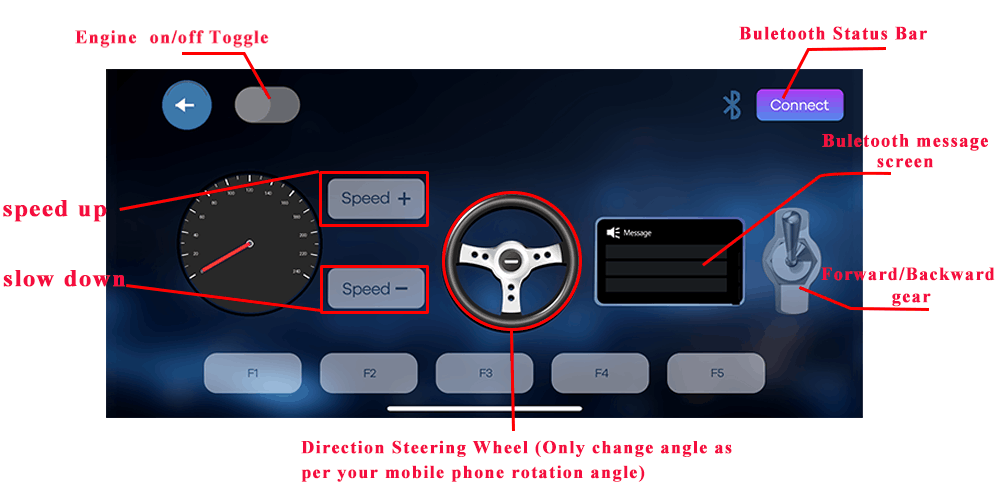
Engine toggle : When Engine toggle is set to OFF (white), the car will stop and all buttons in the APP will be disabled. When Engine toggle is set to ON (red), the car will start to move. All other movement control buttons will activate.
Forward/Backward gear switch: This gear switch can control the car is moving ahead or reverse like real car gear.
F1,F2,F3,F4,F5 customized button.In this lesson, we do not use this custom button.
Direction Steering Wheel : When you rotate your mobile phone angle, the steering wheel will change angle as per your mobile phone rotation angle. This will make your car change direction. For example, when the steering wheel makes clockwise rotation, the car will move to the left. Remember, the steering and Forward/Backward gear should work together same as you are driving a real car. For example, when you want to back your car to a right side parking lot, you need to set Gear to R position and rotate your steer to count-clockwise direction.
Speed+: Make the robot car speed up
Speed-: Make the robot car slow down
If the Name and Bluetooth address don’t show up in the Arduino IDE serial monitor, press and hold the ESPro motor driver board reset button on the main board for 3–5 seconds and release it to unlock the serial port.