Buy 3.5 Inch HDMI Screen from following link:
| Buy from OSOYOO |
Buy from US |
Buy from UK |
Buy from DE |
Buy from IT |
Buy from FR |
Buy from ES |
Buy from JP |
 |
 |
 |
 |
 |
 |
 |
 |
Buy 3.5 Inch HDMI Screen with case:
| Buy from US |
Buy from UK |
Buy from DE |
Buy from IT |
Buy from FR |
Buy from ES |
Buy from JP |
|
|
|
|
|
|
|
This OSOYOO 3.5 inch HDMI LCD is a touch screen which supports touch input and display. However, touch input function just works with Raspberry Pi OS for Raspberry Pi board.
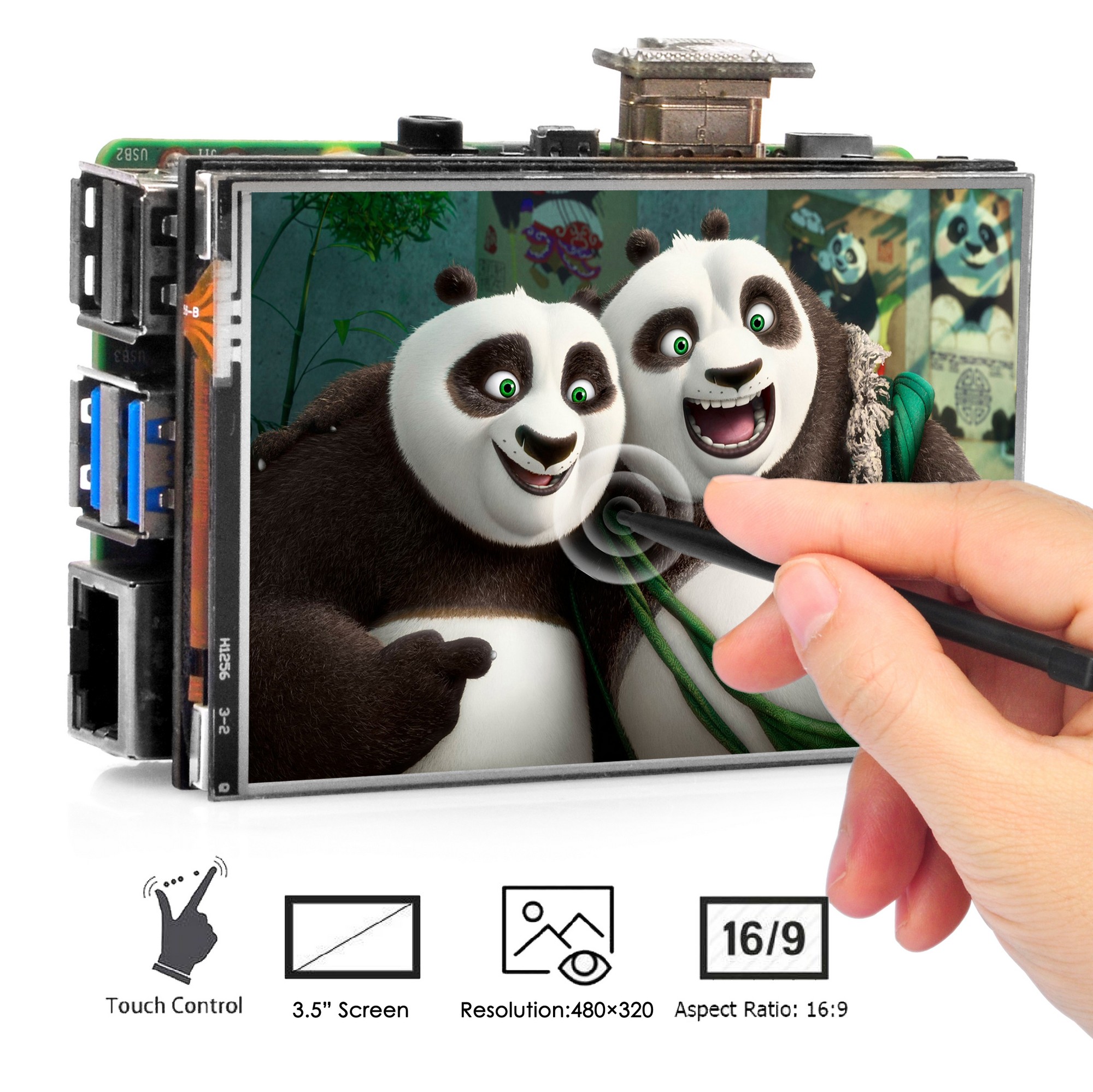
1. Features
OSOYOO 3.5 inch HDMI screen is designed for Raspberry Pi 3/4 display, and can be used as a general purpose HDMI display. When using with pc/laptop through HDMI cable, display function works, but touch function is unavailable.
– Power supply
The display can be powered from Raspberry Pi GPIO +5V pin, or from external power adapter. 5V/1A external power adapter is enough for power supplying to the display.
If the display is plugged to the Raspberry Pi GPIO connector, and powered from external power adapter through USB type-C cable, the Raspberry Pi also can be powered from the GPIO +5V pin, and don’t need extra power supply.
In this case, the external power adapter should be at least 5V/3A capable.
The Raspberry Pi and HDMI35 display do not support USB PD, and the input voltage is always 5V.
Power consumption:
- Normal mode: 5V, 200~230mA (max brightness)
- Standby mode: 5V, 70~90mA (no signal, standby)
- Suspend mode: 5V, 20mA (power switch off)
– Button
The power switch is a toggle push button, toggles power on (normal mode) and power off (suspend mode) status. The power indicator led lights on when the display is suspended. DDC/CI function is always ready even it is in suspend mode, and the display can wakeup programmatically by DDC/CI commands.
The brightness button adjusts the LCD brightness by 10% step in 10~100% range.
The brightness value is stored to the non-volatile memory, and updated in every button click or DDC/CI brightness command.
The display supports 0, 180º rotation of the LCD view area, without changing settings at the Raspberry Pi or PC. It’s useful for simple customization of the display usage, but after rotation the touch needs to be re-calibrated.
Press brightness button, holding, then press power button, rotates the display 180º, the rotation status is also saved to non-volatile memory
– DDC/CI
The display’s brightness, contrast, colors can be updated by DDC/CI commands from HDMI port DDC channel (I2C port).
It also can enable or disable splash logo, HDMI symbol on the screen, standby feature. If the standby feature is disabled (disabled by default), the display always shows a message if there is no input signal.
– Filling screen area
The display supports automatic video scaling (RTD2660), and can show any kind of resolution (up to 1920×1080) video to the physical 480×320 view area.
When using on Win10/11 PC, the display sometimes does not fill the entire view area of the LCD, and could be shrinked due ratio mismatching.
In this case, It can be fixed by adjusting [Settings]-[Display]-[Advanced Display Settings]-[Refresh Rate] value.
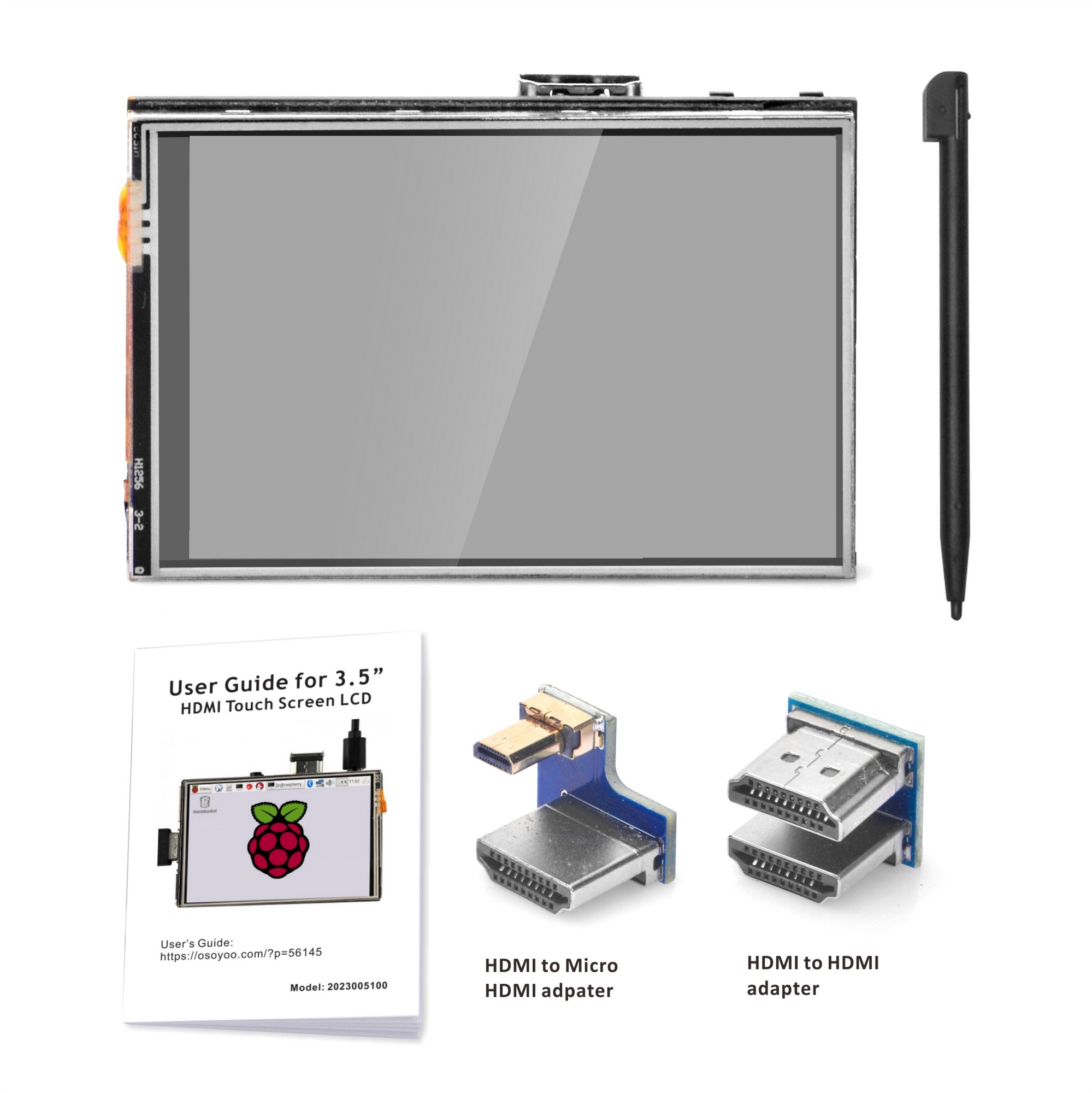

2. Specification
- Physical LCD resolution 3.5 inch 480×320 (ILI9488)
- Configurable software resolution max 1920×1080, above 60~75fps
- Default video resolution 720×480 (3:2 ratio)
- Auto fill screen area
- TN LCD, View angle 12 O’Clock
- XPT2046 Resistive touch with pen
- LED for power status indication: Off: Display is in active status, On: Display is in suspend mode
- USB Type-C port for only power supply
- Mechanical size: Board 85mm x 56mm, LCD view area 73.4mm x 49mm
- Full Compatible with Raspberry Pi 3b, 3B+, 4
- Touch driver Compatible with OS: Raspberry Pi OS
- Display function works when connecting with All HDMI Devices.
- Only the touch function requires GPIO, display don’t use the GPIO.
3. Interface
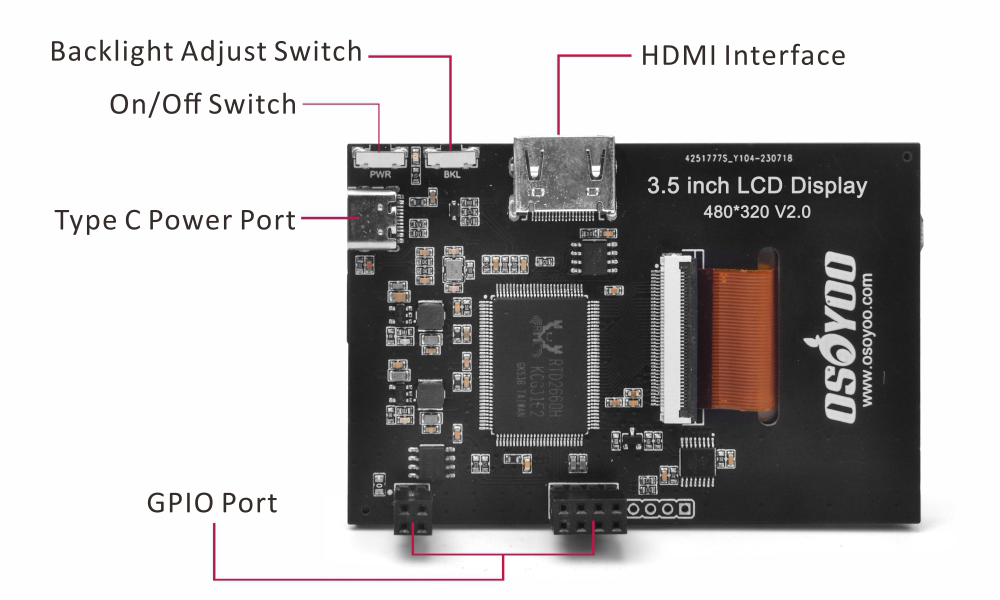 HDMI interface: HDMI signal input interface
- Backlight adjust switch: backlight brightness adjustment button, short press backlight changes by 10%, long press 3 seconds to close backlight
- On/Off switch: Turn on/off the backlight of the screen
- Type C power port: provide power for ordinary display (5V 1A)
- GPIO Port: gets power and return touch from this area when used as a raspberry pi monitor. The pin marked as “NC” below indicates that the LCD is not occupied by the pin, and the user can use it for other applications.
| Pin Number |
Identification |
Description |
| 1 |
NC |
Not Connected |
| 2 |
5V |
Power (5V input) |
| 3 |
NC |
Not Connected |
| 4 |
5V |
Power (5V input) |
| 19 |
TP_SI |
SPI data input of touch panel |
| 20 |
GND |
Ground |
| 21 |
TP_SO |
SPI data output of touch panel |
| 22 |
TP_IRQ |
Touch panel interrupt (Low level when pressed) |
| 23 |
TP_SCK |
SPI clock signal of touch panel |
| 24 |
NC |
Not Connected |
| 25 |
GND |
Ground |
| 26 |
TP_CS |
Touch panel chip select (Active Low) |
4. Getting Started
4.1 Hardware Connection
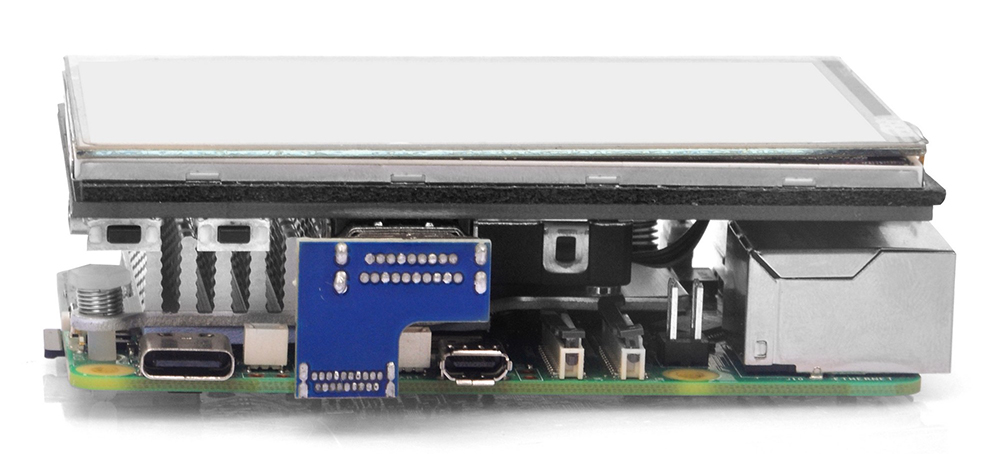
1. Connect the GPIO interface
Raspberry Pi leads out 40 GPIO pins, while the screen leads out 12 pins. When connecting, pay attention to the corresponding pins and Raspberry Pi pins.
2. Connect the HDMI connector to the HDMI port of the screen and the Pi.
Note: Raspberry Pi Zero / Zero 2 W needs an additional HDMI cable for connection.
The hardware connection is as shown below (Pi3B+/Pi4 /Pi5):
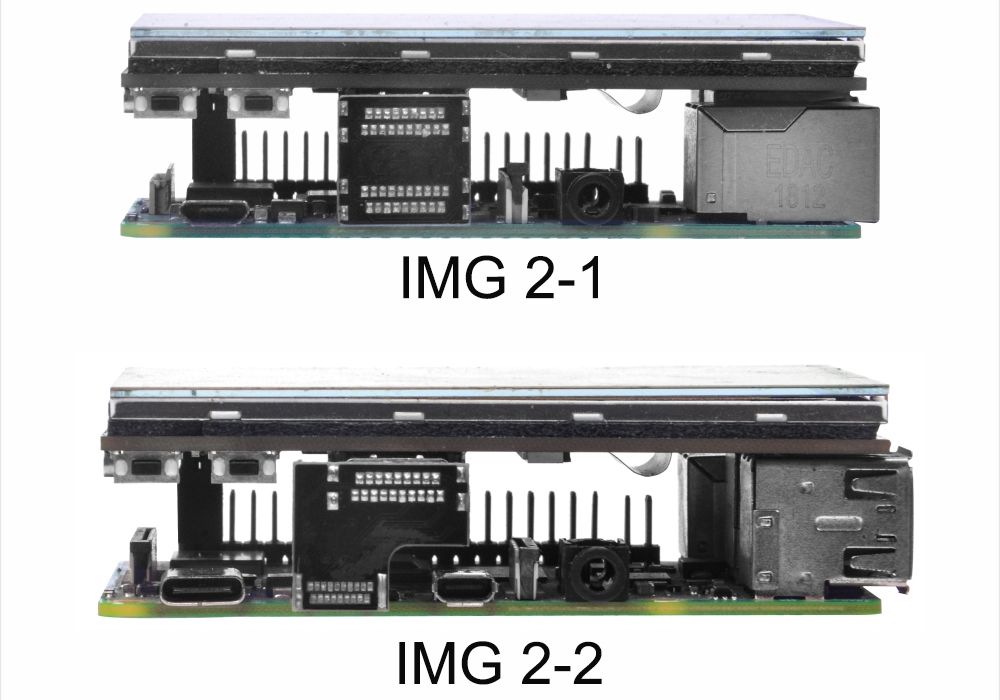
4.2 Installation for configured image
If you have difficulty installing the driver, or if you still can’t use the display properly after installing the driver, please try our configured images for tested. DO NOT need any driver installation steps. Just need download and write the image into the TF card:
Step 1: Connect touch screen LCD display to your Raspberry Pi
Step 2: Download LCD screen driver RAR file from Download Link in the following table.
Step 3: Unzip the driver image file downloaded from step 2).
Step 4: Prepare a newly formatted Micro SD memory card(TF card) with USB Micro SD card reader, recommend sizes are 8G, 16G, 32G. If you don’t know how to format Micro SD card, please download SDFormatter from https://www.sdcard.org/downloads/formatter_4/.
Step 5: Download the Raspberry Pi imager tool from https://www.raspberrypi.com/software/, and use it to write image file (from Step 3) into TF card.
| Image Name |
Version |
Support |
Password |
Download Link |
| Raspios-Bullseye-arm64bit |
2024-3-12 |
Pi5/Pi4/Pi3B+/Pi2/Pi3 |
pi / raspberry |
Google Drive |
| Raspios-bookworm-arm64bit |
2023-12-05 |
Pi5/Pi4/Pi3B+/Pi2/Pi3 |
pi / raspberry |
Google Drive |
| Raspios-bookworm-arm64 |
2024-03-15 |
Pi5/Pi4/Pi3B+/Pi2/Pi3 |
pi / raspberry |
Google Drive |
Step 6: Expand filesystem
sudo raspi-config
Choose 6 Advanced Options – A1 Expand filesystem
4.3 Manual Installation of Touch Driver
4.4 Advanced Settings: Brightness & Color Adjustment
The display’s brightness, contrast, and colors can be updated by DDC/CI commands from the HDMI port DDC channel (I2C port).
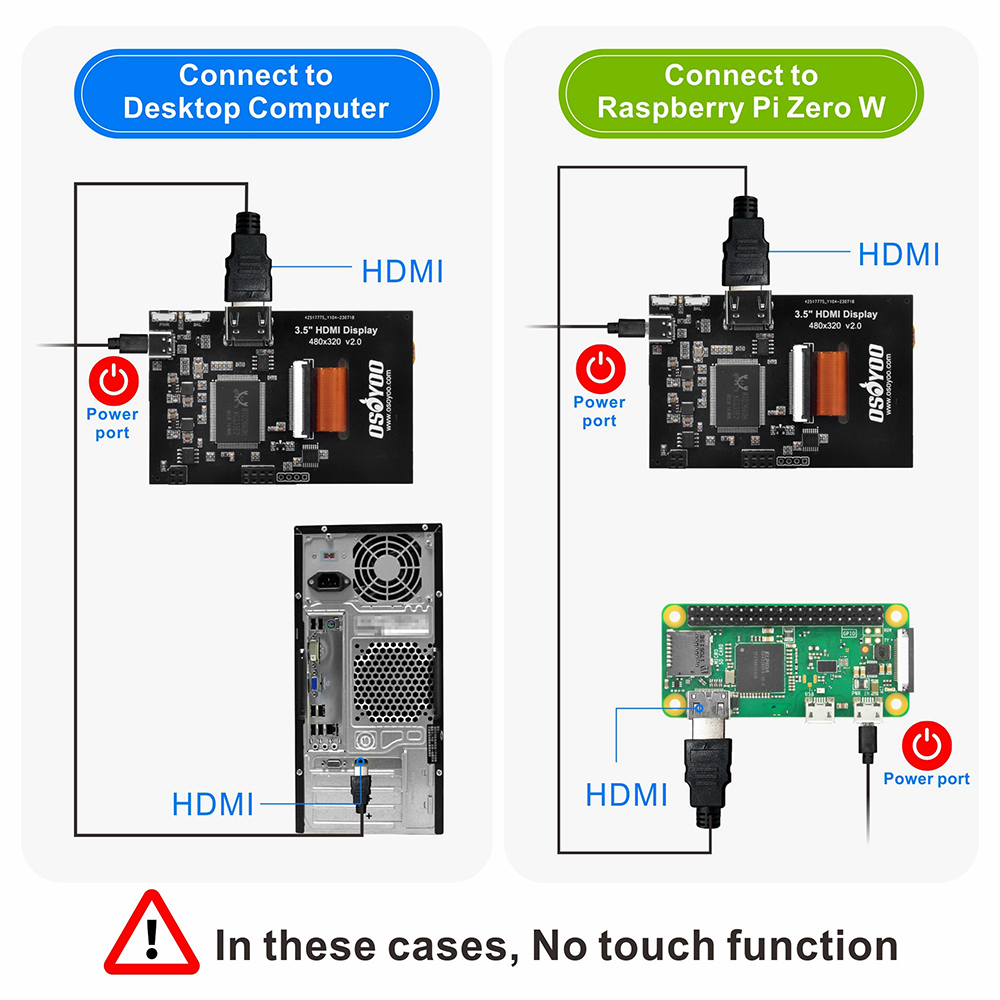
5. How to use as PC monitor and Pi zero
- Connect the computer HDMI output signal to the LCD HDMI interface by using the HDMI cable
- Connect the LCD’s USB Power interface to the USB port of the device
- If there are several monitors, please unplug other monitor connectors first, and use LCD as the only monitor for testing.
(Note: touch function can only be used for Raspberry Pi 2/3/4.)
6. Related Docs
7. Tech support
Need help or have feedback? Submit a ticket and our team will get back to you within 1-2 working days. We appreciate your patience!
Working Time: 9 AM – 6 PM GMT+8 (Monday – Friday)



