| Buy from OSOYOO |
Buy from US |
 |
 |
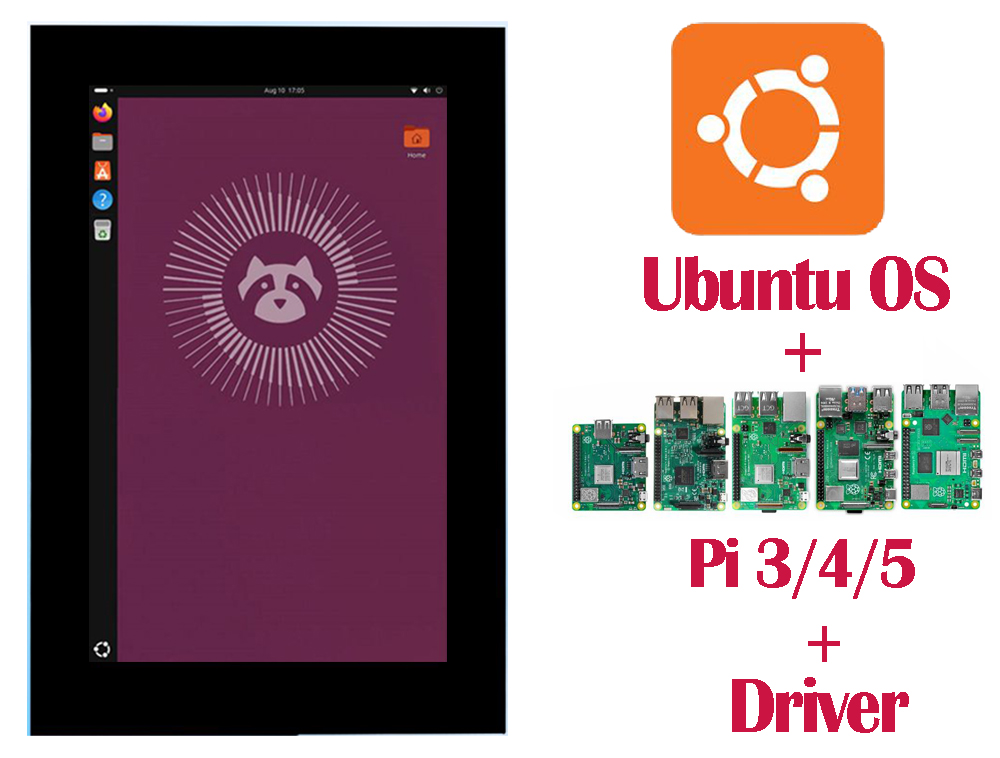 Table of Contents
-
- Hardware Connection
- Install the Driver
1. Hardware Connection
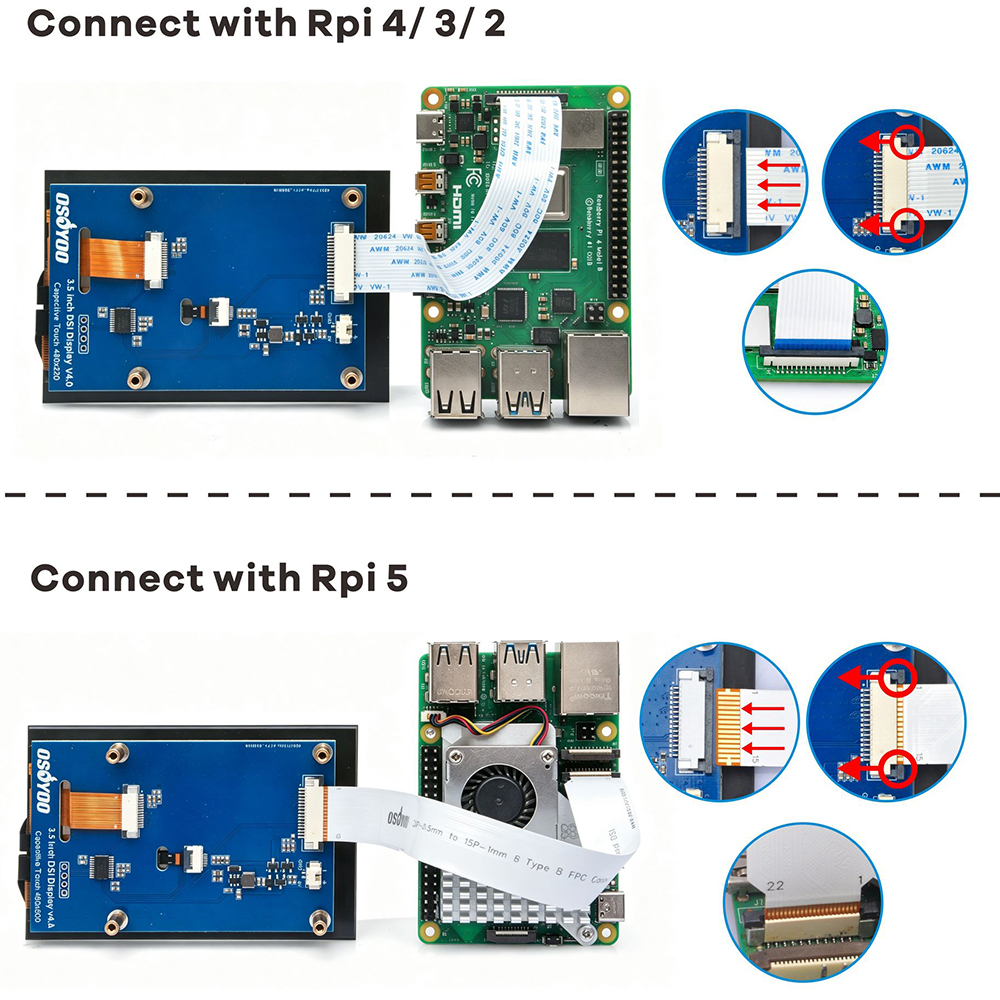
Board and cable selection: Raspberry Pi 4B / 3B+ / 3B / 2B have a single 15-pin DISPLAY connector and use a 15-pin to 15-pin cable; Raspberry Pi 5 has two 22-pin DISP0 / DISP1 connectors and needs a 22-pin to 15-pin cable. Compute Module (CM4 / CM5) depends on the carrier board’s connector. Raspberry Pi Zero / Zero 2 W have no DSI connector and are not compatible.
- Power off the Raspberry Pi and unplug the power cable.
- Gently flip up the black latch on the Pi’s DSI / DISPLAY connector, insert the FPC ribbon with the metal contacts facing the PCB, then press the latch back to lock it.
- Insert the other end of the ribbon into the DSI connector on the back of the display the same way.
- Secure the display to the Pi with standoffs, confirm both ends of the ribbon are fully seated, then power on.
Note: always connect / disconnect the ribbon with the power off. If power over the ribbon is insufficient (flicker / unresponsive touch / blank screen), use the included cable to connect the display’s 5V to the Raspberry Pi 5V pin and GND to the Raspberry Pi GND pin (see the Product Manual, Power Supply).
2. Install the Driver
Note: This product requires driver installation before use. The driver is open-source and one script does everything (auto-detects the Pi model, installs dependencies, builds, and updates /boot/firmware/config.txt).
Step 1: Preparation
Before installing the display driver, make sure your Raspberry Pi is properly configured and can be accessed remotely.
-
- Install Raspberry Pi OS
Use Raspberry Pi Imager to flash Ubuntu OS (Download the Ubuntu image from: https://cdimage.ubuntu.com/releases/26.04/release/ubuntu-26.04-preinstalled-desktop-arm64+raspi.img.xz) to a microSD card. For detailed instructions, please refer to:
https://osoyoo.com/2025/09/09/installation-os-with-raspberry-pi-imager/#9
- Connect the Raspberry Pi to a Wi-Fi Hotspot
Insert the microSD card into your Raspberry Pi and power it on. Make sure the Raspberry Pi is connected to the same Wi-Fi hotspot/network as your PC, and identify the Raspberry Pi’s IP address.
- Verify Remote Access
Make sure remote control is enabled on your Raspberry Pi so that you can access it remotely from your PC. Use an Remote tool on your PC to connect to the Raspberry Pi and confirm that you can access and control it remotely
- Connect the Display
Connect the display to your Raspberry Pi according to the hardware connection instructions.
Step 1: Flash a TF card with Ubuntu OS. (Download the Ubuntu image from: https://cdimage.ubuntu.com/releases/26.04/release/ubuntu-26.04-preinstalled-desktop-arm64+raspi.img.xz) Connect to Wi-Fi, insert the card into your Raspberry Pi, and then power it on. (Note: We recommend using Raspberry Pi Imager to flash the OS. Please refer to: https://osoyoo.com/?p=60151)
Step 2: Install the driver.
cd ~
sudo apt update
sudo apt install git -y
git clone https://github.com/osoyoo/osoyoo_dsi_ubuntu.git
cd osoyoo_dsi_ubuntu
bash install-direct.sh display3.5inch
note: if you are using OSOYOO 7 inch screen or 10.1″ DSI screen, you can change the last command parameter display3.5inch to display7inch or display10inch as following:
7″ screen:
bash install-direct.sh display7inch
10.1″screen:
bash install-direct.sh display10inch
The installer will automatically:
- Detect your Ubuntu version and kernel version
- Install dependencies (dkms, device-tree-compiler, kernel headers)
- Patch the driver code for your kernel’s GPIO API (supports kernel 6.8, 6.17, 7.0+)
- Build and install the driver using DKMS
- Copy overlays to the correct Ubuntu paths
- reboot after the driver is installed and you press “Y” to confirm.
After rebooting, your DSI screen should display the Ubuntu desktop.
Related pages: Product Manual | Raspberry Pi OS Driver Install Guide | Using with ESP32‑P4
Support: [email protected] | osoyoo.com
OSOYOO 3.5-inch DSI Touchscreen Document version v1.2