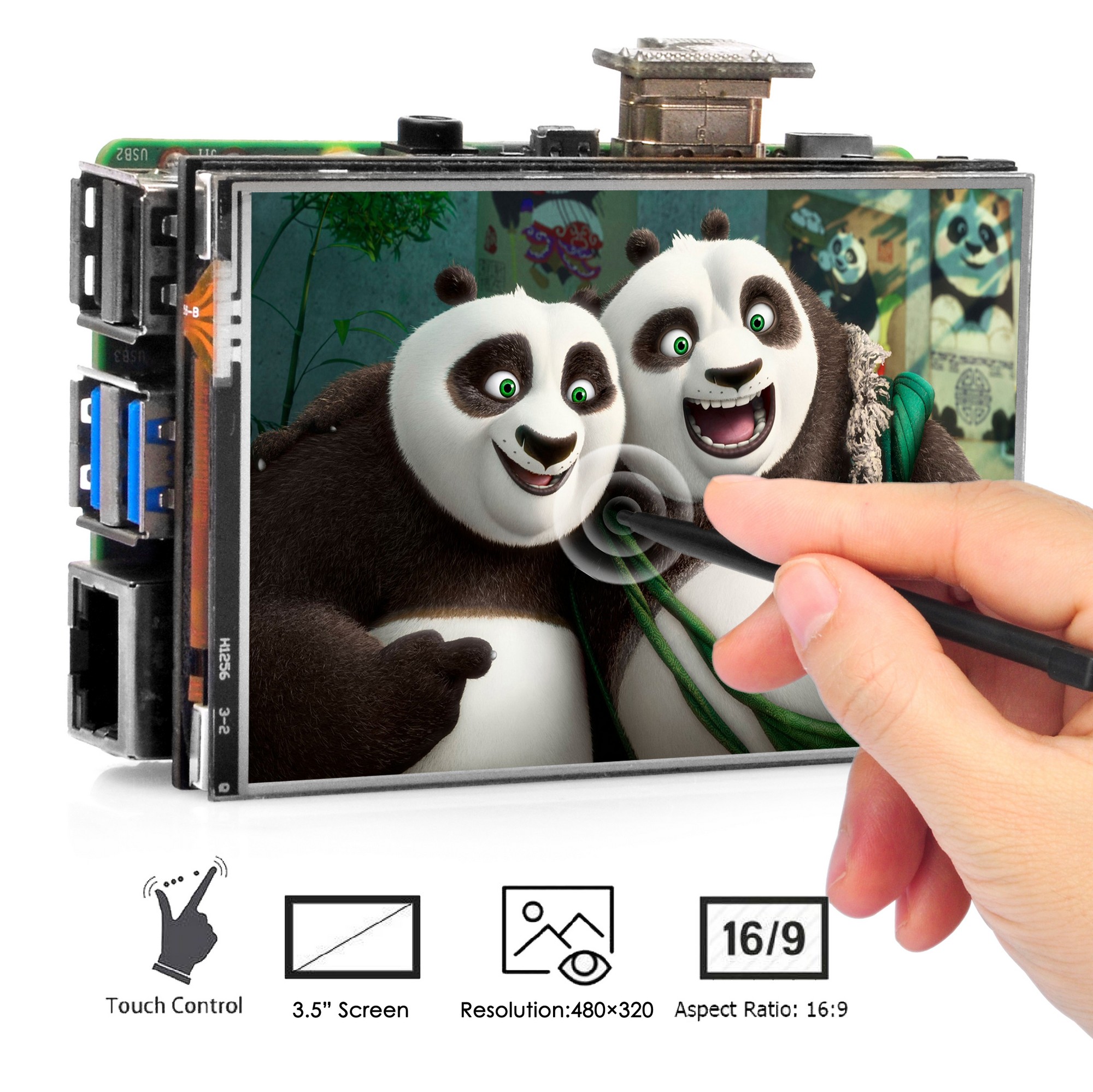
This HDMI LCD is a touch screen which supports touch input and display. However, touch input function just works with Raspberry Pi OS for Raspberry Pi board. This user guide is for how to install touch driver for Raspberry Pi OS on Raspberry Pi.
1. Features
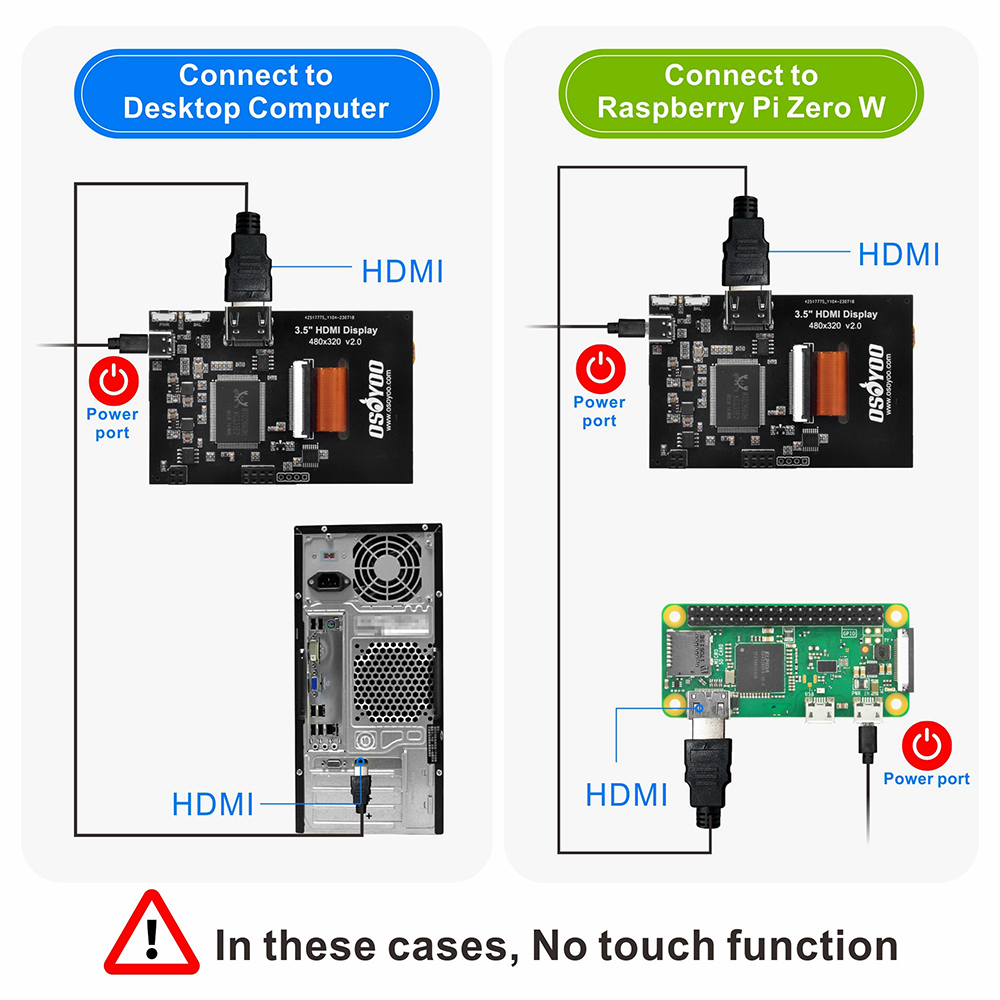
OSOYOO 3.5 inch HDMI screen is designed for Raspberry Pi 3/4 display, and can be used as a general purpose HDMI display. When using with pc/laptop through HDMI cable, display function works, but touch function is unavailable.
– Power supply
The display can be powered from Raspberry Pi GPIO +5V pin, or from external power adapter. 5V/1A external power adapter is enough for power supplying to the display.
If the display is plugged to the Raspberry Pi GPIO connector, and powered from external power adapter through USB type-C cable, the Raspberry Pi also can be powered from the GPIO +5V pin, and don’t need extra power supply.
In this case, the external power adapter should be at least 5V/3A capable.
The Raspberry Pi and HDMI35 display do not support USB PD, and the input voltage is always 5V.
Power consumption:
Normal mode: 5V, 200~230mA (max brightness)
Standby mode: 5V, 70~90mA (no signal, standby)
Suspend mode: 5V, 20mA (power switch off)
– Button
The power switch is a toggle push button, toggles power on (normal mode) and power off (suspend mode) status. The power indicator led lights on when the display is suspended. DDC/CI function is always ready even it is in suspend mode, and the display can wakeup programmatically by DDC/CI commands.
The brightness button adjusts the LCD brightness by 10% step in 10~100% range.
The brightness value is stored to the non-volatile memory, and updated in every button click or DDC/CI brightness command.
The display supports 0, 180º rotation of the LCD view area, without changing settings at the Raspberry Pi or PC. It’s useful for simple customization of the display usage, but after rotation the touch needs to be re-calibrated.
Press brightness button, holding, then press power button, rotates the display 180º, the rotation status is also saved to non-volatile memory
– DDC/CI
The display’s brightness, contrast, colors can be updated by DDC/CI commands from HDMI port DDC channel (I2C port).
It also can enable or disable splash logo, HDMI symbol on the screen, standby feature. If the standby feature is disabled (disabled by default), the display always shows a message if there is no input signal.
– Filling screen area
The display supports automatic video scaling (RTD2660), and can show any kind of resolution (up to 1920×1080) video to the physical 480×320 view area.
When using on Win10/11 PC, the display sometimes does not fill the entire view area of the LCD, and could be shrinked due ratio mismatching.
In this case, It can be fixed by adjusting [Settings]-[Display]-[Advanced Display Settings]-[Refresh Rate] value.
2. Specification
Physical LCD resolution 3.5 inch 480×320 (ILI9488)
Configurable software resolution max 1920×1080, above 60~75fps
Default video resolution 720×480 (3:2 ratio)
Auto fill screen area
TN LCD, View angle 12 O’Clock
XPT2046 Resistive touch with pen
LED for power status indication: Off: Display is in active status, On: Display is in suspend mode
USB Type-C port for only power supply
Mechanical size: Board 85mm x 56mm, LCD view area 73.4mm x 49mm
Full Compatible with Raspberry Pi 3b, 3B+, 4
Touch driver Compatible with OS: Raspberry Pi OS
Display function works when connecting with All HDMI Devices.
Only the touch function requires GPIO, display don’t use the GPIO.
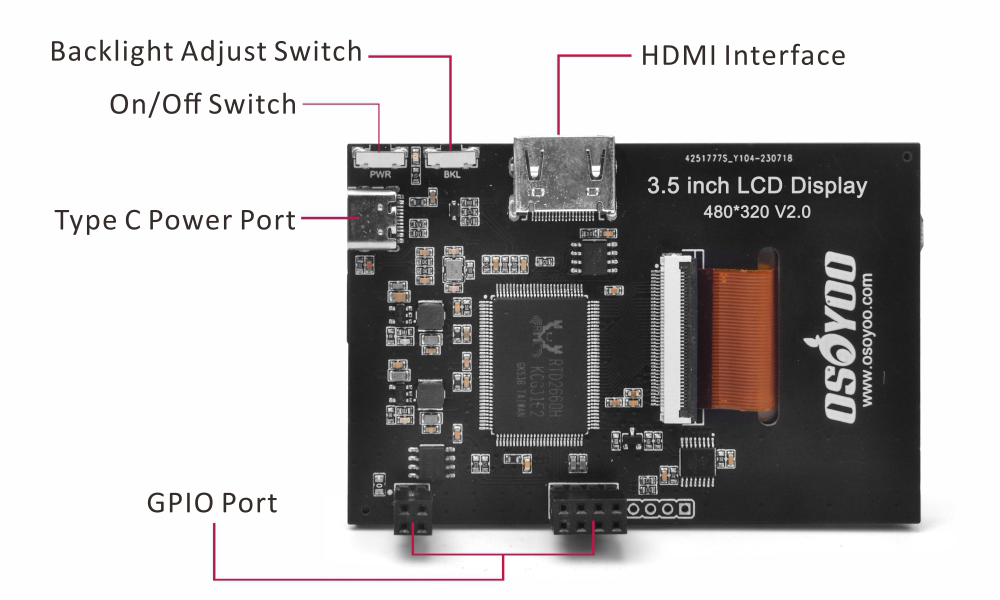
3. Interface
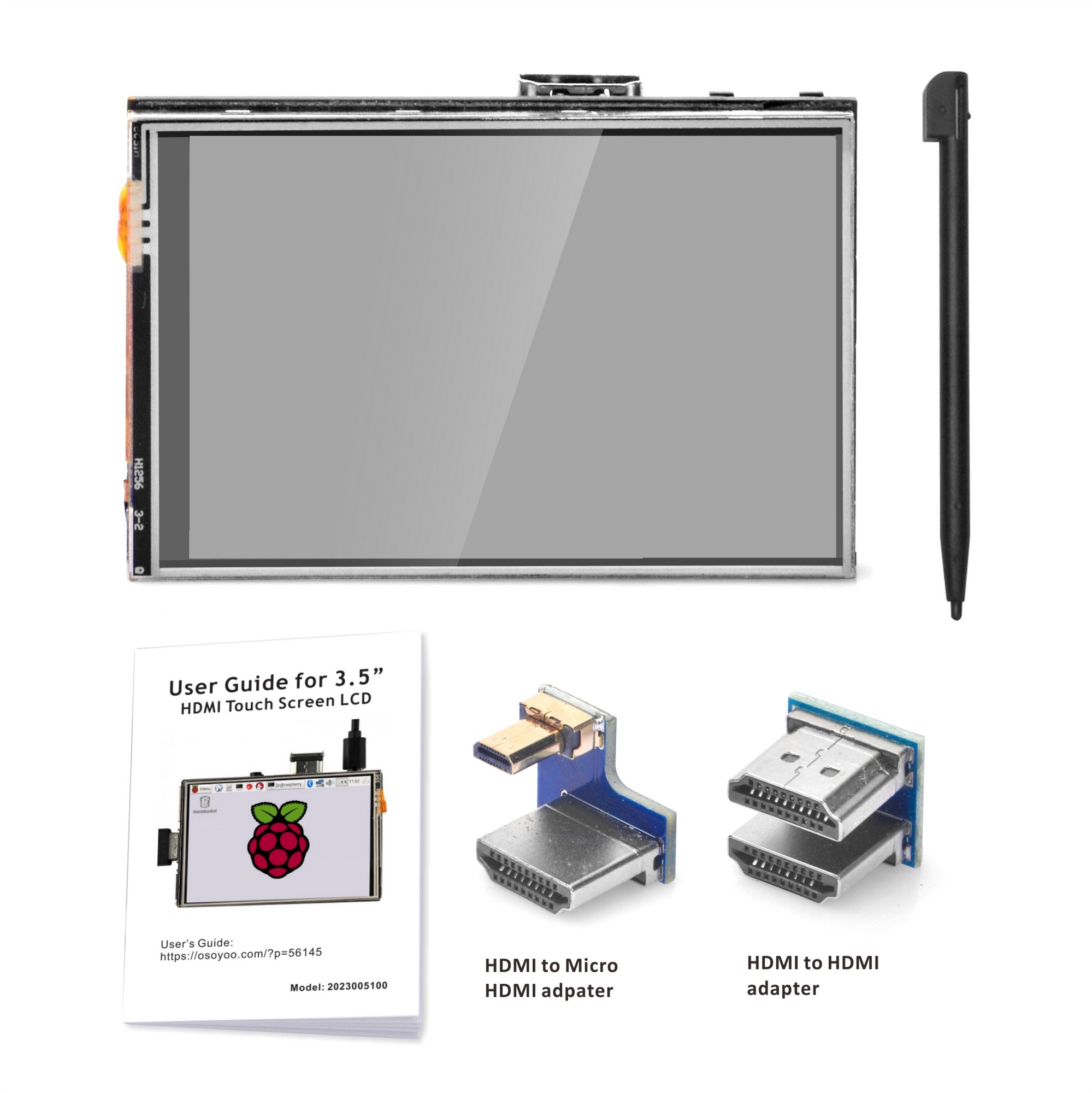
HDMI interface: HDMI signal input interface
Backlight adjust switch: backlight brightness adjustment button, short press backlight changes by 10%, long press 3 seconds to close backlight
On/Off switch: Turn on/off the backlight of the screen
Type C power port: provide power for ordinary display (5V 1A)
GPIO Port: gets power and return touch from this area when used as a raspberry pie monitor
Getting Started
Hardware Connection
1. Connect the GPIO interface
Raspberry Pi leads out 40 GPIO pins, while the screen leads out 12 pins. When connecting, pay attention to the corresponding pins and Raspberry Pi pins.
2. Connect the HDMI connector to the HDMI port of the screen and the Pi.
Note: Raspberry Pi Zero / Zero 2 W needs an additional HDMI cable for connection.
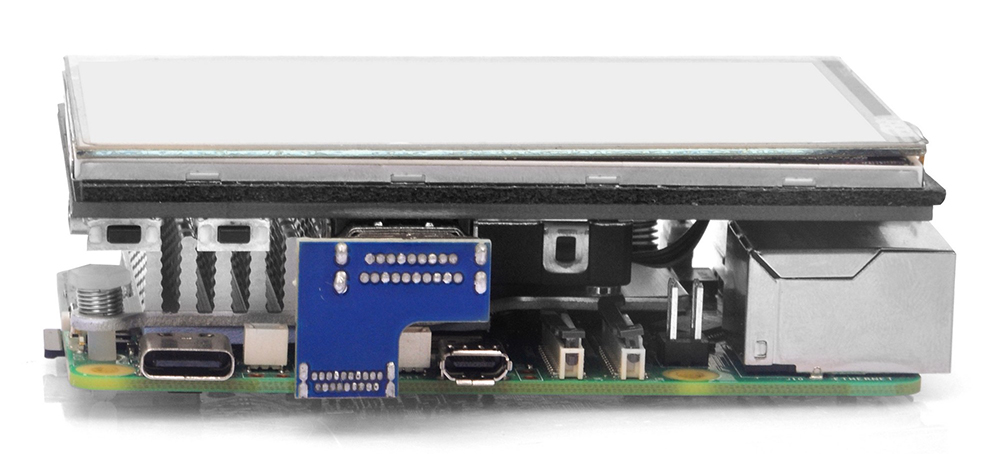
The hardware connection is as shown below (Pi3B+/Pi4 /Pi5):
Installation for configured image
If you have difficulty installing the driver, or if you still can’t use the display properly after installing the driver, please try our configured images for tested. DO NOT need any driver installation steps. Just need download and write the image into the TF card:
Step 1: Connect touch screen LCD display to your Raspberry Pi
Step 2: Download LCD screen driver RAR file from Download Link in the following table.
Step 3: Unzip the driver image file downloaded from step 2).
Step 4: Prepare a newly formatted Micro SD memory card(TF card) with USB Micro SD card reader, recommend sizes are 8G, 16G, 32G. If you don’t know how to format Micro SD card, please download SDFormatter from https://www.sdcard.org/downloads/formatter_4/.
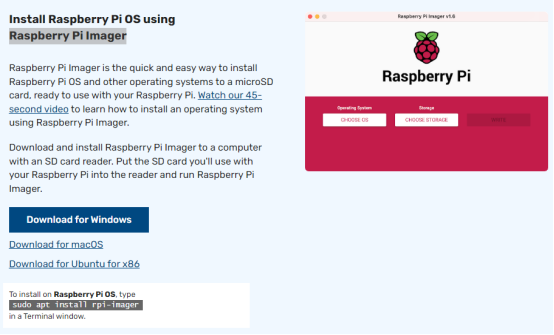
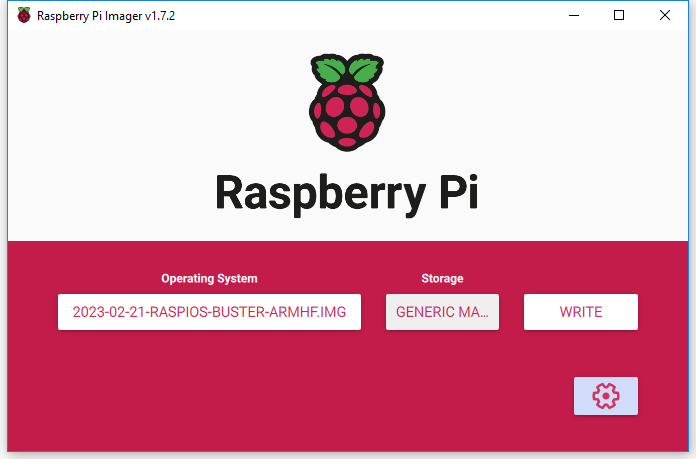
Step 5: Download the Raspberry Pi imager tool from https://www.raspberrypi.com/software/, and use it to write image file (from Step 3) into TF card.
2) After the image has finished writing, open the config.txt file in the root directory of the TF card, add the following code at the end of config.txt, then save and quit the TF card safely.
hdmi_force_hotplug=1
hdmi_group=2
hdmi_mode=87
dtoverlay=bw-ads7846,penirq=25,xmin=3900,xmax=240,ymin=240,ymax=3900,speed=50000,swapxy=1
3) Download the bw-ads7846.dtbo file. Copy this files to the overlays directory (/boot/overlays/).
#Or you can Download bw-ads7846.dtbo via SSH after connecting your Raspberry Pi to the network:
5) Insert the TF card into the Raspberry Pi, power on the Raspberry Pi, and wait for more than 10 seconds to display normally. Generally, touch functions will work normally after system restart. However, if touch inaccuracies occur, perform touch calibration following next steps.
6) Change the Screen Configuration Click the Raspberry Pi icon -> Preferences -> Control Centre -> Screens, in the new window, click layout -> screen -> HDMI -> resolution -> 680×480, then click Apply, and click OK in the new pop. We recommend setting the resolution to 640×480. Note: Raspberry Pi OS Bookworm branch system, since dtoverlay=vc4-kms-v3d is loaded by default, it is invalid to modify the resolution in /boot/config.txt.
1
1
1
1
1
1
1
Touch calibration
If you find that your touch cursor does not align with your finger, you need to calibrate the limits in your config.txt. Since we use swapxy=1, the standard X and Y definitions are transposed. Use this guide to ensure perfect alignment.
Measuring Your Hardware
Every touch panel has slight manufacturing variances. We use the evtest tool to capture the Raw Absolute Values of our specific screen:
Install & Run:
sudo apt-get install evtest -y
sudo evtest
Select Device:
Choose the ID corresponding to ADS7846 Touchscreen. (The serial number displayed on different users’ Raspberry Pi’s may not be the same, depending on the user’s actual serial number)
Touch each edge and record the average value displayed:
Physical Edge
Record this evtest Value
Mapping to Parameter
Top Edge
ABS_Y value at the top
→ xmin
Bottom Edge
ABS_Y value at the bottom
→ xmax
Left Edge
ABS_X value at the left
→ ymin
Right Edge
ABS_X value at the right
→ ymax
In your /boot/firmware/config.txt, we use this base line:
Save and exit: Press Ctrl+O, then Enter, then Ctrl+X.
This is the more accurate touch range of the current touch device, and finally typing “sudo reboot” to reboot to take effect the current configuration.
Troubleshooting & Fine-Tuning
After a sudo reboot, if the cursor still doesn’t reach the very edge, follow these simple rules to adjust your numbers:
If the cursor…
Action to take
Stops before the Top edge
Increase the xmin value
Stops before the Bottom edge
Decrease the xmax value
Stops before the Left edge
Decrease the ymin value
Stops before the Right edge
Increase the ymax value
Modify the parameters of the config.txt file:
For the value of the x_min, x_max, y_min, and y_max, you can refer to the evtest tool to define:
sudo apt-get install evtest -y
sudo evtest
Here, you can select the third one (The serial number displayed on different users’ Raspberry Pi’s may not be the same, depending on the user’s actual serial number)
Put your finger on each of the four edges of the touch screen (x_min on the left, x_max on the right, y_min on the top, y_max on the bottom).
This is the more accurate touch range of the current touch device, and finally typing “sudo reboot” to reboot to take effect the current configuration.
You can install the touch driver for 3.5” HDMI touch screen based on the existing system, but it just supports Raspberry Pi OS.
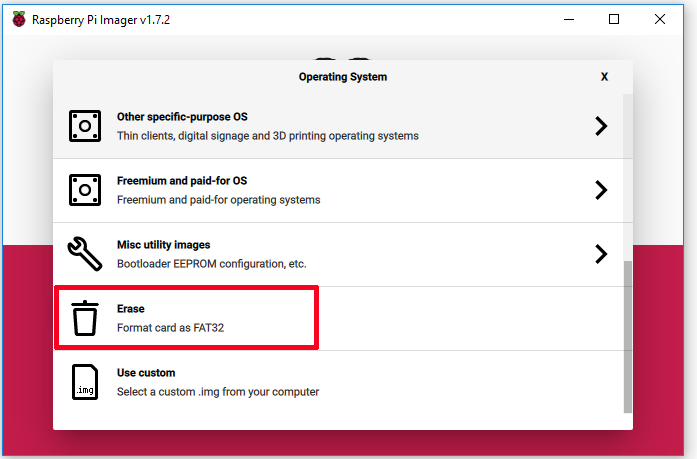
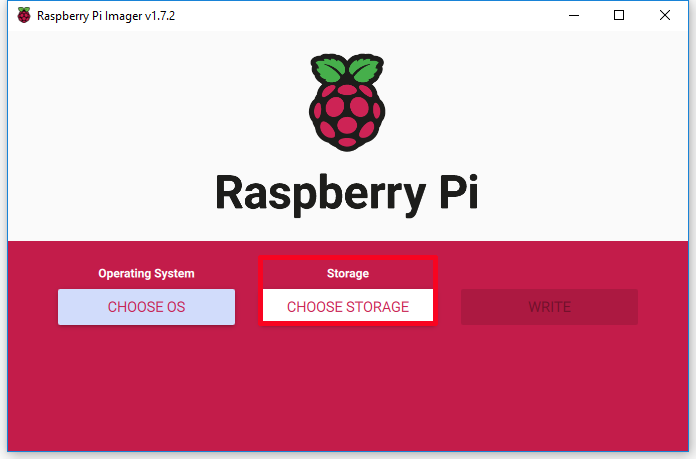
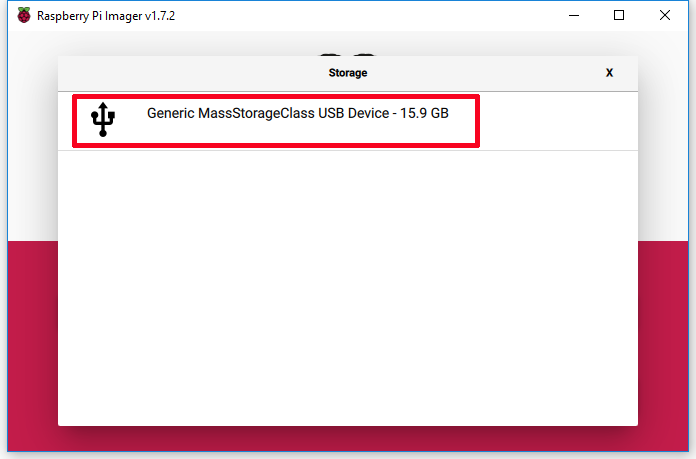
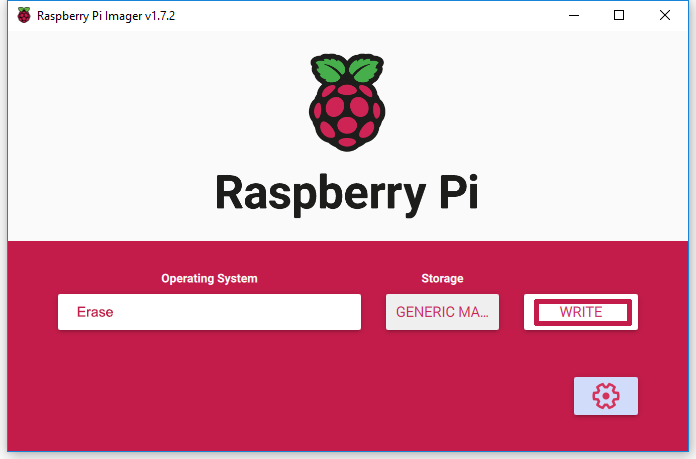
Step 2): Prepare a newly formatted micro SD memory card(TF card) with USB micro SD card reader, recommend sizes are 16G, 32G. If you don’t know how to format micro SD card, please run Raspberry Pi Imager and select “Erase” in Operating System field, and “your micro SD card” in Storage field, then click “WRITE” to format micro SD card
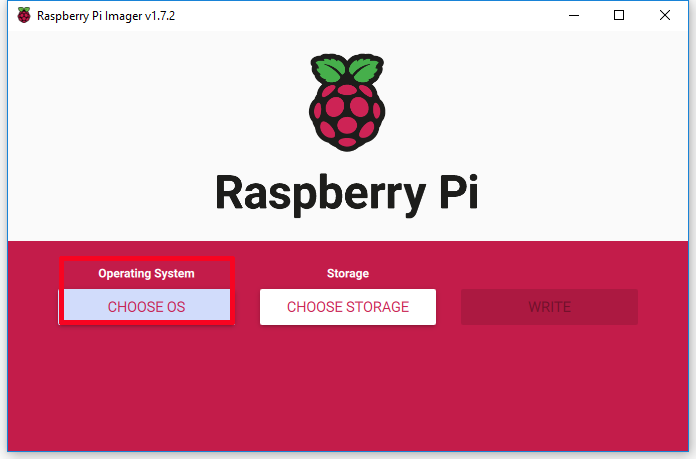
Step 3): Run Raspberry Pi Imager, then select “Use custom” in Operating System field then browse “Raspberry Pi OS” you have downloaded, then select “your SD card” in Storage field. (If you have burnt Raspberry Pi OS in your SD card, please skip step 3 to step 5)
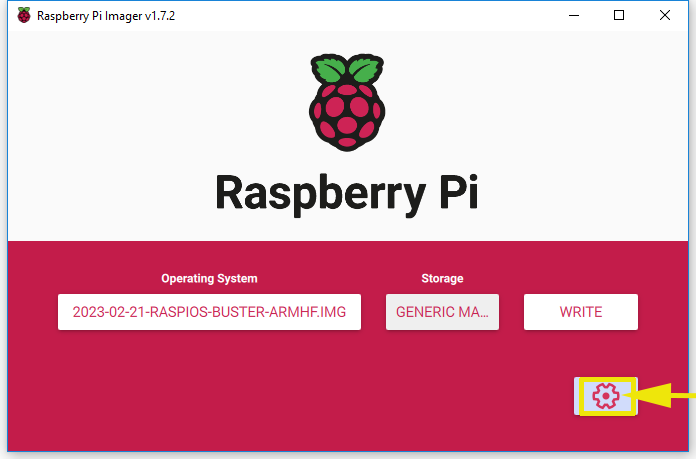
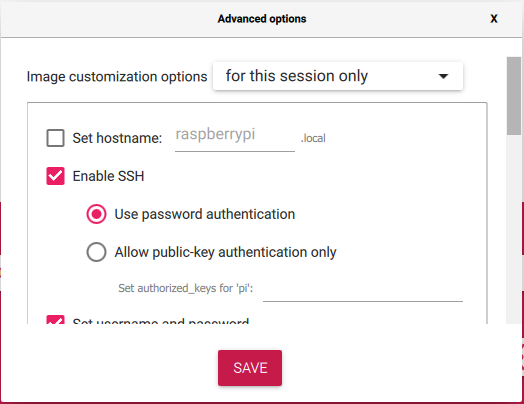
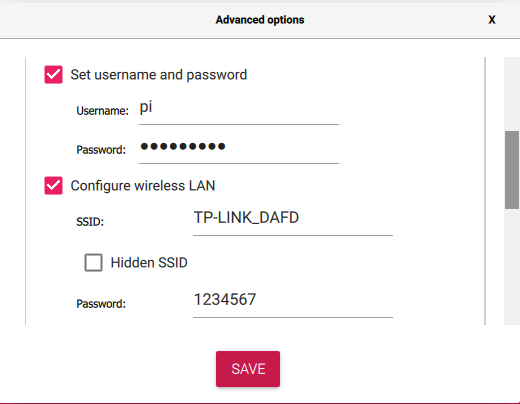
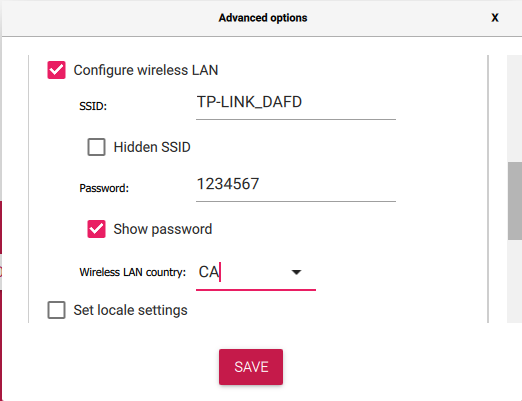
Step 4): Click “setting icon” to enable SSH, set username and password (here we use pi as username and raspberry as password), and configure wireless LAN. Then click “SAVE”
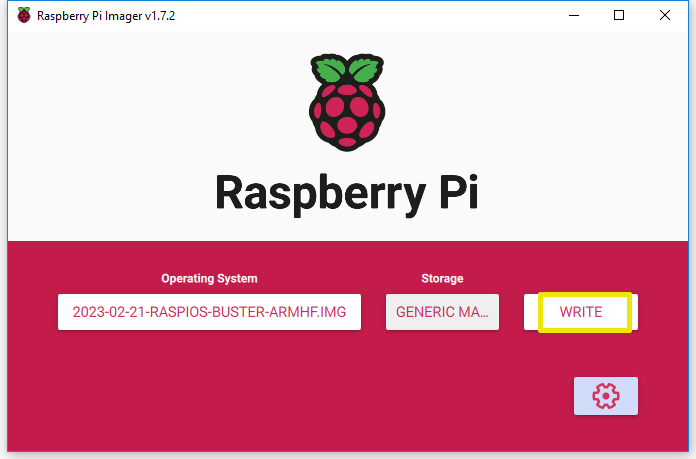
Step 5): Click WRITE to burn OS system (Raspberry Pi OS) in your micro SD card
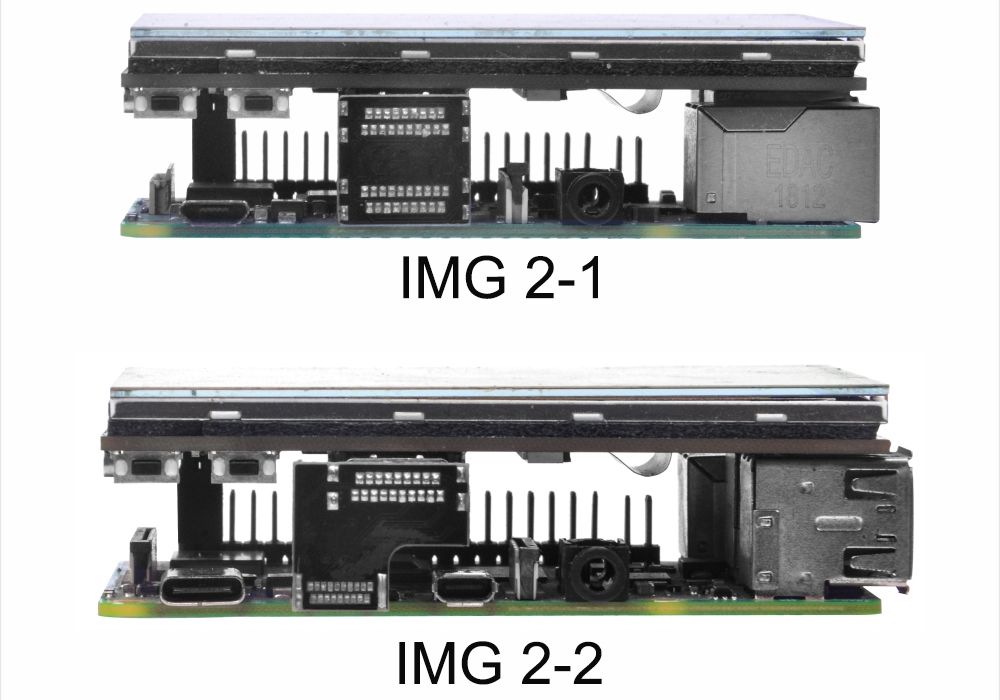
Step 6): Connecting HDMI LCD to your Raspberry Pi. Install screen on Raspberry Pi 2/3 with HDMI to HDMI adapter (as IMG 2-1). Install screen on Raspberry Pi 4 with HDMI to mini HDMI adapter (as IMG 2-2)
Step 7): Insert this card in your Raspberry Pi, and power on Raspberry Pi. (ATTENTION: Please be sure the Raspberry Pi have connected to network)
Note:
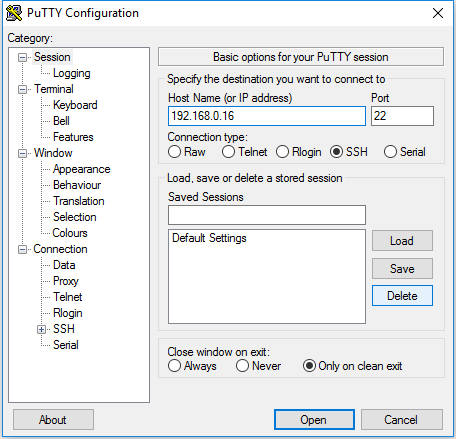
Recommend to remotely control Raspberry Pi via ssh, VNC or other remote desktop tools, as the resolution is too high as default. (Here we use putty for Windows users. You can learn more about remotely control Raspberry Pi from: https://osoyoo.com/?p=56660)
All following steps are tested on OS: 2023-02-21-raspios-buster-armhf.img, there may be some differences with other OS
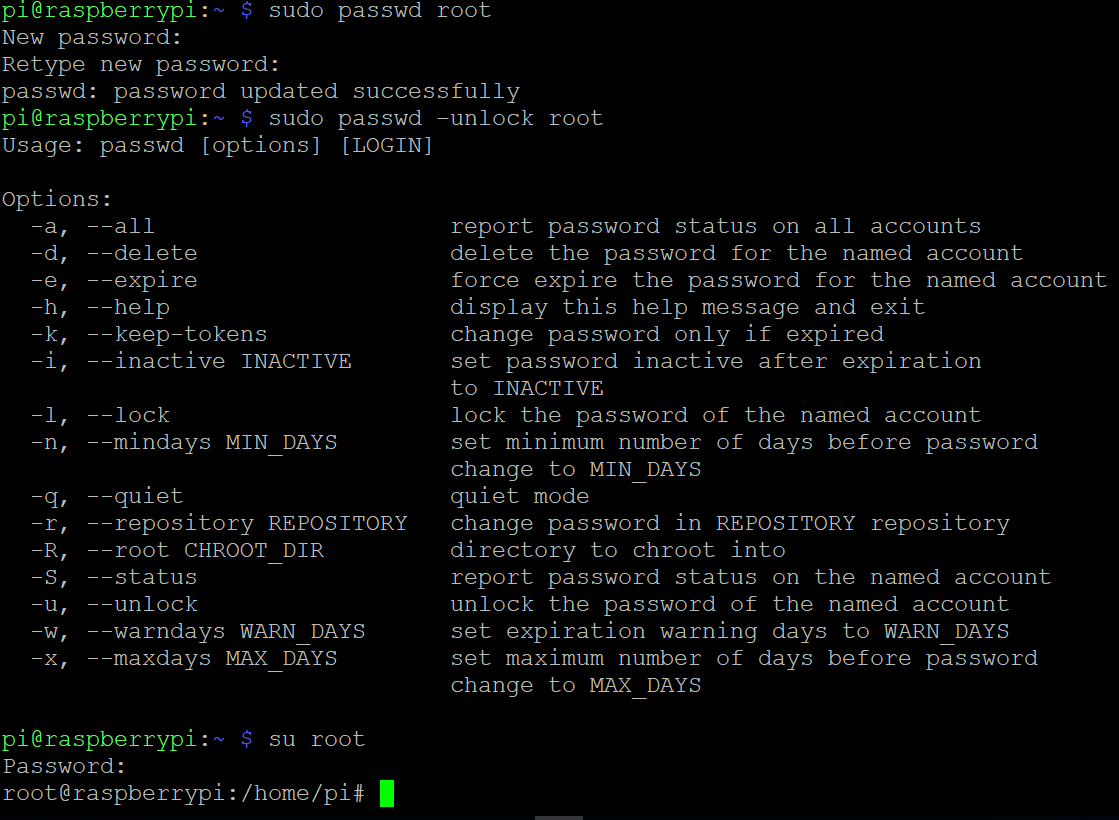
Step 8): Use a ssh tool to log into Raspberry Pi remotely. Run the following commands in terminal to switch user permission as administrator (when you’re typing new password and password in, the window shows nothing just null, but you’re in fact is typing things in. Please write down the password you enter and just focus on typing it right then press Enter.):
sudo passwd root
sudo passwd –unlock root
su root
Step 9): Run the following command in terminal to download the driver:
Step 10): Run the following command in terminal to change the executable permissions of the folder
sudo chmod -R 777 HDMI-show
Step 11): Run the following command in terminal to enter the folder
cd HDMI-show/
Step12): Run the following command
sudo ./hdmi480320
Step 13) Run the following command to reboot your Raspberry Pi
reboot
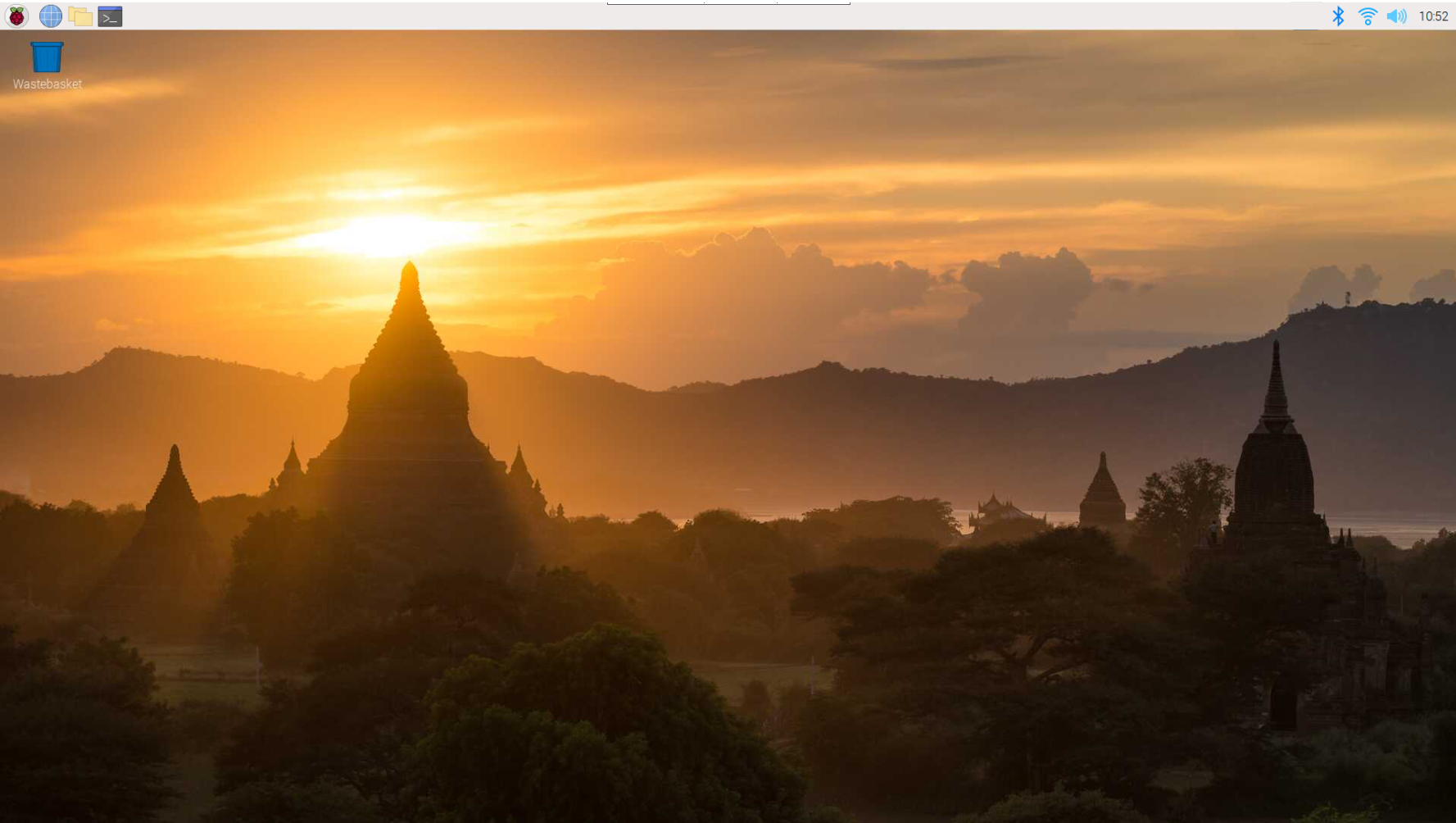
Wait for about 1 minute till the screen turn on. The touch driver would be installed and reset.
Now you have completed to install the touch driver for 3.5″ HDMI touch screen.
5.Installation for configured image
If you have difficulty installing the driver, or if you still can’t use the display properly after installing the driver, please try our configured images for tested. DO NOT need any driver installation steps. Just need download and write the image into the TF card:
Step 1: Connect touch screen LCD display to your Raspberry Pi
Step 2: Download LCD screen driver RAR file from Download Link in the following table.
Step 3: Unzip the driver image file downloaded from step 2).
Step 4: Prepare a newly formatted Micro SD memory card(TF card) with USB Micro SD card reader, recommend sizes are 8G, 16G, 32G. If you don’t know how to format Micro SD card, please download SDFormatter from https://www.sdcard.org/downloads/formatter_4/.
Step 5: Download the Raspberry Pi imager tool from https://www.raspberrypi.com/software/, and use it to write image file (from Step 3) into TF card.
Connect the computer HDMI output signal to the LCD HDMI interface by using the HDMI cable
Connect the LCD’s USB Power interface to the USB port of the device
If there are several monitors, please unplug other monitor connectors first, and use LCD as the only monitor for testing.
(Note: touch function can only be used for Raspberry Pi 2/3/4.)












 HDMI interface: HDMI signal input interface