← 製品紹介に戻る

| OSOYOOで購入 |
米国で購入 |
英国で購入 |
ドイツで購入 |
イタリアで購入 |
フランスで購入 |
スペインで購入 |
日本で購入 |
 |
 |
 |
 |
 |
 |
 |
 |
1. 対応ハードウェアとOS
| 項目 |
詳細 |
| ディスプレイパネル |
OSOYOO 7″ DSIタッチスクリーン(モデル 2025001200) |
| 対応ボード |
Raspberry Pi 3 / 4 / 5、CM3 / CM4 / CM5 |
| オペレーティングシステム |
Raspberry Pi OS Bookworm / Trixie(Kernel 6.12以降) |
注意:作業を進める前に、ハードウェアが正しく接続されていることを確認してください。必要に応じて、製品紹介の「ハードウェア接続」セクションを参照してください。
2. Gitを使った直接インストール(推奨)
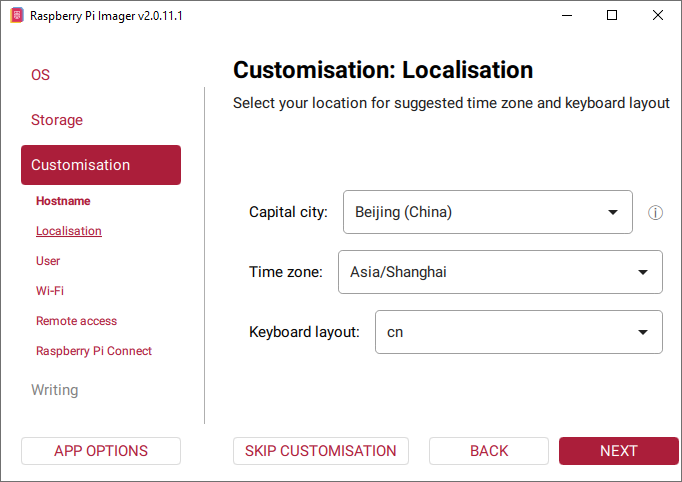
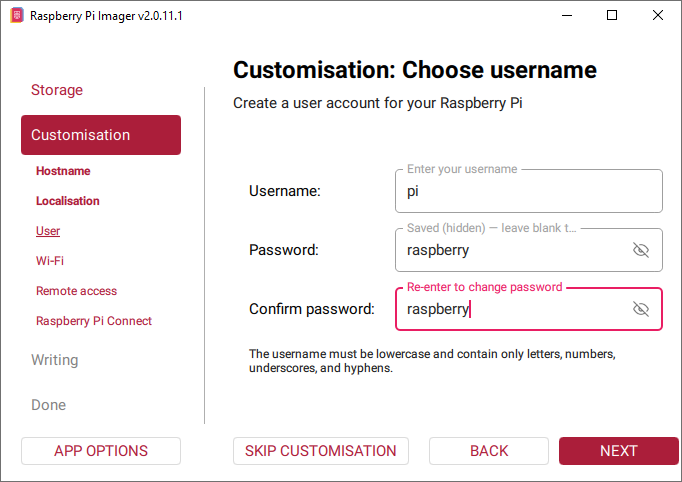
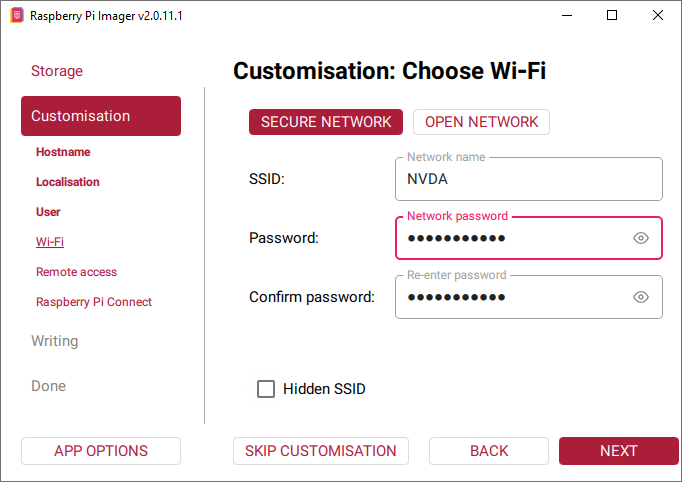
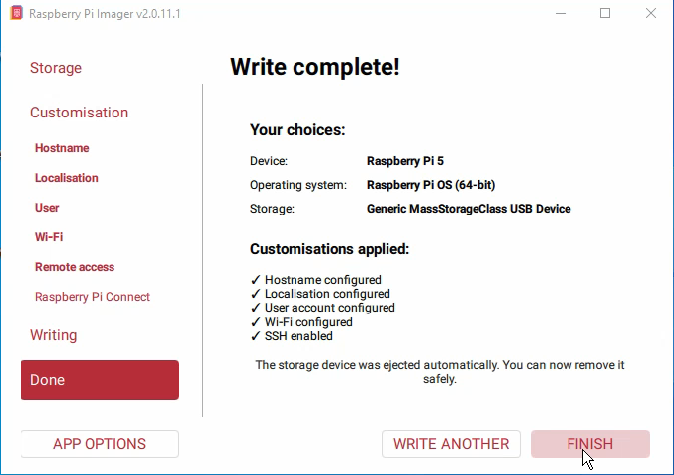
2.1 Raspberry Pi ImagerでRaspberry Pi OSをインストールする
(SDカードにすでにRaspberry Pi OSのイメージが入っている場合は、この手順をスキップしてください。)
注意:以下の手順はRaspberry Pi Imager 2.0.11.1を例として使用しています。他のバージョンでは表示が異なる場合があります。(デバイス:Raspberry Pi 5)
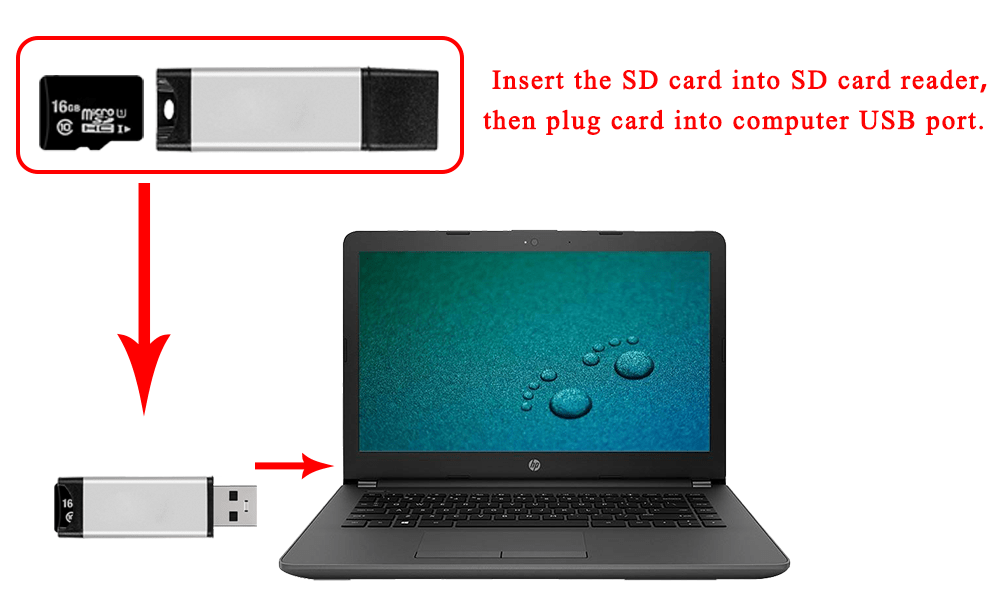
ステップ1:USBマイクロSDカードリーダーを使って、新しくフォーマットしたmicroSDカード(TFカードとも呼ばれます)を用意してください。推奨容量:16GBまたは32GB。
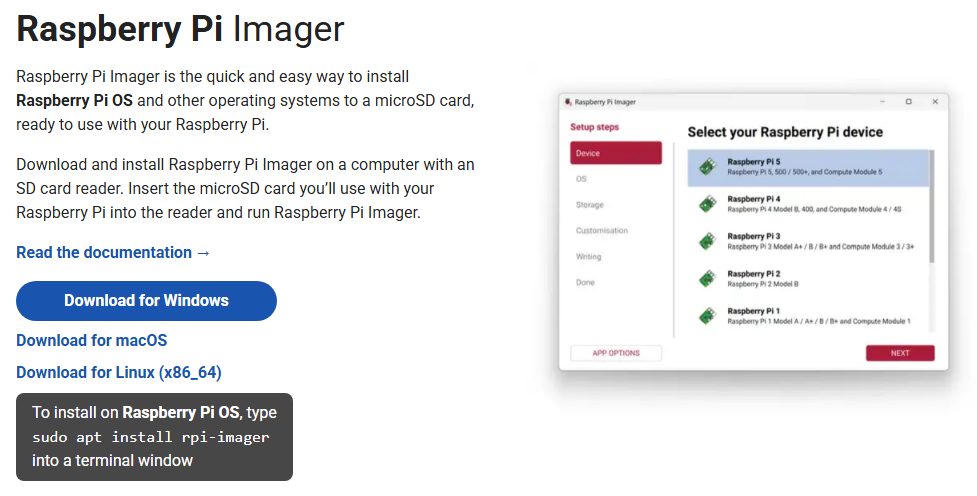
ステップ2:Raspberry Pi公式サイトからRaspberry Pi Imagerをダウンロードしてください:https://www.raspberrypi.com/software/。
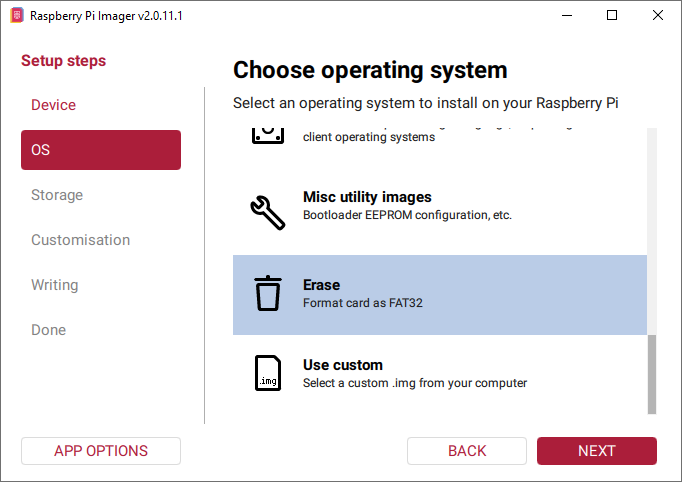
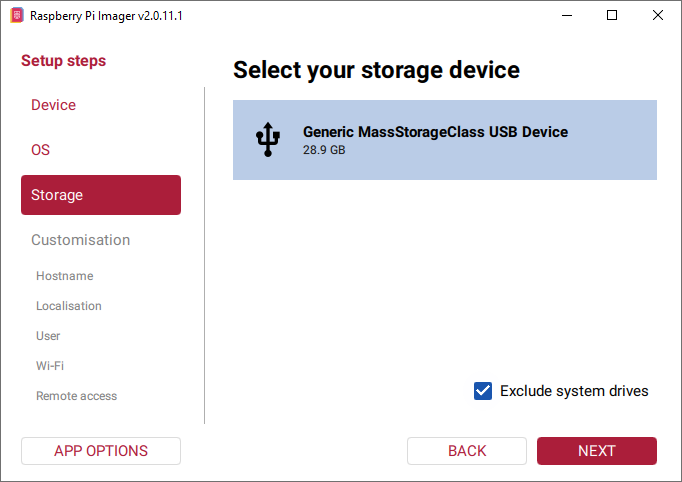
ステップ3:microSDカードをフォーマットします。Raspberry Pi Imagerを起動し、「オペレーティングシステム」フィールドで消去を選択し、「ストレージ」フィールドでお使いのmicroSDカードを選択してください。
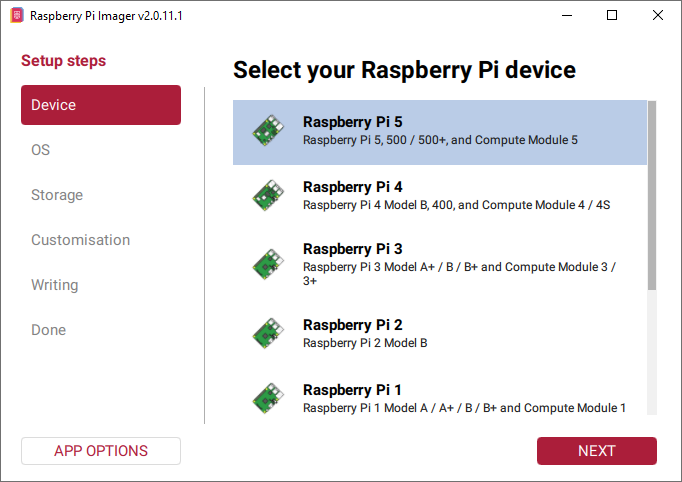
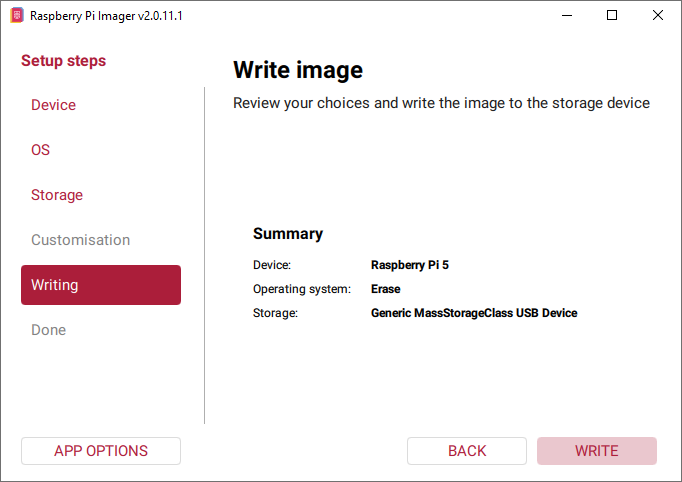
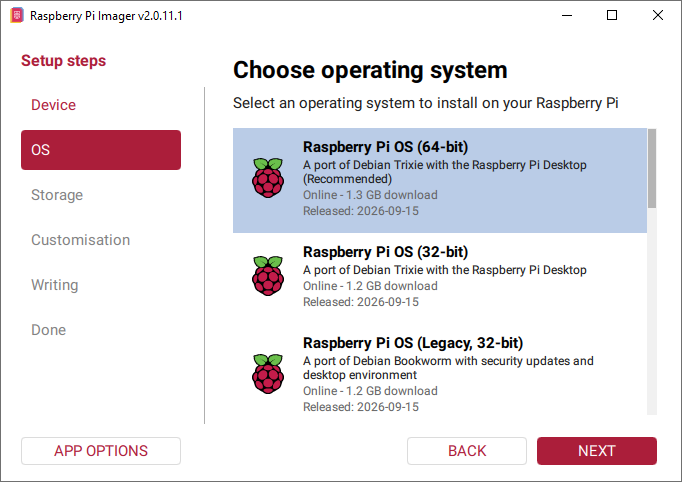
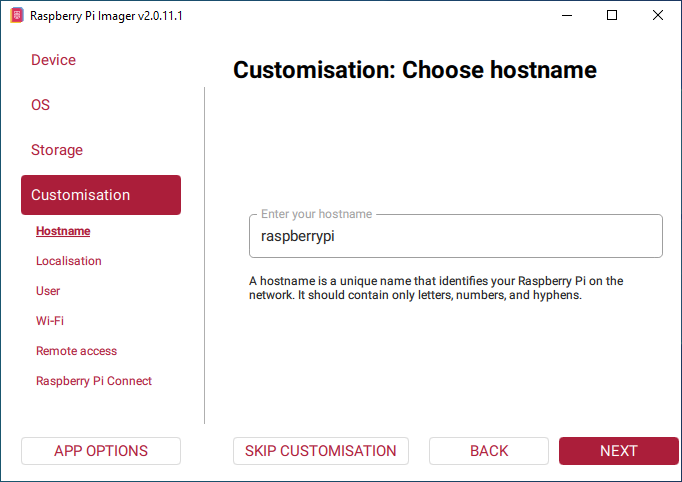
ステップ4:Raspberry Pi Imagerを起動し、デバイスとしてRaspberry Pi 5を選択してください。「オペレーティングシステム」フィールドでRaspberry Pi OS(64ビット)を選び、「ストレージ」フィールドでお使いのSDカードを選択します。(すでにSDカードにRaspberry Pi OSを書き込み済みの場合は、この手順をスキップしてください。)
2.2 SSHツールでRaspberry Piをリモート操作する
ステップ1:Raspberry PiのIPアドレスを調べる
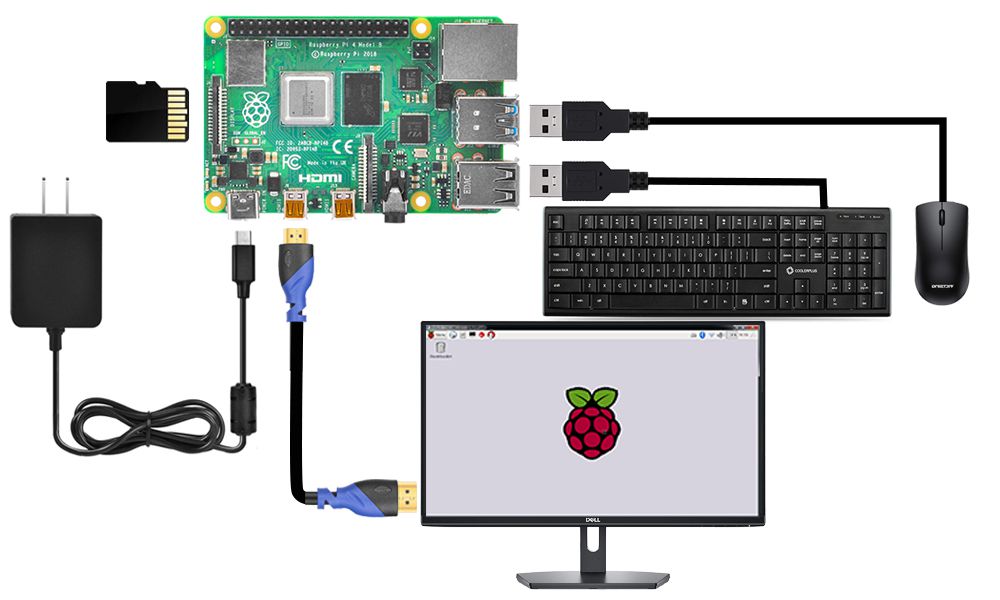
ステップ1:Raspberry PiをHDMIモニターまたはテレビに接続してください。キーボードとマウスをRaspberry PiのUSBポートに接続し、OSをインストールしたSDカードをSDカードスロットに差し込みます(Raspberry Piロボットカーをすでに組み立てている場合は、ディスプレイに接続してIPアドレスを確認してください)。
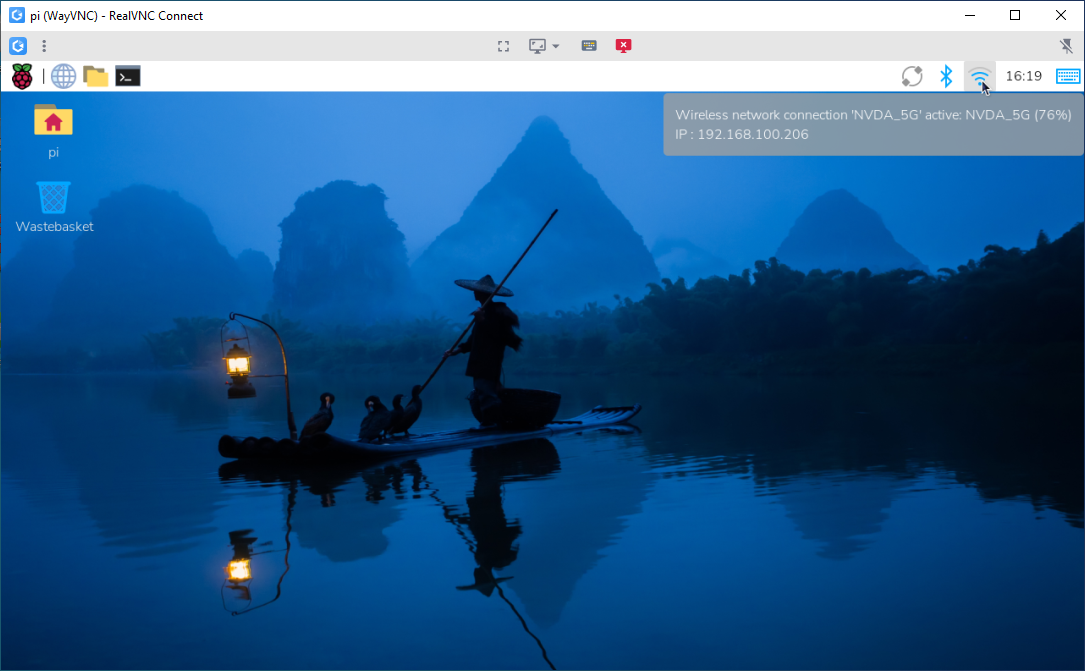
ステップ2:LANアイコンにカーソルを合わせると、次のような通知が表示されます:
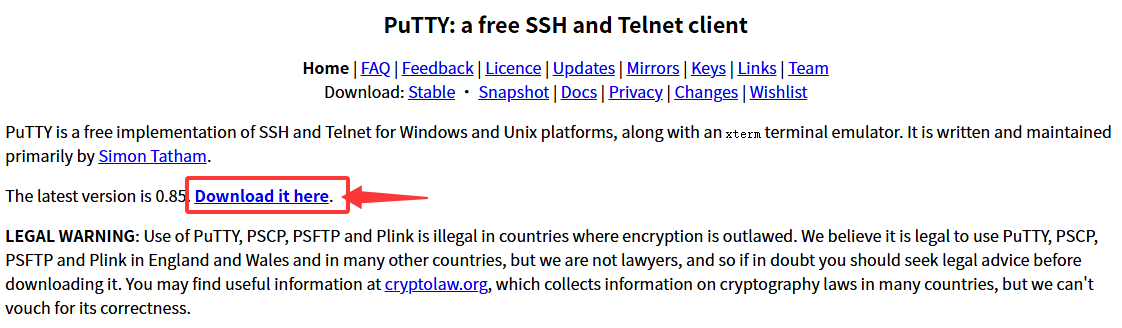
ステップ3:https://www.chiark.greenend.org.uk/~sgtatham/putty/からPuTTYをダウンロードし、Windows PCにインストールしてください。
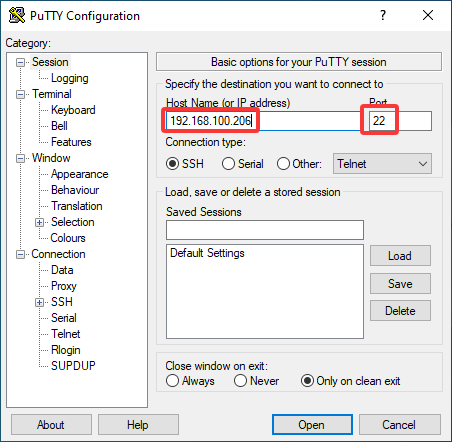
ステップ4. PuTTYを起動し、左側のパネルにあるSessionをクリックします(PuTTY起動時は通常、折りたたまれています):
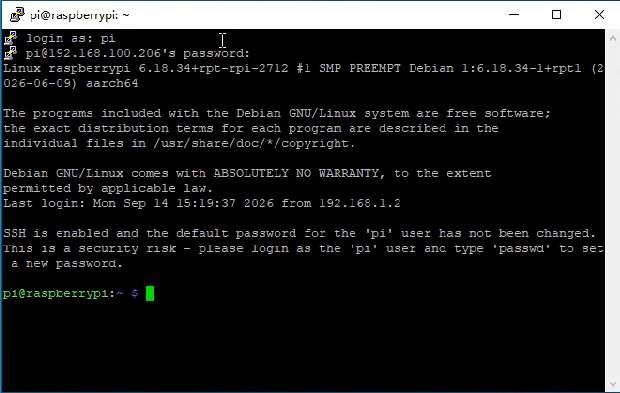
ステップ5. IPアドレスを使ってRaspberry Piに初めてログインすると、セキュリティの確認画面が表示されます。はいをクリックしてください。PuTTYがlogin as:と尋ねたら、ユーザー名piとパスワードraspberry(デフォルトのパスワード。変更していない場合)を入力してください。
注意:パスワードを入力しても、ウィンドウには何も表示されません。これは正常な動作です。正確に入力してEnterキーを押してください。ログインに成功すると、ウィンドウは次のように表示されます:
ステップ6. Raspberry Piで次のコマンドを実行してください:
# リポジトリをクローン
git clone https://github.com/osoyoo/osoyoo-dsi-panel.git
cd osoyoo-dsi-panel

# 直接インストールスクリプトを実行
./install-direct.sh display7inch

7インチディスプレイの電源が入り、正常に動作しています。
3.1 バックライトの輝度調整
GUIによる方法
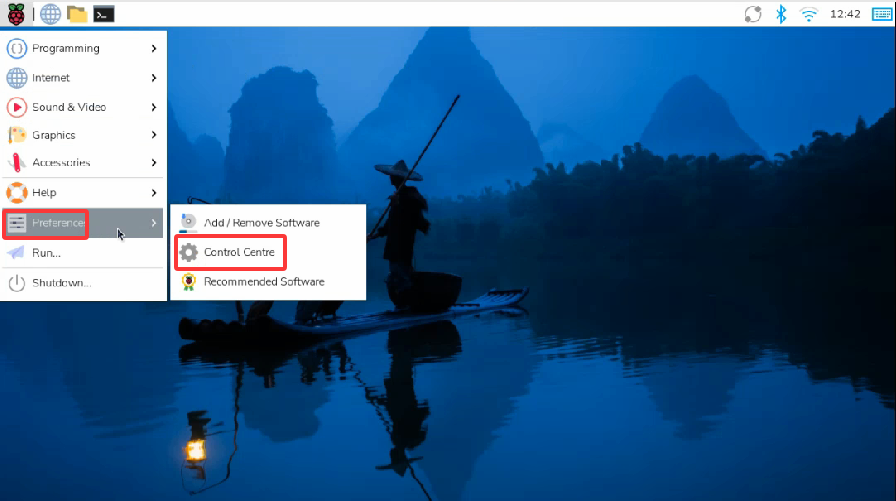
- 1. デスクトップメニューからスクリーン設定アプリを開きます。
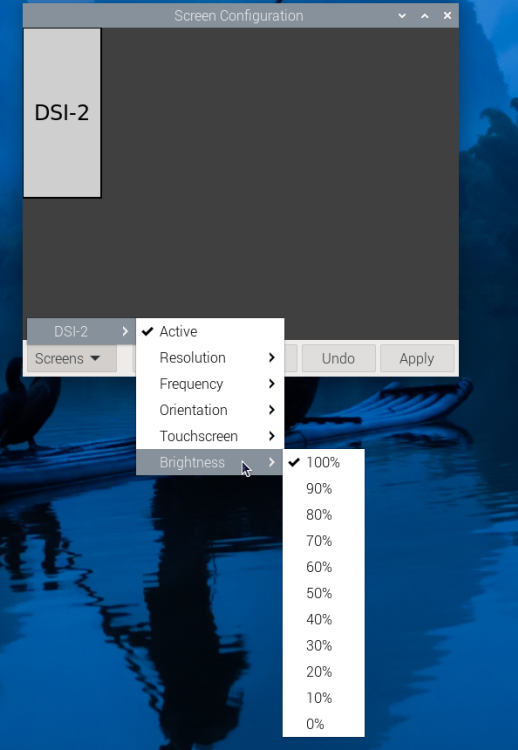
- 2. 画面 → DSI-2(設定によってはDSI-1)→ 輝度の順にクリックします。
- 3. スライダーを調整して適用をクリックします。
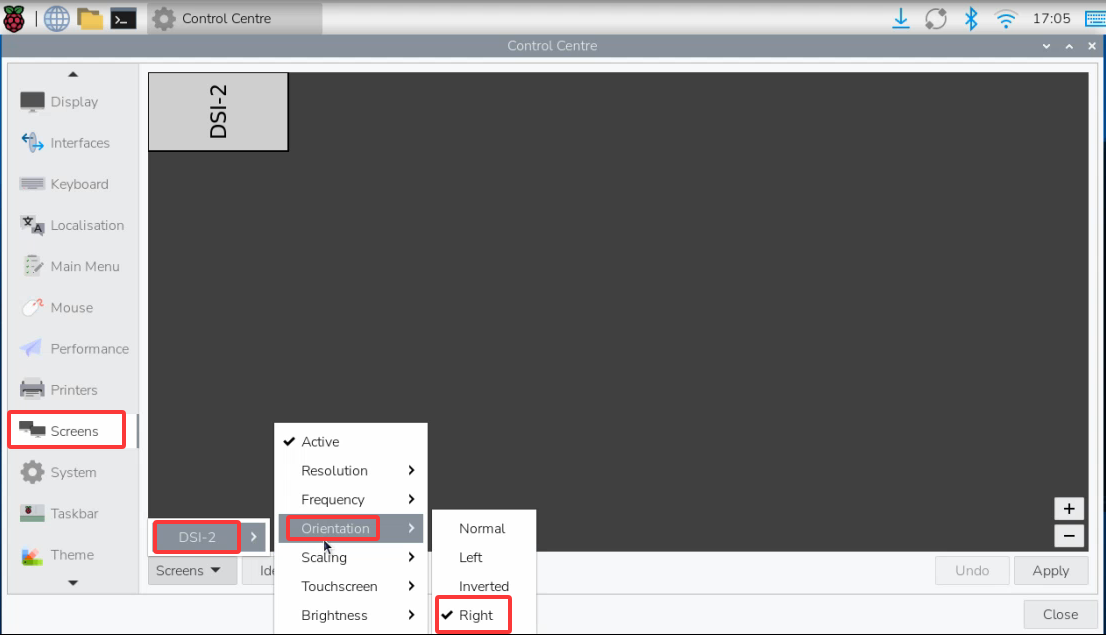
3.2 タッチスクリーンの回転(Bookworm & Trixie)
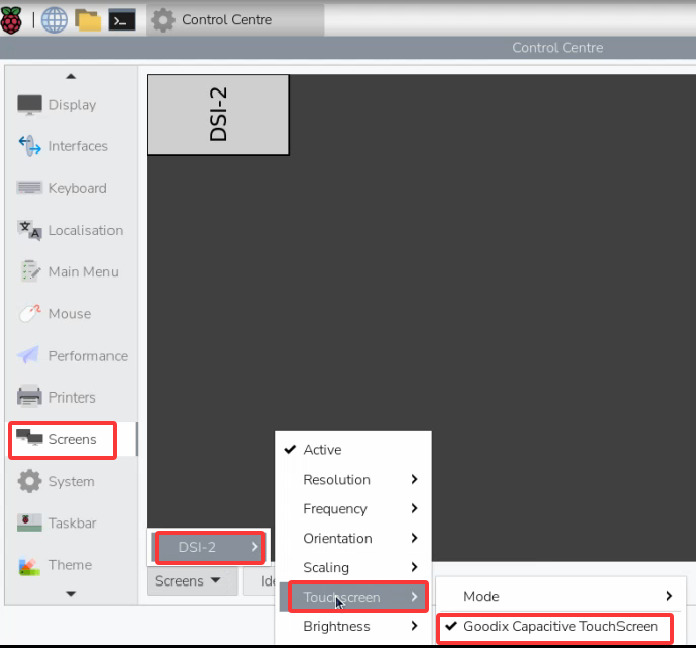
注意:このスクリーンは縦向きと横向きの両モードに対応しています。向きを変更する場合は、先にタッチパネルをバインドしてください。バインドせずに回転させると、タッチ入力がずれる場合があります。
← 製品紹介に戻る