Hardware: Raspberry Pi 3/4B / 5
Screen: Osoyoo 3.5″ DSI Touchscreen 480×800 V4.0 (Model No.: 2026005500)
System: Raspberry Pi OS Bookworm / Trixie 64bit (Version: 2025-10-01 and later)
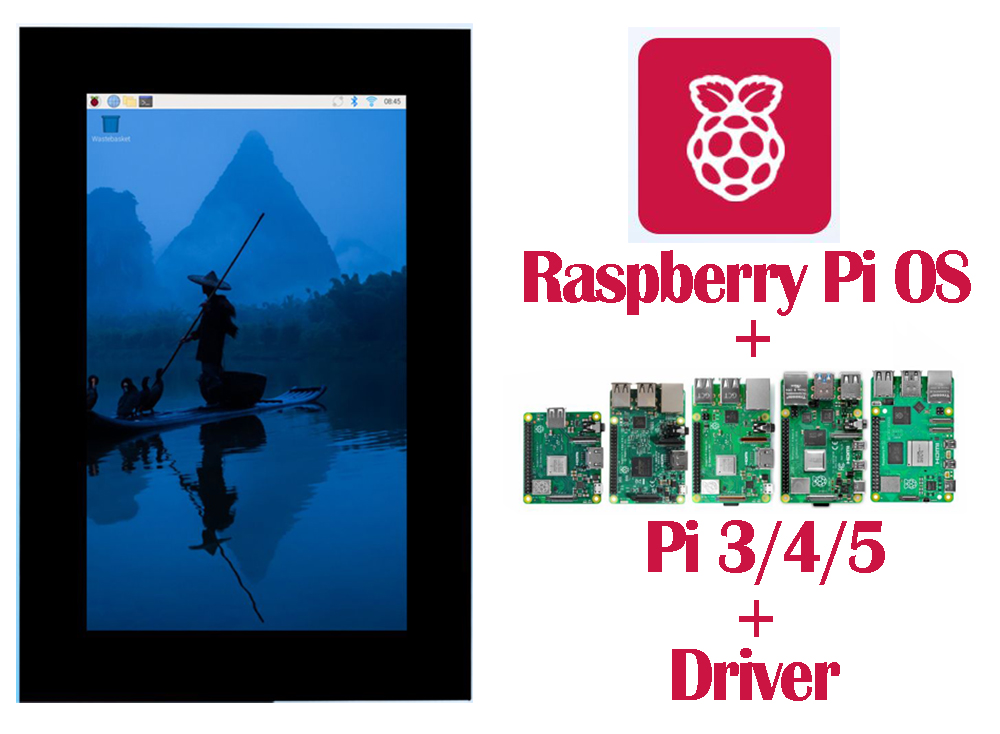 Table of Contents
- Hardware Connection
- Install the Driver
- Adjusting Backlight Brightness
- Display Rotation
- Touch Rotation
- Touch Mode Selection
- Using the On-screen Keyboard
1. Hardware Connection
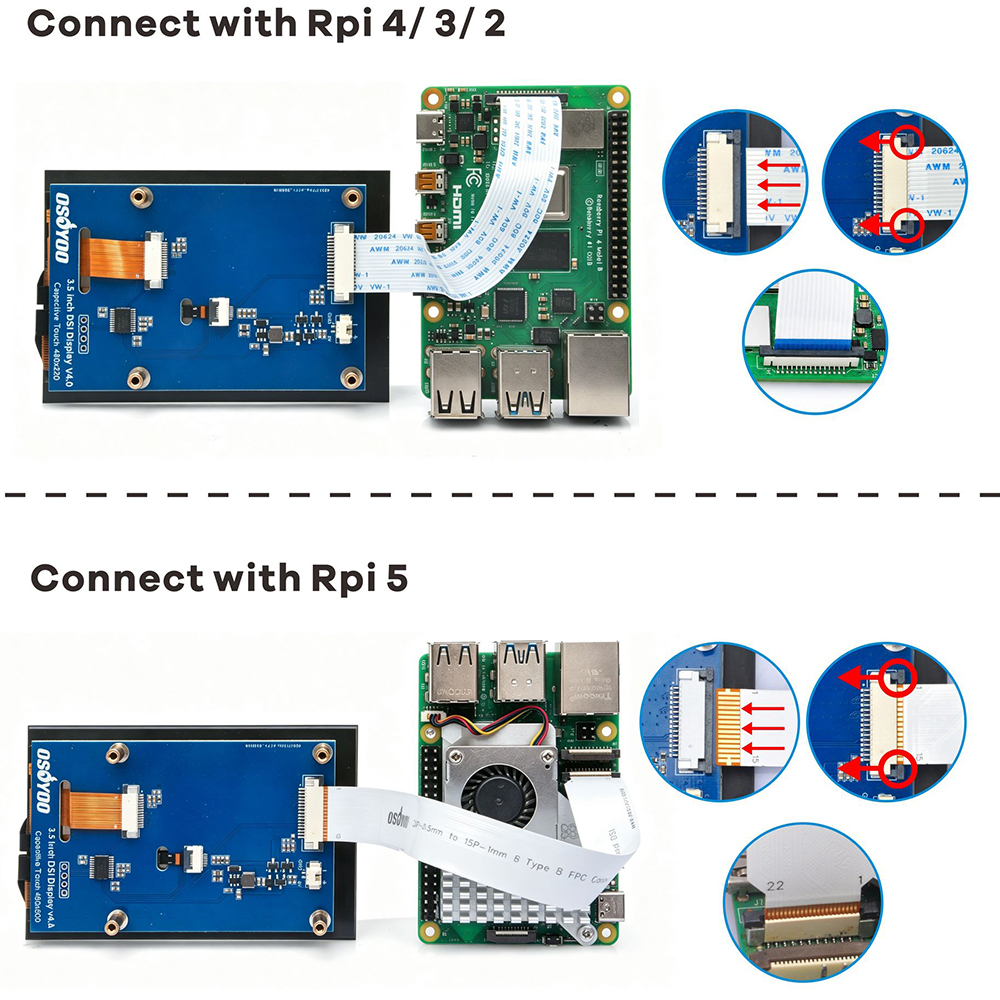
Board and cable selection: Raspberry Pi 4B / 3B+ / 3B / 2B have a single 15-pin DISPLAY connector and use a 15-pin to 15-pin cable; Raspberry Pi 5 has two 22-pin DISP0 / DISP1 connectors and needs a 22-pin to 15-pin cable. Compute Module (CM4 / CM5) depends on the carrier board’s connector. Raspberry Pi Zero / Zero 2 W have no DSI connector and are not compatible.
- Power off the Raspberry Pi and unplug the power cable.
- Gently flip up the black latch on the Pi’s DSI / DISPLAY connector, insert the FPC ribbon with the metal contacts facing the PCB, then press the latch back to lock it.
- Insert the other end of the ribbon into the DSI connector on the back of the display the same way.
- Secure the display to the Pi with standoffs, confirm both ends of the ribbon are fully seated, then power on.
Note: always connect / disconnect the ribbon with the power off. If power over the ribbon is insufficient (flicker / unresponsive touch / blank screen), use the included cable to connect the display’s 5V to the Raspberry Pi 5V pin and GND to the Raspberry Pi GND pin (see the Product Manual, Power Supply).
2. Install the Driver
This product requires driver installation before use. The driver is open-source and one script does everything (auto-detects the Pi model, installs dependencies, builds, and updates /boot/firmware/config.txt).
- Flash Raspberry Pi OS to a microSD card with Raspberry Pi Imager and complete the first boot.
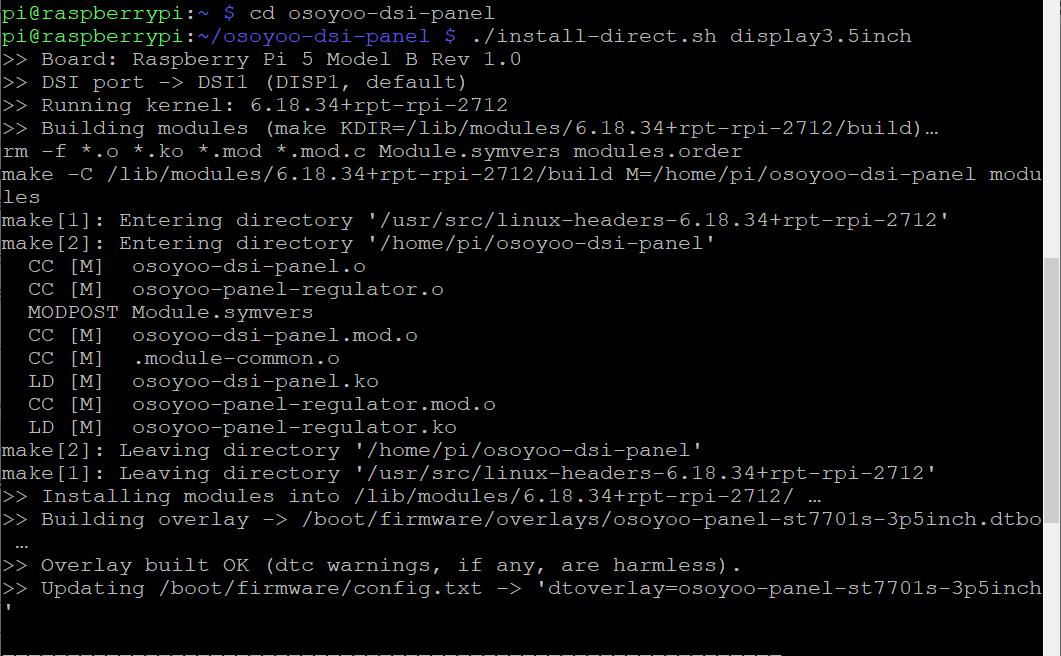
- Open a terminal and run:
sudo apt update
git clone https://github.com/osoyoo/osoyoo-dsi-panel.git
cd osoyoo-dsi-panel
./install-direct.sh display3.5inch
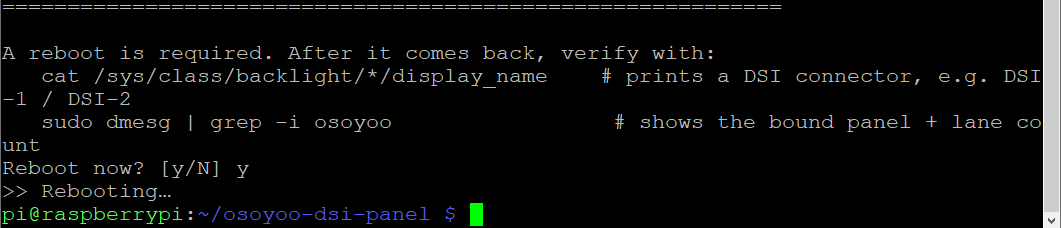
- The script asks to reboot at the end — choose yes (or run
sudo reboot). After reboot the display shows and touch works.


Pi 5 / CM5 (two DSI ports): append dsi0 or dsi1 depending on which connector the ribbon is plugged into:
./install-direct.sh display3.5inch dsi0    # panel on the DISP0 port
./install-direct.sh display3.5inch dsi1    # panel on the DISP1 port
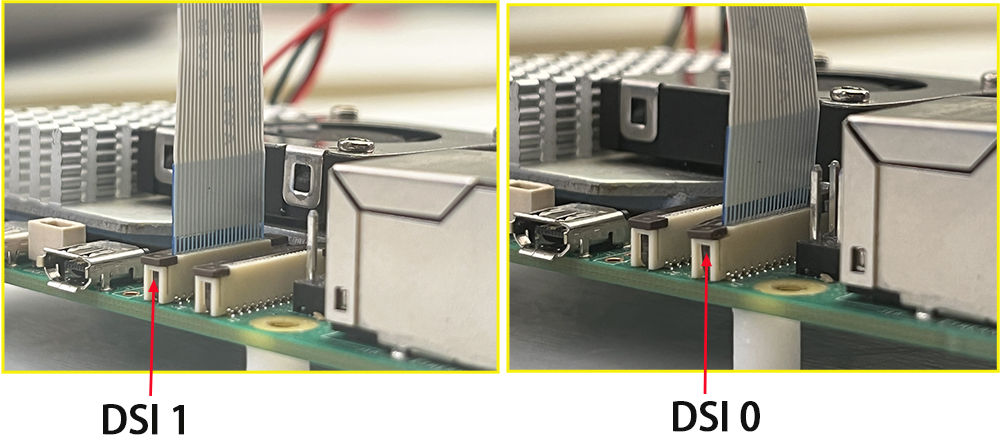
Pi 3 / Pi 4 have a single DSI port, so this argument is not needed. If unsure, run without it; if the panel stays blank, re-run with the other port. Compute Module (CM4 / CM5) is installed the same way (a CM platform does not autodetect DSI — it must be set in config.txt, which the script does for you).
Verify after reboot:
cat /sys/class/backlight/*/display_name    # prints a DSI connector, e.g. DSI-1 / DSI-2
sudo dmesg | grep -i osoyoo                 # shows the bound panel
Tip: run as a normal user — do not build as root (sudo su); the script uses sudo only where needed. Be patient on the first boot; if the screen stays black for a long time, check that the ribbon is seated, the power is sufficient, and the DSI port matches the command.
3. Adjusting Backlight Brightness
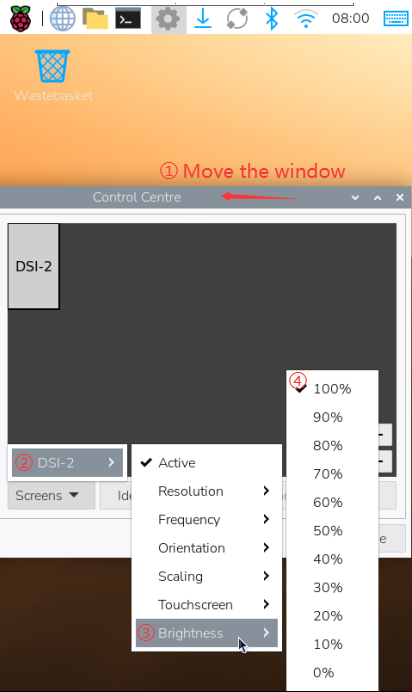
(In the menus below, DSI-1 may appear as DSI-2 on a Pi 5 — use whichever connector is shown.)
1) GUI dimming
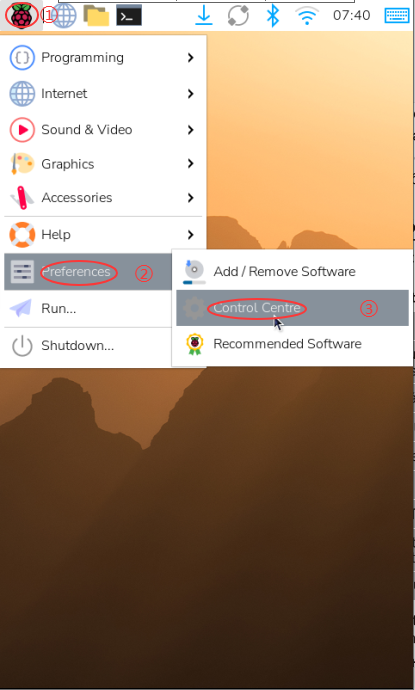
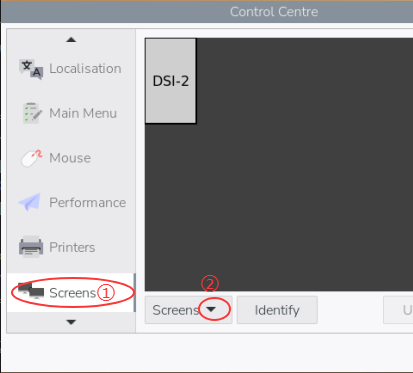
On the desktop, open Main Menu → Preferences → Screen Configuration, select Screen → DSI-1 → Brightness, drag the slider to adjust in real time, and click Apply to save.
2) Adjusting brightness from the terminal
Without a desktop, or for scripted control, use the command line:
#install the brightnessctl
sudo apt-get install brightnessctl -y
# set brightness by percentage
brightnessctl set 60%
# You can change 60 to a value between 0 and 100.
# or write the brightness value directly (max value depends on the device, the max value is 31)
echo 20 | sudo tee /sys/class/backlight/*/brightness
# You can change 20 to a value between 0 and 31.
4. Display Rotation
1) GUI rotation
On the desktop, open Screen Configuration → Screen → DSI-1 → Orientation, choose the desired direction and click Apply. If a confirmation dialog appears, click to confirm before the countdown ends.
2) Rotation on the Lite (headless) version
On Raspberry Pi OS Lite (command line), append a rotation parameter to the dtoverlay line that the install script added in /boot/firmware/config.txt, for example:
# rotate 90 degrees (0 / 90 / 180 / 270)
dtoverlay=osoyoo-panel-st7701s-3p5inch,rotation=90
Save and reboot to take effect.
5. Touch Rotation
On the desktop, to make touch rotate together with the display, associate the touch device once:
- Open Screen Configuration → Screen → DSI-1 → Touchscreen and tick this display’s touch device in the list.
- Then go to Screen → DSI-1 → Orientation, choose the direction and click Apply; display and touch will now rotate together.
Tip: once associated, touch follows automatically whenever you rotate the display. If you also have an HDMI monitor connected, touch may be stretched across the whole multi-monitor desktop and land in the wrong place; in that case bind the touch to this panel’s output (see the labwc note in the open-source repo README).
6. Touch Mode Selection
Touch is calibrated to the default orientation at the factory. If, in a particular mounting orientation, the touch direction does not match finger movement, append a touch-direction parameter to the dtoverlay line in /boot/firmware/config.txt:
# append as needed: invx (flip left/right) / invy (flip up/down) / swapxy (swap X/Y)
dtoverlay=osoyoo-panel-st7701s-3p5inch,invx
Save, reboot, and try the options one by one until touch matches your finger.
About multi-touch: under the official Raspberry Pi OS, this display works as a single-touch screen; whether multi-touch and gestures work depends on the OS version and the specific application.
7. Using the On-screen Keyboard
When no physical keyboard is available, enable the on-screen keyboard: open Preferences → Raspberry Pi Configuration → Display and turn On-screen Keyboard on; tap any text field to bring it up.
Related pages: Product Manual | Using with ESP32‑P4
Support: [email protected] | osoyoo.com | Open-source driver: github.com/osoyoo/osoyoo-dsi-panel
OSOYOO 3.5-inch DSI Touchscreen · Raspberry Pi Guide · Document version v1.2