Before running the program, make sure there is no previously installed Arduino software on your computer — an existing installation may conflict with the LCD driver included in this package.
Note: Check the back of your LCD board for the chip label. If it reads ili 9481, you are in the right place. If it reads ili 9488, please follow the ili 9488 guide instead.
Step 1: Download the 9481.rar driver and unzip it into any folder on your computer. You will see a new folder called 9481.
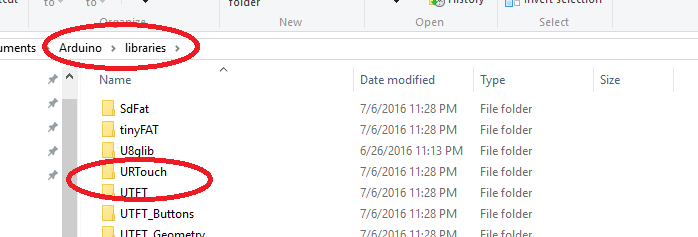
Step 2: Open the 9481 folder and move the UTFT and URTouch folders into your Arduino libraries folder, as shown in the picture below:
Step 3: Insert the ILI9481 LCD into the Mega2560 board, then connect the Mega2560 to your PC via USB.
Step 4: Make sure Windows can detect and install the Mega2560 board correctly. If it is not installed automatically, follow these steps to install the driver manually:
A: Right-click My Computer → Properties → Device Manager.
B: Find the unknown device, right-click it, and choose Update Driver → browse for drivers locally.
C: Set the driver location to C:arduino-9481drivers, then click Next and complete the installation.
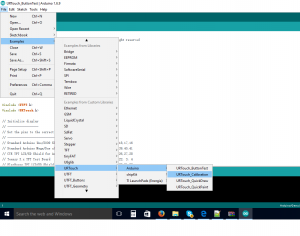
Step 5: In Arduino IDE, click File → Examples → URTouch → Arduino → URTouch_Calibration, as shown below:
The LCD touch screen will display a series of calibration points. Use a stylus to tap each point one by one to calibrate the screen.
Step 6: In Arduino IDE, click File → Examples → URTouch → Arduino → URTouch_ButtonTest.
The LCD will display several on-screen buttons. Tap them with the stylus to test the touch functionality.



