| Buy from OSOYOO |
Buy from US |
Buy from UK |
Buy from DE |
Buy from IT |
Buy from FR |
Buy from ES |
Buy from JP |
 |
 |
 |
 |
 |
 |
 |
 |
Hardware: Raspberry Pi 3/4B / 5
Screen: OSOYOO 10.1″ DSI touchscreen (Model No.: 2025002500)
System: Raspberry Pi OS Bookworm / Trixie 64bit (Version: 2025-10-01 and later)
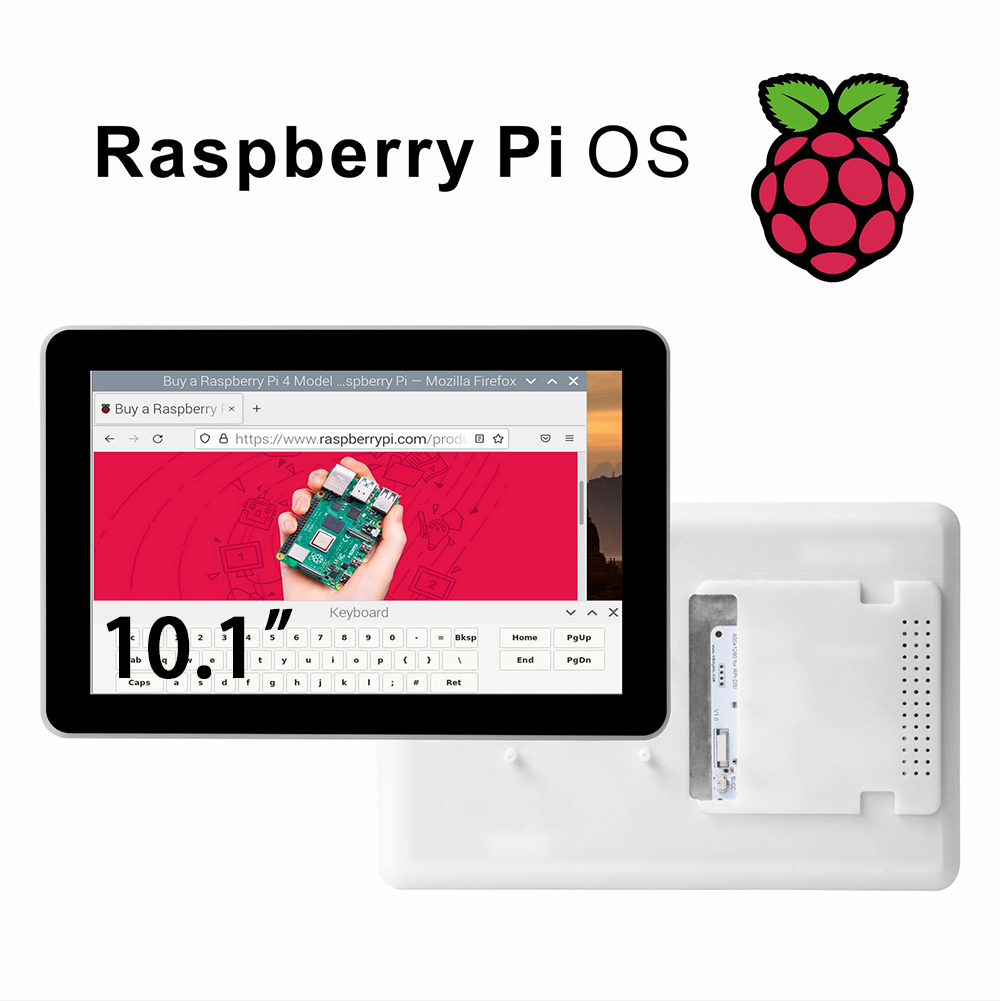 Table of Contents
Hardward Install
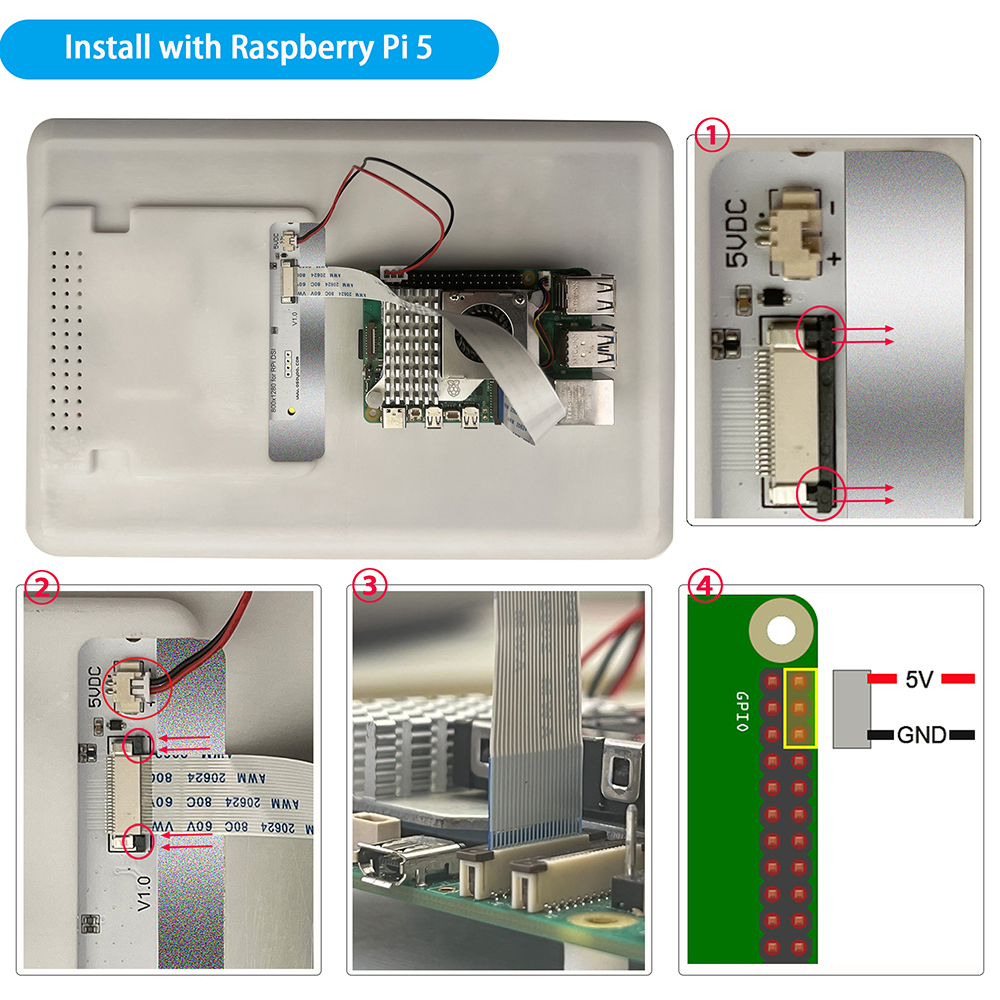
Hardware Connection with Raspberry Pi 5
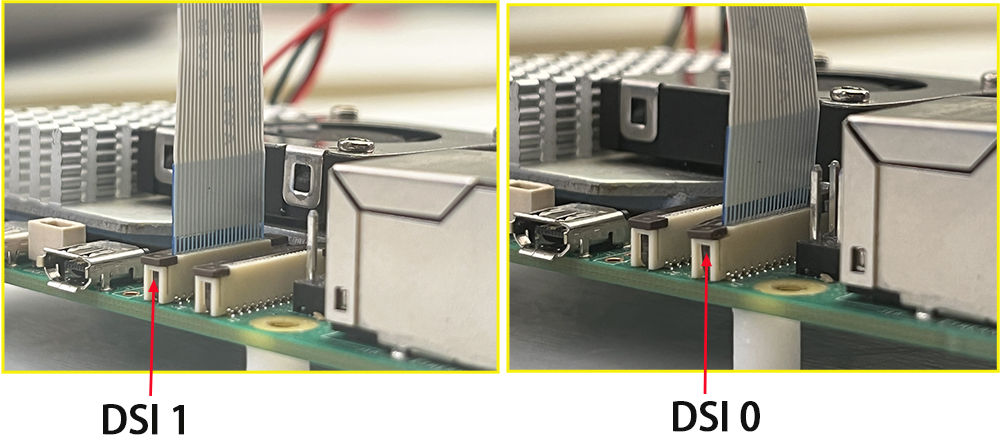
1. Use the 22pin-0.5mm to 22pin-0.5mm DSI cable (for Pi5) to connect the DSI port of the display to the 22PIN DSI1 or DSI0 port of the Raspberry Pi motherboard.
2. Use 2pin connector to connect the power connector of the display to the 5V GND pin header of the Raspberry Pi motherboard.
3. Secure the Raspberry Pi to the display with M2.5 screws.
Note: Make sure that the DSI cable is connected in correct direction and 5V power is supplied through the GPIO pins.
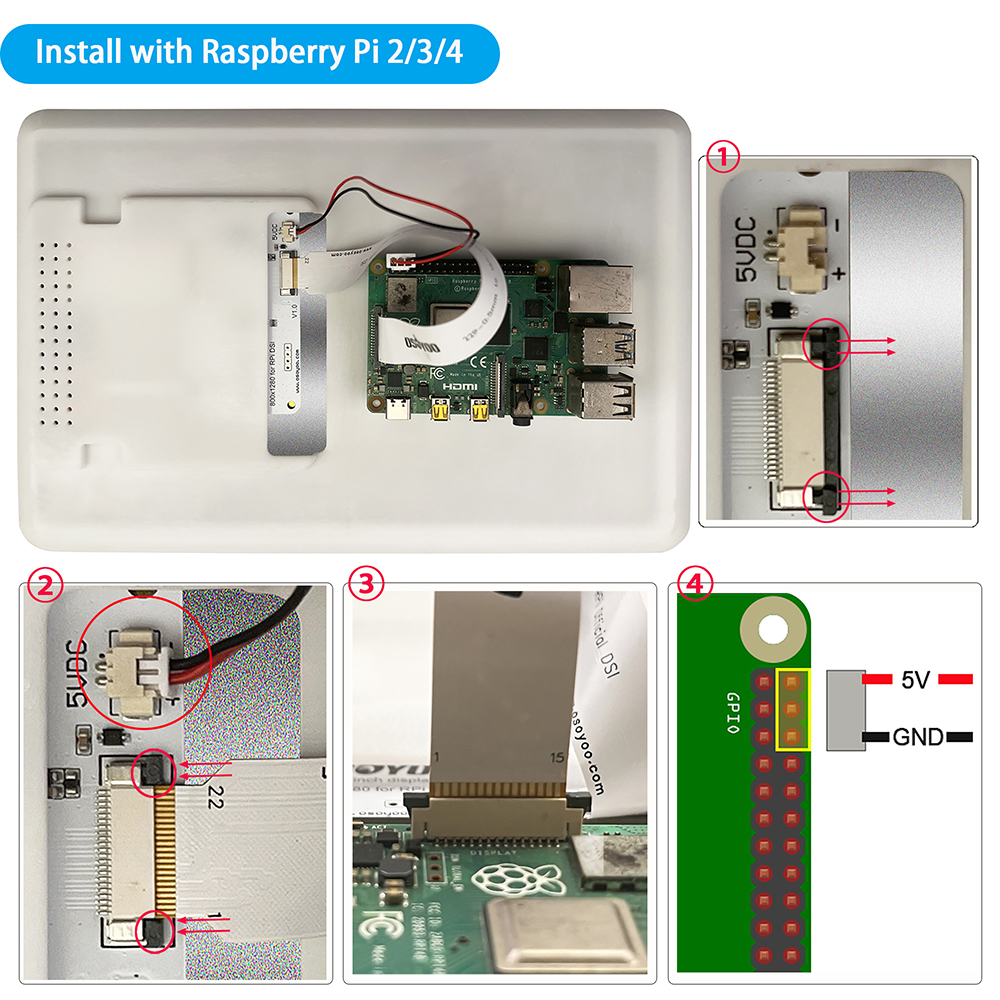
 Hardware Connection with Pi4B/3B+/3B/3A+
1. Use the 15pin-1mm to 15pin-0.5mm DSI cable (for Pi3/4) to connect the DSI port of the display to the 15PIN DSI port of the Raspberry Pi motherboard.
2. Use the 2pin connector to connect the power connector of the display to the 5V GND pin header of the Raspberry Pi motherboard.
3. Secure the Raspberry Pi to the display with M2.5 screws.
Note: Make sure that the DSI cable is connected in correct direction and 5V power is supplied through the GPIO pins.
Software Settings
Step 1: Preparation
Before installing the display driver, make sure your Raspberry Pi is properly configured and can be accessed remotely.
- Install Raspberry Pi OS
Use Raspberry Pi Imager to flash Ubuntu OS (Download the Ubuntu image from: https://cdimage.ubuntu.com/releases/26.04/release/ubuntu-26.04-preinstalled-desktop-arm64+raspi.img.xz) to a microSD card. For detailed instructions, please refer to:
https://osoyoo.com/2025/09/09/installation-os-with-raspberry-pi-imager/#9
- Connect the Raspberry Pi to a Wi-Fi Hotspot
Insert the microSD card into your Raspberry Pi and power it on. Make sure the Raspberry Pi is connected to the same Wi-Fi hotspot/network as your PC, and identify the Raspberry Pi’s IP address.
- Verify Remote Access
Make sure remote control is enabled on your Raspberry Pi so that you can access it remotely from your PC. Use an Remote tool on your PC to connect to the Raspberry Pi and confirm that you can access and control it remotely
- Connect the Display
Connect the display to your Raspberry Pi according to the hardware connection instructions.
Step 2: install script, open your PC terminal and run the following commends:
sudo apt update

# Clone the repository
git clone https://github.com/osoyoo/osoyoo-dsi-panel.git
cd osoyoo-dsi-panel

# Run direct installation script
./install-direct.sh display10inch
Note: The script will:
- Auto-detect your Pi model (Pi 3/4/5)
- Install dependencies
- Build and install the driver using DKMS
- Install device tree overlays
- Automatically update /boot/firmware/config.txt with correct dtoverlay value
If your screen is 7″ 720×1280 DSI screen, please replace display10inch with display7inch
If your screen is 3.5″ 480×800 DSI screen, please replace display10inch with display3.5inch
For Raspberry Pi 5, default dsi port is dsi1, if you insert the screen to dsi0 port, please add ” dsi0″ in the install command as following:
./install-direct.sh display10inch dsi0
or you can use sudo nano /boot/firmware/config.txt command to add dsi0 to the last line( dtoverlay setting):
dtoverlay=osoyoo-panel-dsi-10inch,4lane
after changing
dtoverlay=osoyoo-panel-dsi-10inch,4lane,dsi0
3) Reboot your Raspberry Pi
sudo reboot

Adjust orientation
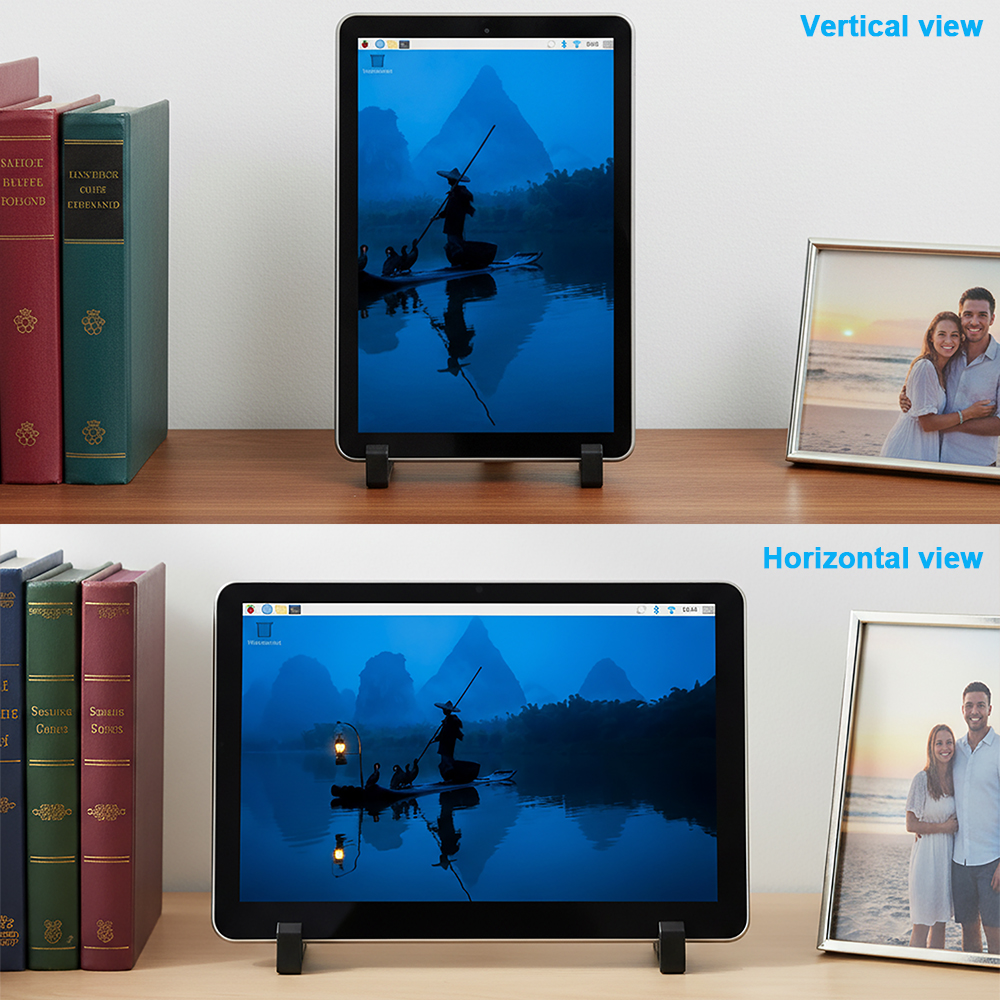
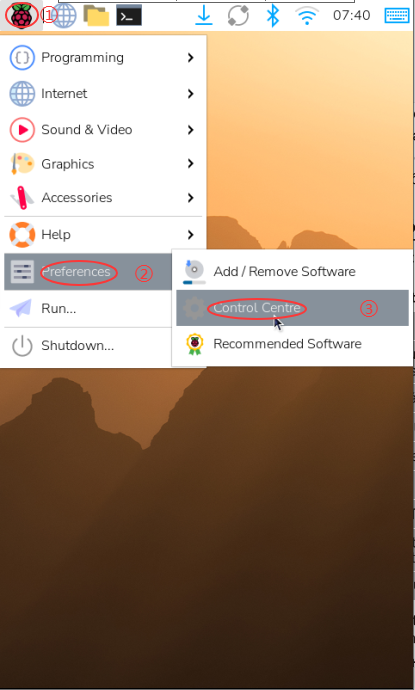
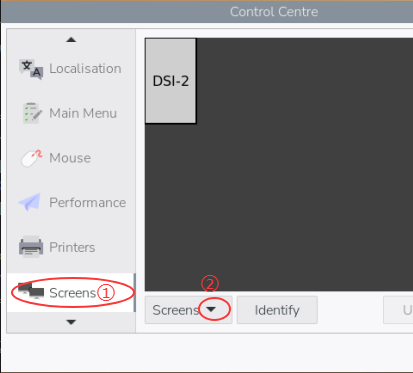
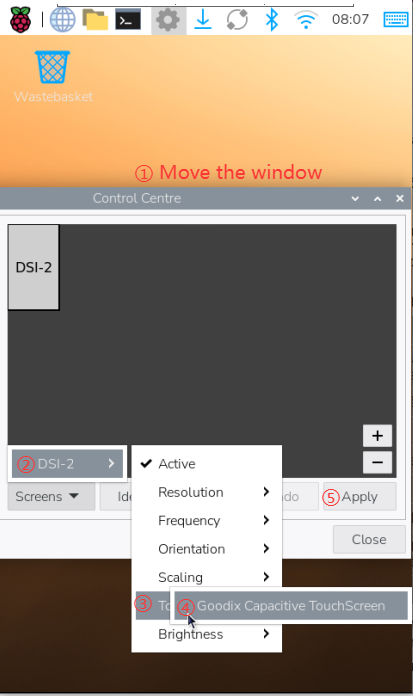
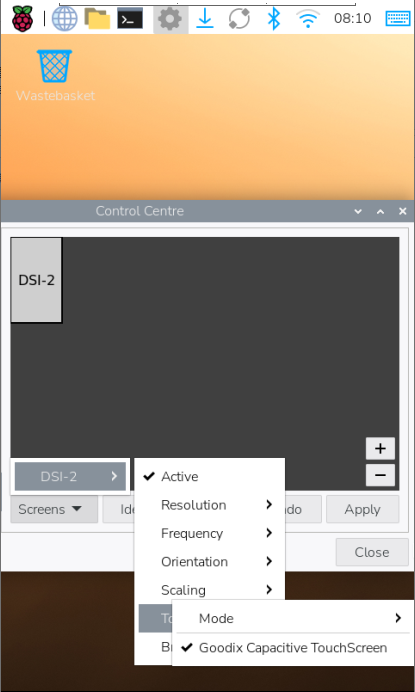
- Open Screen Configuration → Screen → DSI-1 → Touchscreen and tick this display’s touch device in the list.
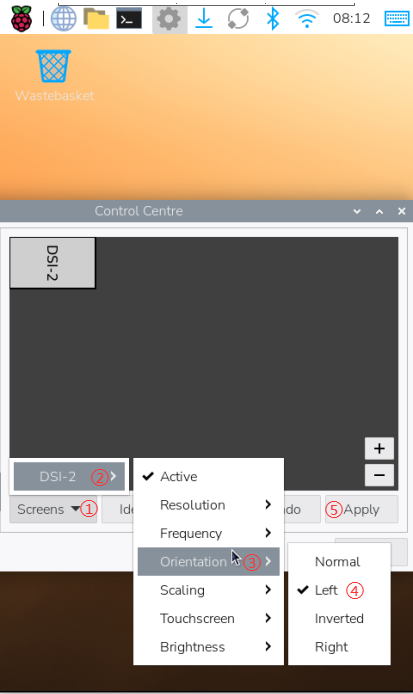
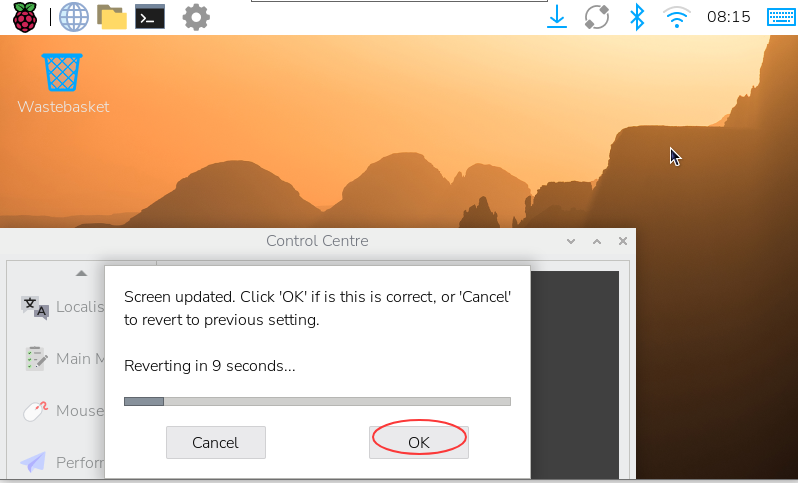
- Then go to Screen → DSI-1 → Orientation, choose the direction and click Apply; display and touch will now rotate together.
Adjusting Backlight Brightness
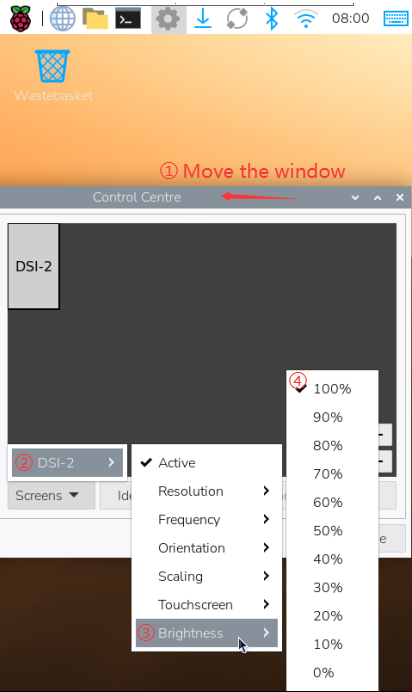
- 1. Open the “Screen Configuration” application;
- 2. Go to “Screen” -> “DSI-2” -> “Brightness”, check the backlight brightness you need to set, and finally click “Apply” to complete the backlight setting.
Related pages: Product Introduction | Ubuntu Driver Install Guide | Using with ESP32‑P4
Support: [email protected] | osoyoo.com
OSOYOO 10.1-inch DSI Touchscreen Document version v1.0