A smart home is an intelligent living space that uses modern technology to help residents live independently and comfortably. In a smart home, all mechanical and digital devices are connected to each other and can be controlled by a computer over the internet.
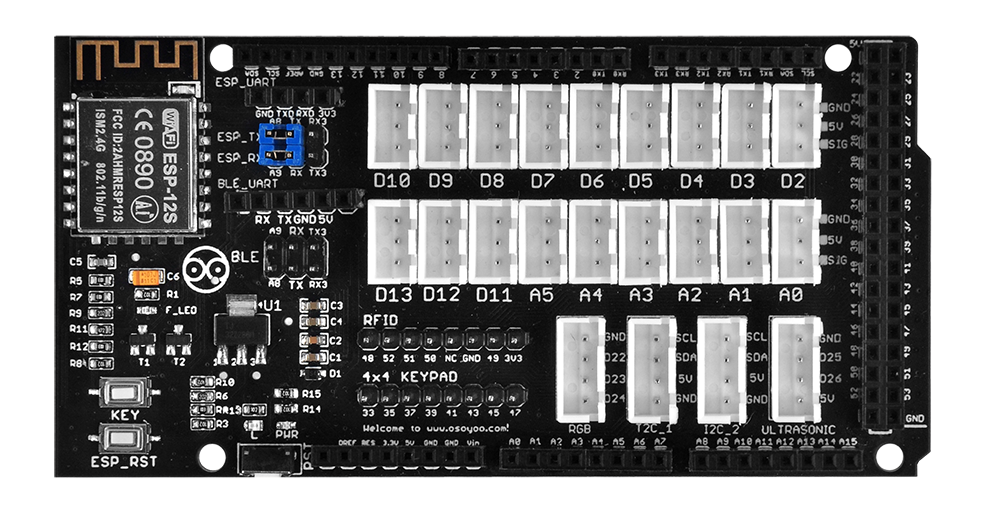
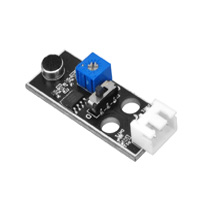
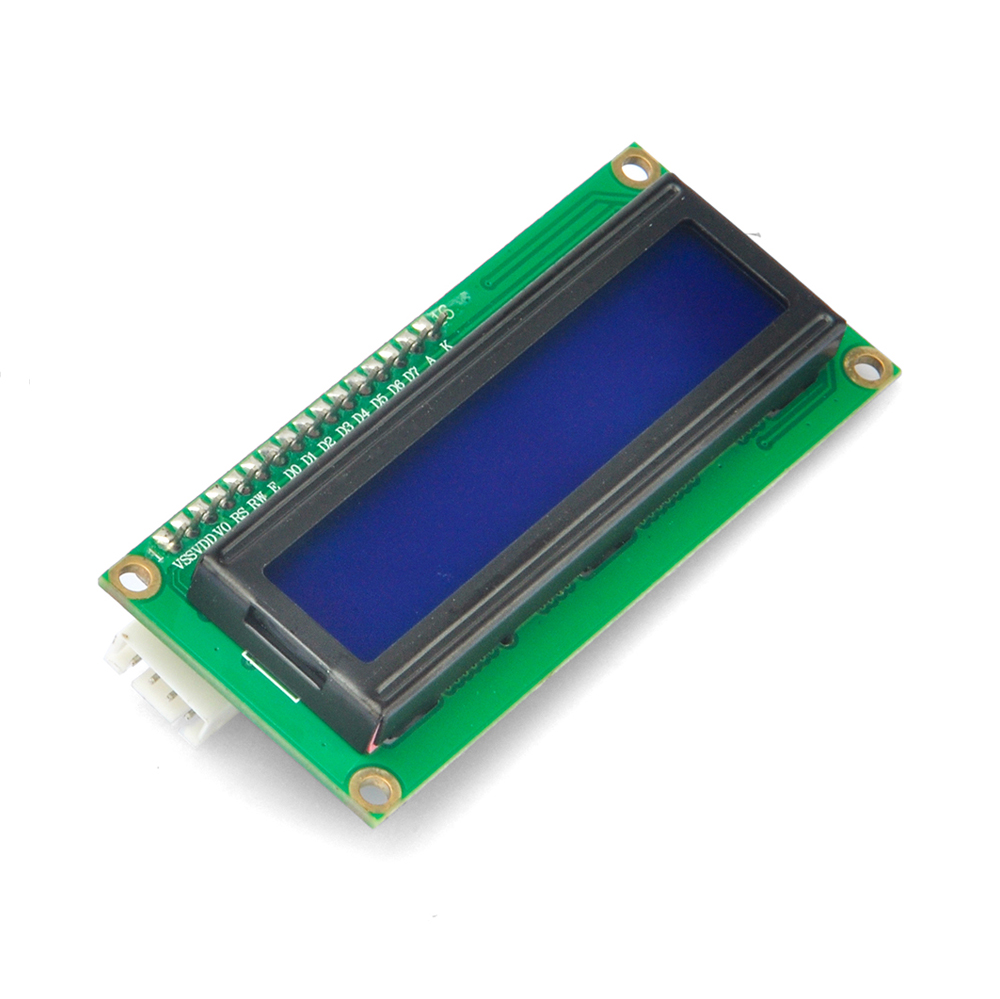
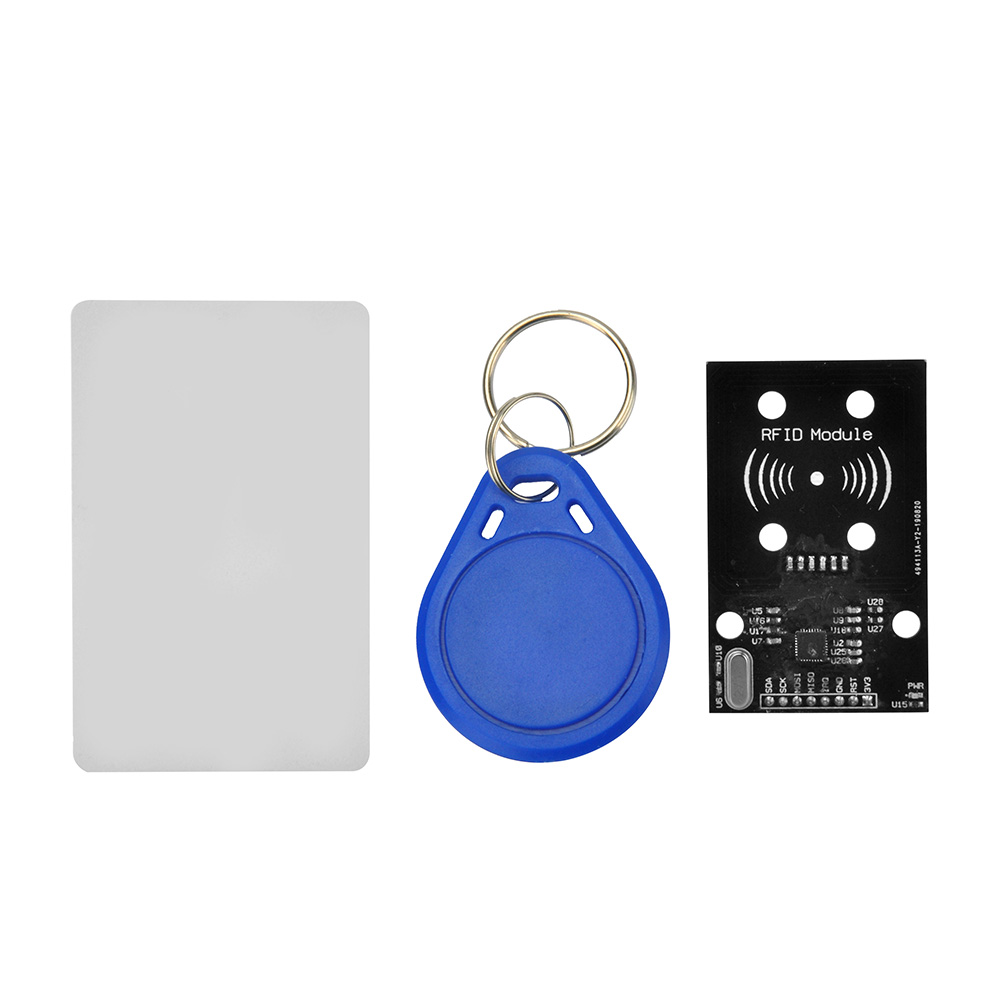
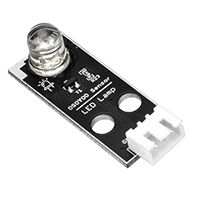
In this capstone project, we will build a comprehensive smart home system using many of the components included in the OSOYOO Smart Home IoT Kit.
HARDWARE
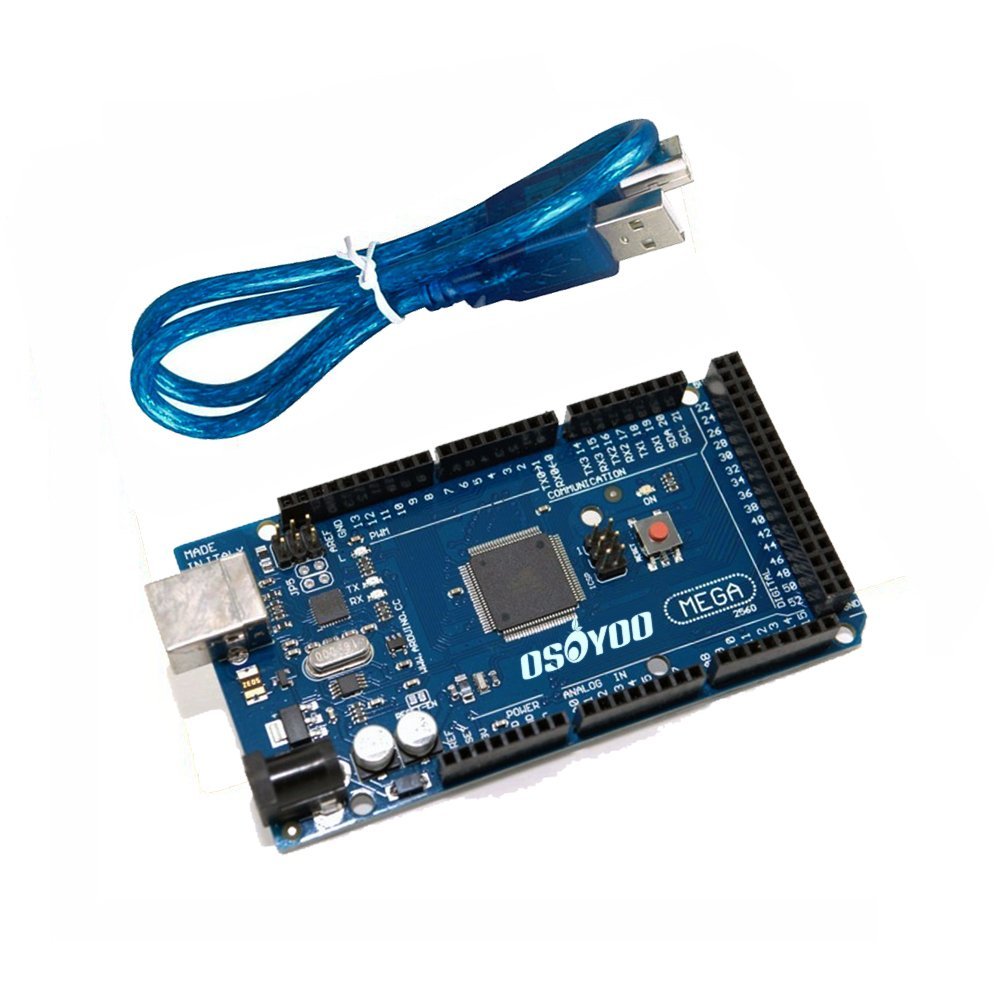
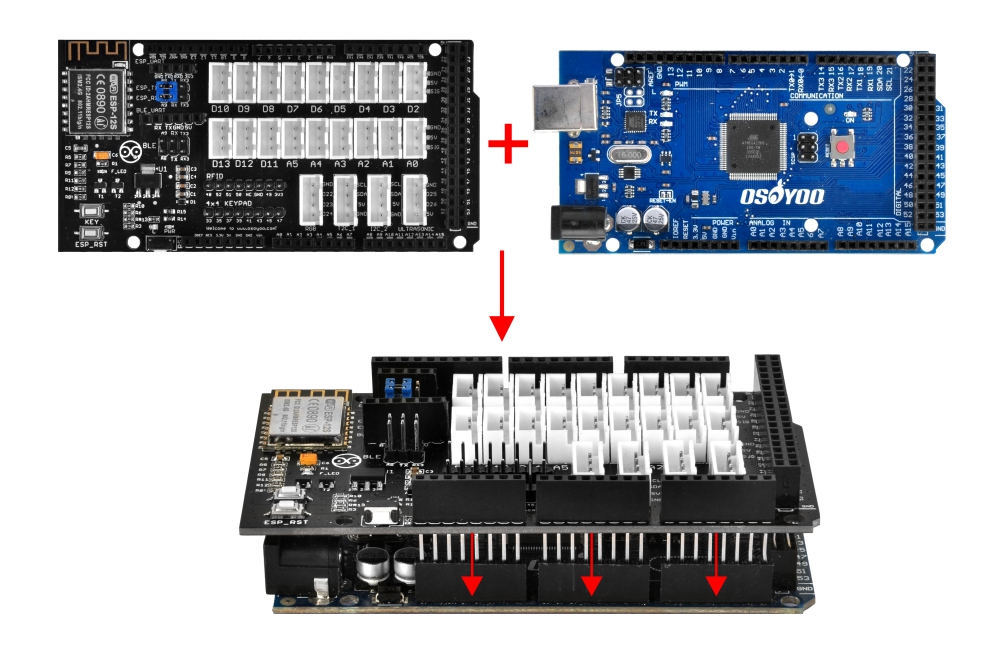
OSOYOO Mega2560 board (fully compatible with Arduino MEGA2560) x 1
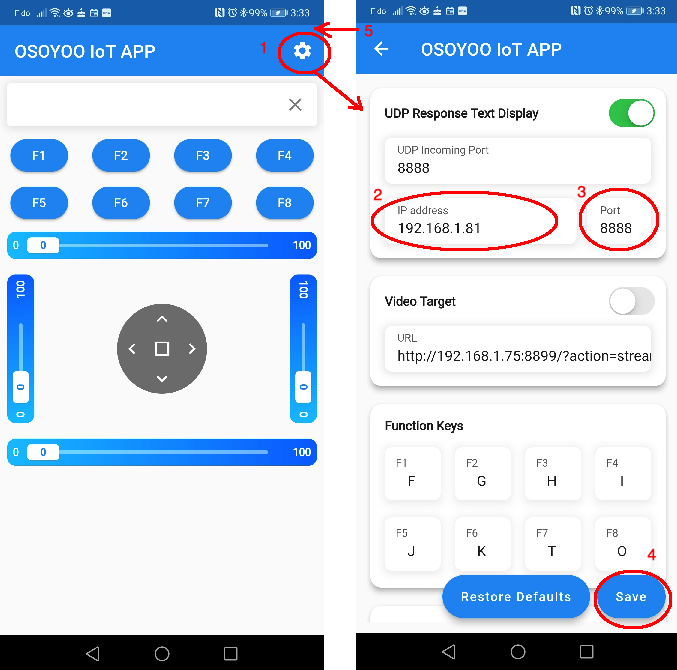
Step 2) Make sure your phone is on the same local network as the Arduino. Open the APP, tap Settings, and enter the Arduino IP address from the Serial Monitor output above and set the Port to 8888:
The features of this capstone project:
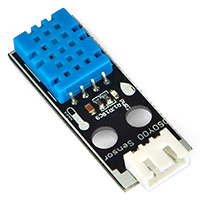
1) After starting the Arduino, the LCD will display the Arduino’s IP address for two seconds, then switch to showing the temperature and humidity data read from the DHT11 sensor.
The RGB module starts GREEN, indicating no alerts.
2) Automatic Light
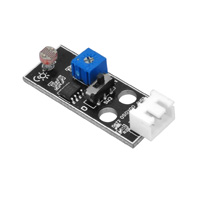
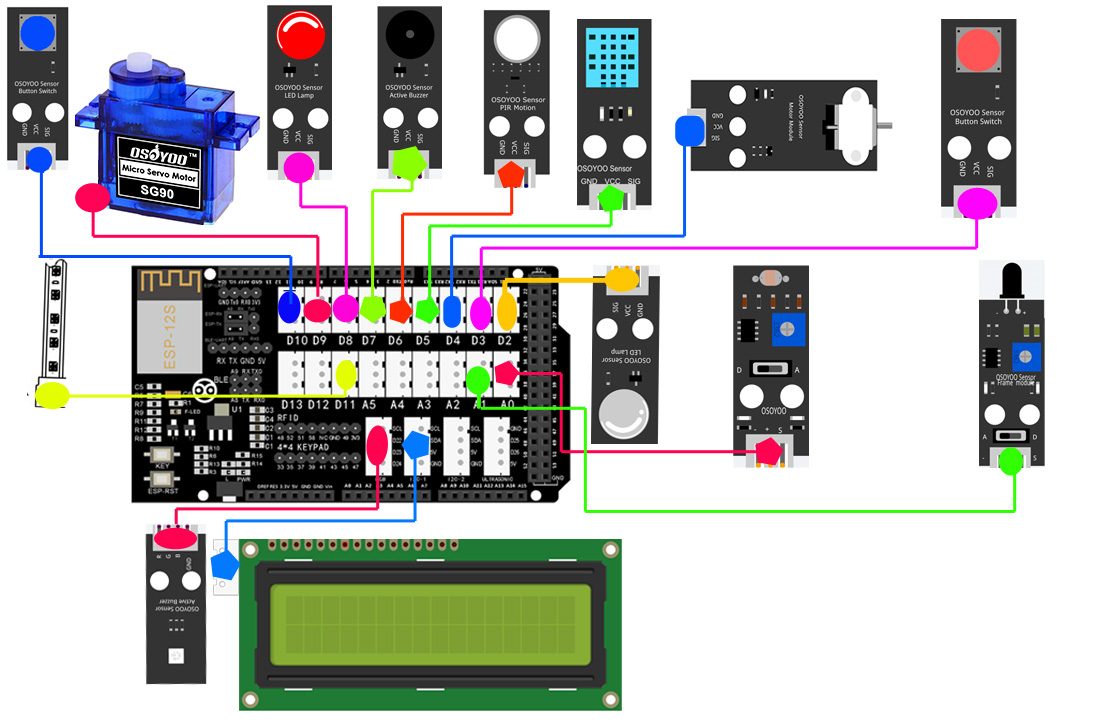
When the environment is darker than a pre-defined threshold (enable_led in line 39), the Arduino will turn on the light (WHITE LED on D2).
3) Flame Detection and Alert
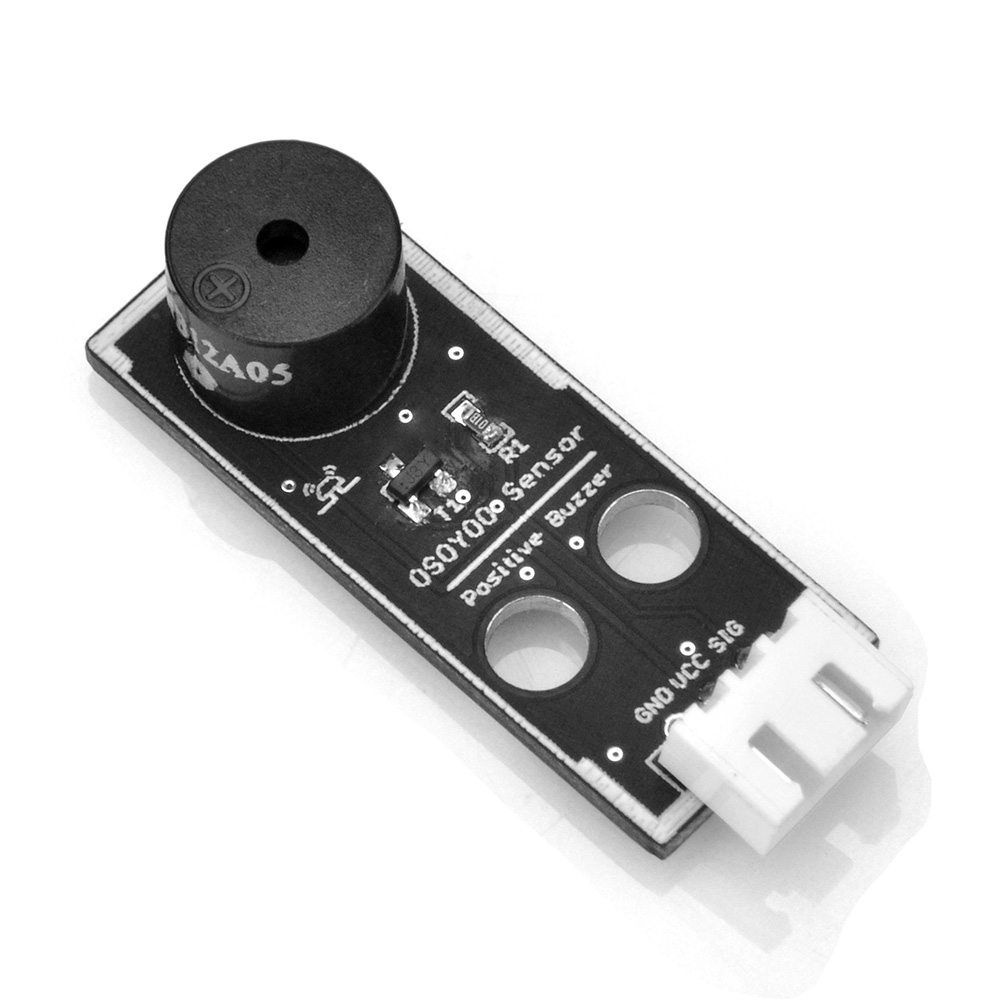
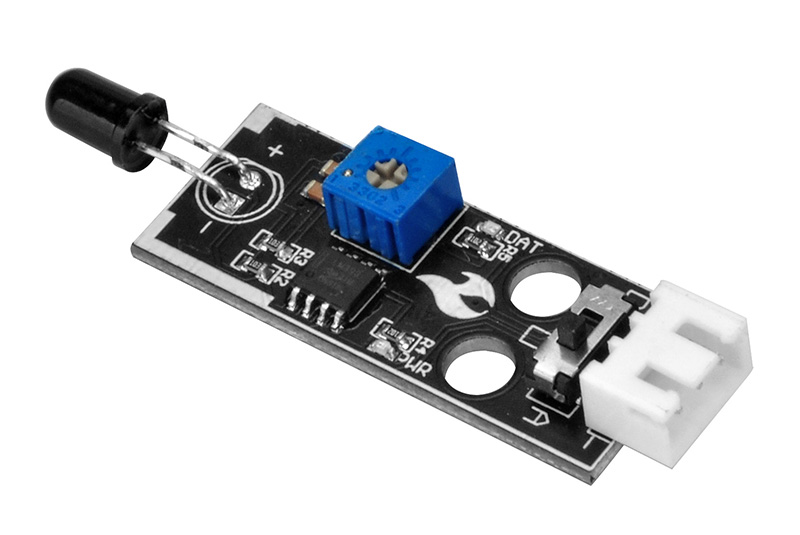
If the flame sensor data on A1 drops below a pre-defined value (flame_alert in line 38), a flame is detected. The Arduino will trigger a buzzer alert and send a flame message to the LCD and the phone APP. The RGB color will also change to RED.
4) Intruder Detection and Alert
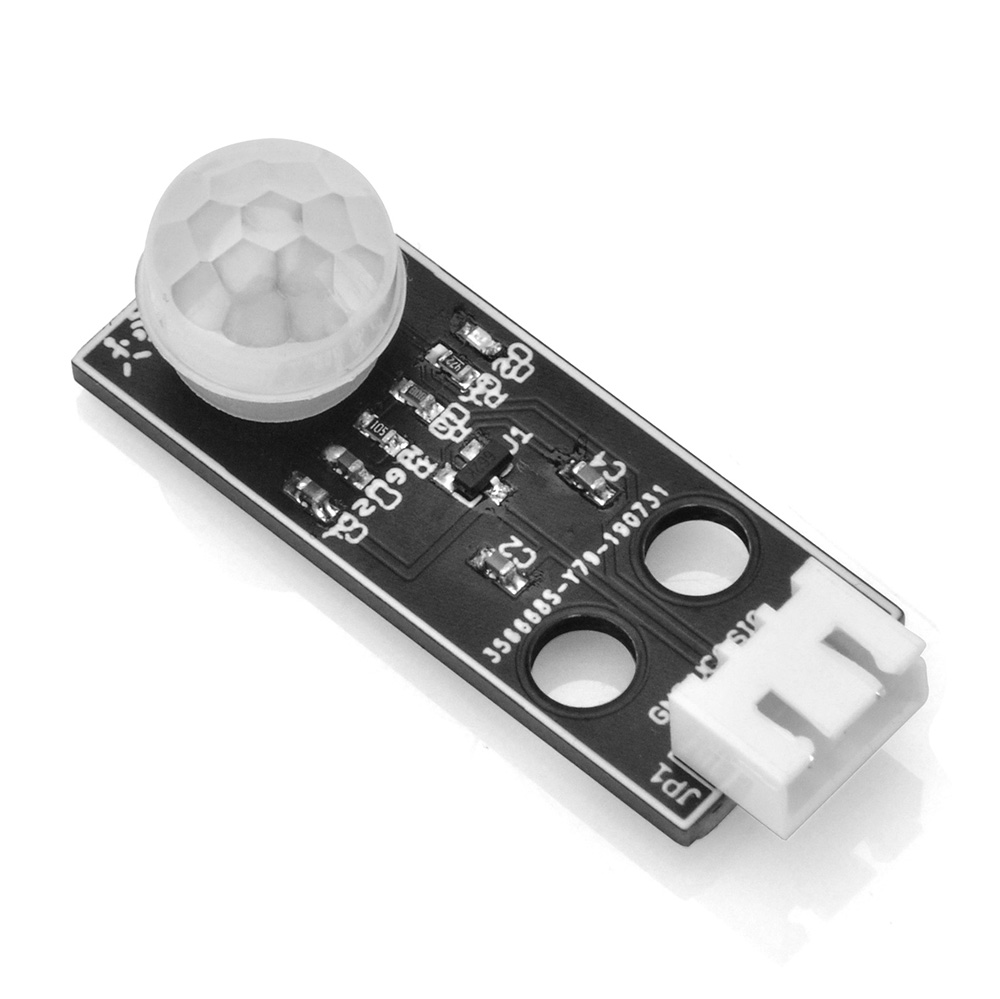
If the PIR motion sensor on D6 detects motion, the Arduino will trigger a buzzer alert and send an intruder message to the LCD and the phone APP. The RGB color will also change to Blue.
5) Manually Stop Intruder and Flame Alerts
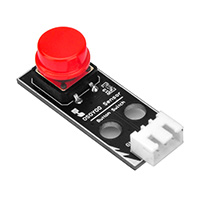
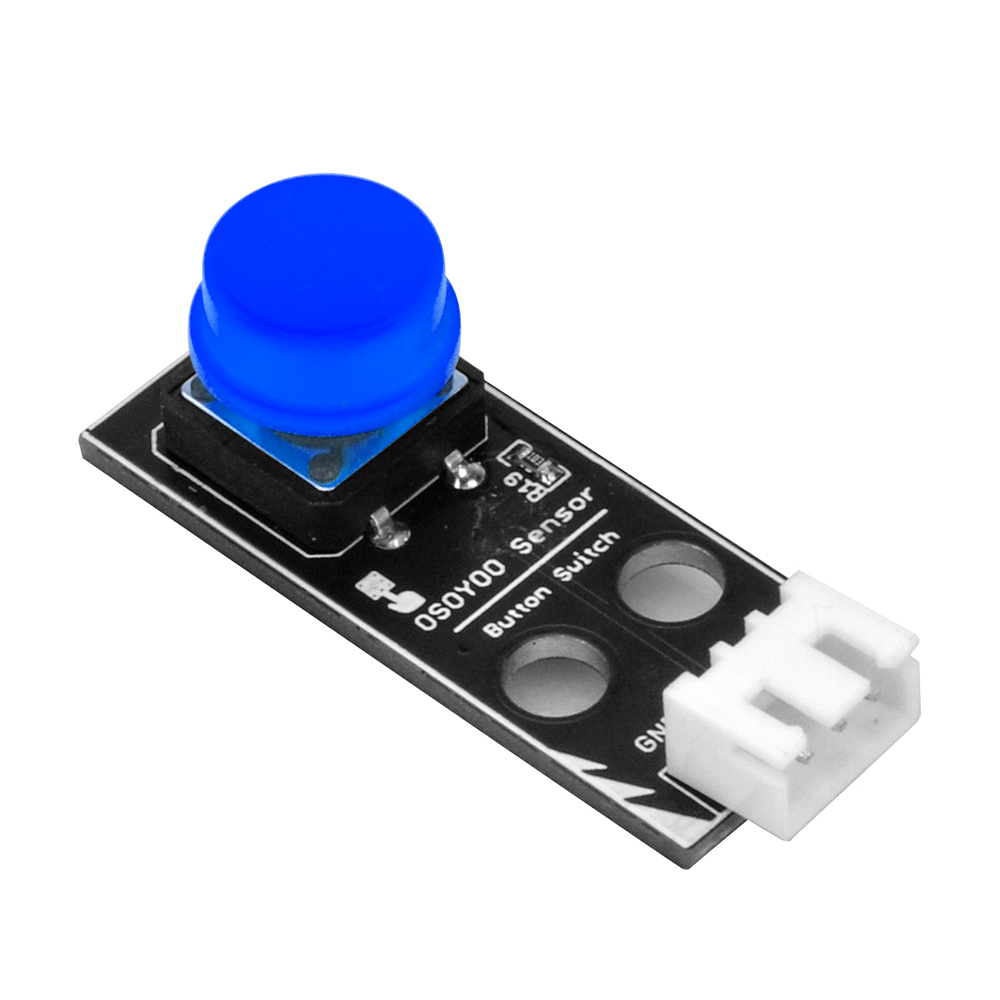
You can press the Blue button on D10 or press F1 in the APP to stop the buzzer and clear the alert message from the LCD and APP.
6) Using the APP to Open the Door
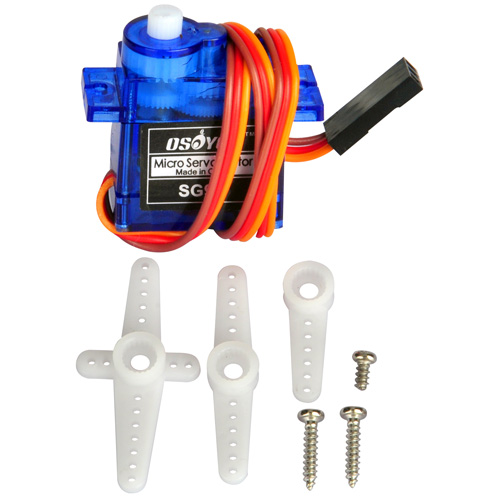
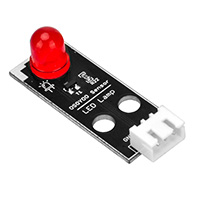
Press F8 in the APP to rotate the servo on D9 and open the door. The Red LED on D8 will turn on while the door is open. After 2 seconds, the door will automatically close and the Red LED will turn off.
7) Toggle LED Strip and Fan with the Red Button on D3
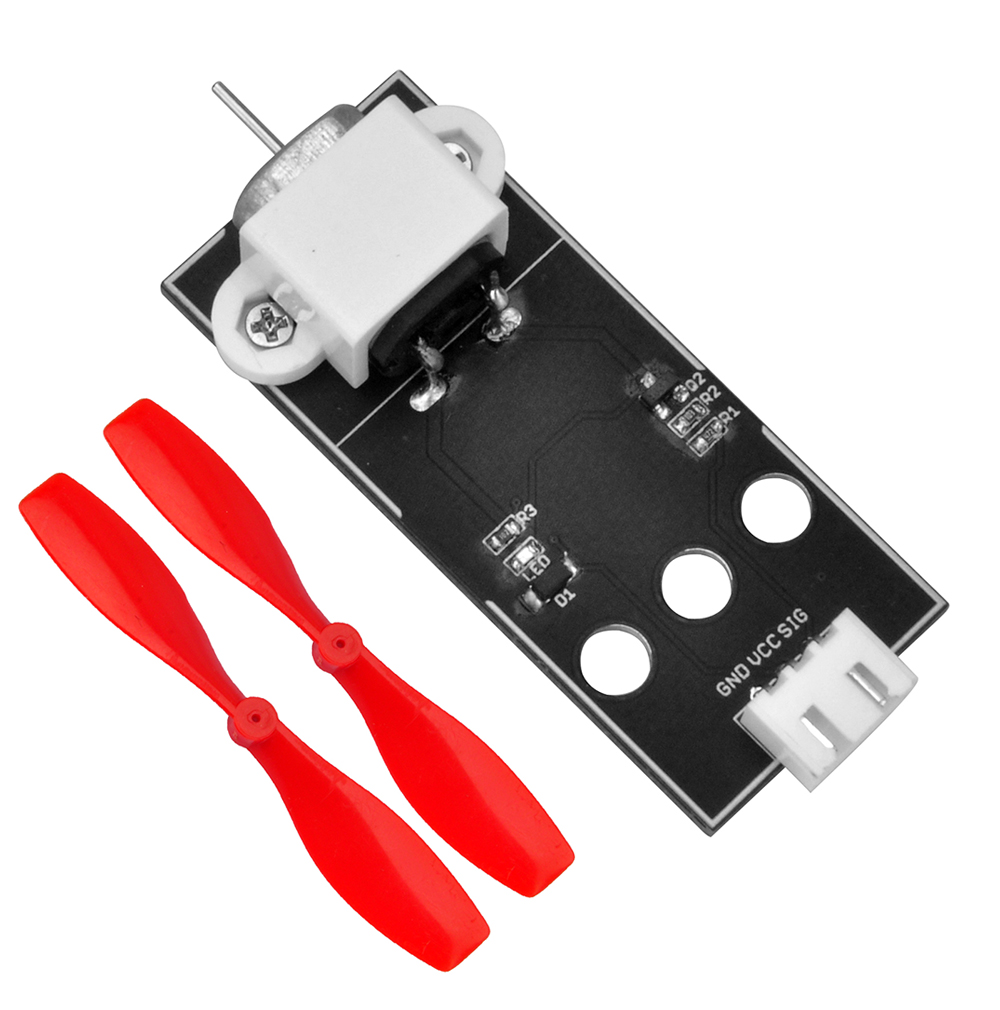
The Red button on D3 is attached to a hardware interrupt at line 109. Each time you press it, the interrupt handler function changeflag() at lines 115–117 toggles the LED strip and fan ON/OFF.
8) Control LED Strip and Fan via APP
In addition to the Red button, you can also turn on the LED strip and fan by pressing F2 in the APP.
You can turn them off by pressing F3 in the APP.

















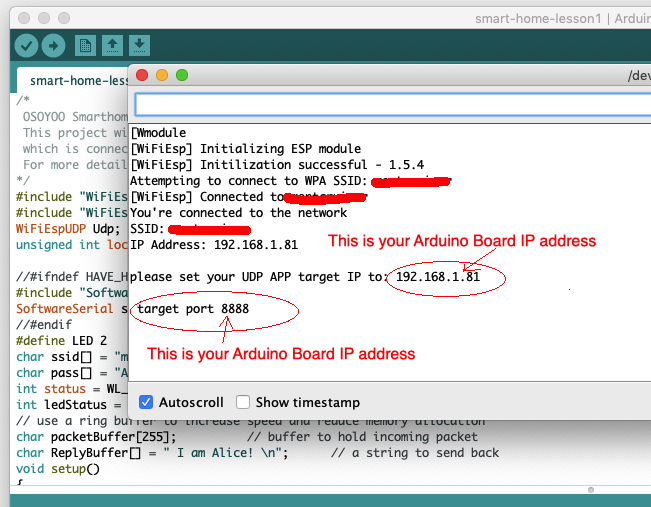 In the example above, 192.168.1.81 is the IP address of the Arduino. Enter this IP address in the APP in the next step.