| Buy from OSOYOO |
Buy from US |
Buy from UK |
Buy from DE |
Buy from IT |
Buy from FR |
Buy from ES |
Buy from JP |
 |
 |
 |
 |
 |
 |
 |
 |
Hardware Install
Hardware Connection with Raspberry Pi 5
1. Use the 22-pin 0.5 mm to 22-pin 0.5 mm DSI cable (for Pi 5) to connect the DSI port of the display to the 22-pin DSI1 or DSI0 port of the Raspberry Pi motherboard.
2. Use the 2-pin connector to connect the power connector of the display to the 5V/GND pin header of the Raspberry Pi motherboard.
3. Secure the Raspberry Pi to the display with M2.5 screws.
Note: Make sure the DSI cable is connected in the correct direction and that 5V power is supplied through the GPIO pins.
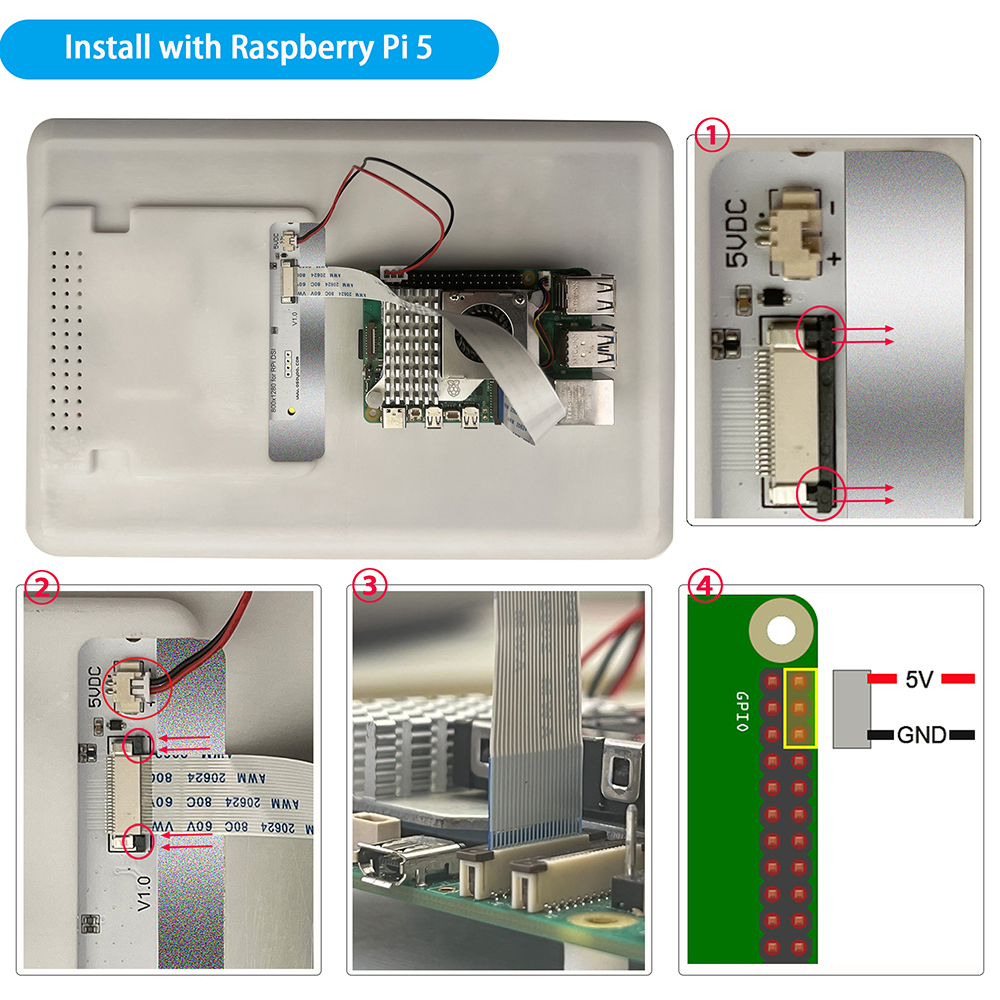
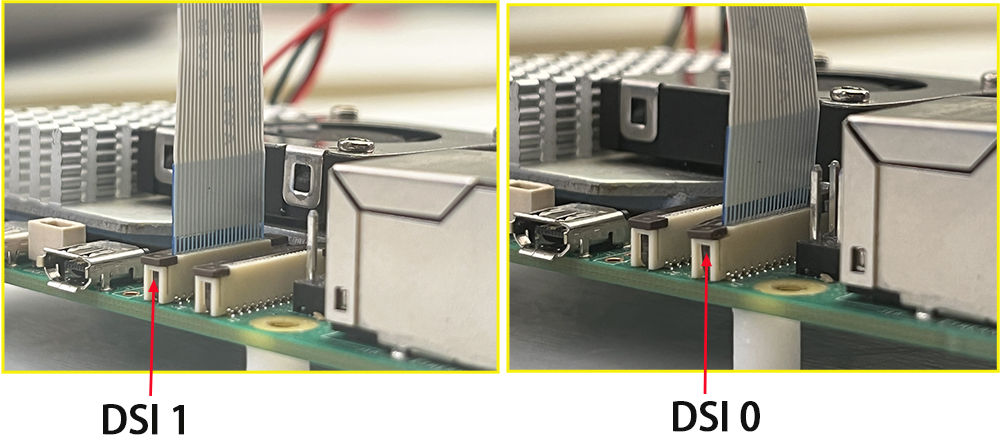 Hardware Connection with Raspberry Pi 4B/3B+/3B/3A+
1. Use the 15-pin 1 mm to 22-pin 0.5 mm DSI cable (for Pi 3/4) to connect the DSI port of the display to the 15-pin DSI port of the Raspberry Pi motherboard.
2. Use the 2-pin connector to connect the power connector of the display to the 5V/GND pin header of the Raspberry Pi motherboard.
3. Secure the Raspberry Pi to the display with M2.5 screws.
Note: Make sure the DSI cable is connected in the correct direction and that 5V power is supplied through the GPIO pins.
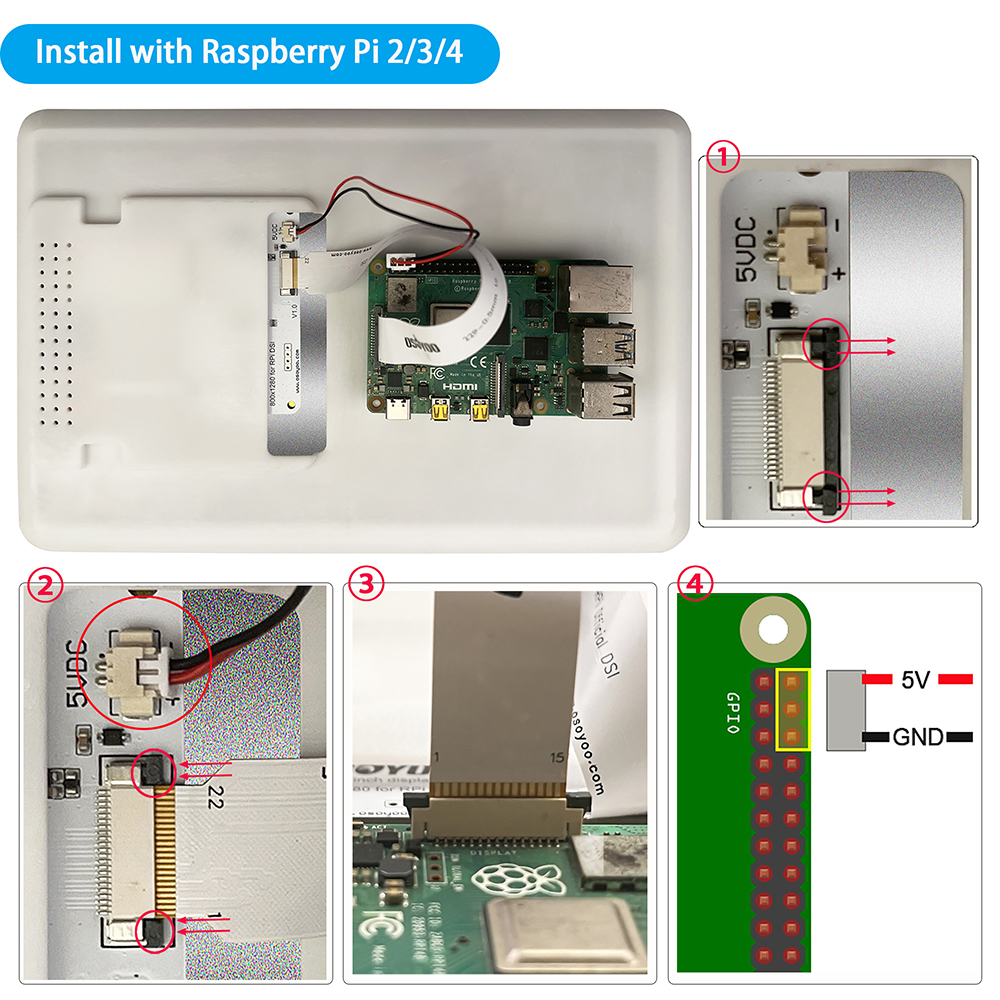
Software Install
Step 1: Flash a TF card with Ubuntu OS. (Download the Ubuntu image from: https://cdimage.ubuntu.com/releases/26.04/release/ubuntu-26.04-preinstalled-desktop-arm64+raspi.img.xz) Connect to Wi-Fi, insert the card into your Raspberry Pi, and then power it on. (Note: We recommend using Raspberry Pi Imager to flash the OS. Please refer to: https://osoyoo.com/?p=60151)
Step 2: Install the driver.
cd ~
sudo apt update
sudo apt install git -y
git clone https://github.com/osoyoo/osoyoo_dsi_ubuntu.git
cd osoyoo_dsi_ubuntu
bash install-direct.sh display10inch
note: if you are using OSOYOO 10.1 inch screen or 3.5″ DSI screen, you can change the parameter display10inch to display7inch or display3.5inch
The installer will automatically:
- Detect your Ubuntu version and kernel version
- Install dependencies (dkms, device-tree-compiler, kernel headers)
- Patch the driver code for your kernel’s GPIO API (supports kernel 6.8, 6.17, 7.0+)
- Build and install the driver using DKMS
- Copy overlays to the correct Ubuntu paths
- reboot after the driver is installed and you press “Y” to confirm.
After rebooting, your DSI screen should display the Ubuntu desktop.