Authorized Retailers
Retailers of the OSOYOO PiStudio Case for the 7-inch IPS DSI screen
| Buy from OSOYOO |
Buy from US |
Buy from UK |
Buy from DE |
Buy from IT |
Buy from FR |
Buy from ES |
Buy from JP |
 |
 |
 |
 |
 |
 |
 |
 |
Retailers of the OSOYOO 7-inch IPS DSI Screen with PiStudio Case
| Buy from OSOYOO |
Buy from US |
Buy from UK |
Buy from DE |
Buy from IT |
Buy from FR |
Buy from ES |
Buy from JP |
|
|
|
|
|
|
|
|
Features
The OSOYOO PiStudio Case is an all-in-one desktop solution for Raspberry Pi. It is compatible with the official Raspberry Pi 7-inch DSI Display and the OSOYOO 7-inch IPS V4.0 DSI screen.
- Front plate with camera hole
- Door with fan
- Door for Raspberry Pi 5 with Active Cooler
- Adjustable-angle stand holder
- Wall-mounting holes for hanging
- HDMI / Power / USB port access
- Compatible with Raspberry Pi B+, 2B, 3B, 3A+, 3B+, 4, and 5
- Compatible with the Raspberry Pi V3 Camera; not compatible with Camera V1, V2, or the HQ Camera
- Compatible with the official Raspberry Pi 7-inch DSI Display and the OSOYOO 7-inch IPS V4.0 DSI screen
(Note: Download the Installation Guide from https://osoyoo.com/picture/7in_IPS/case/Installation_guide.pdf)
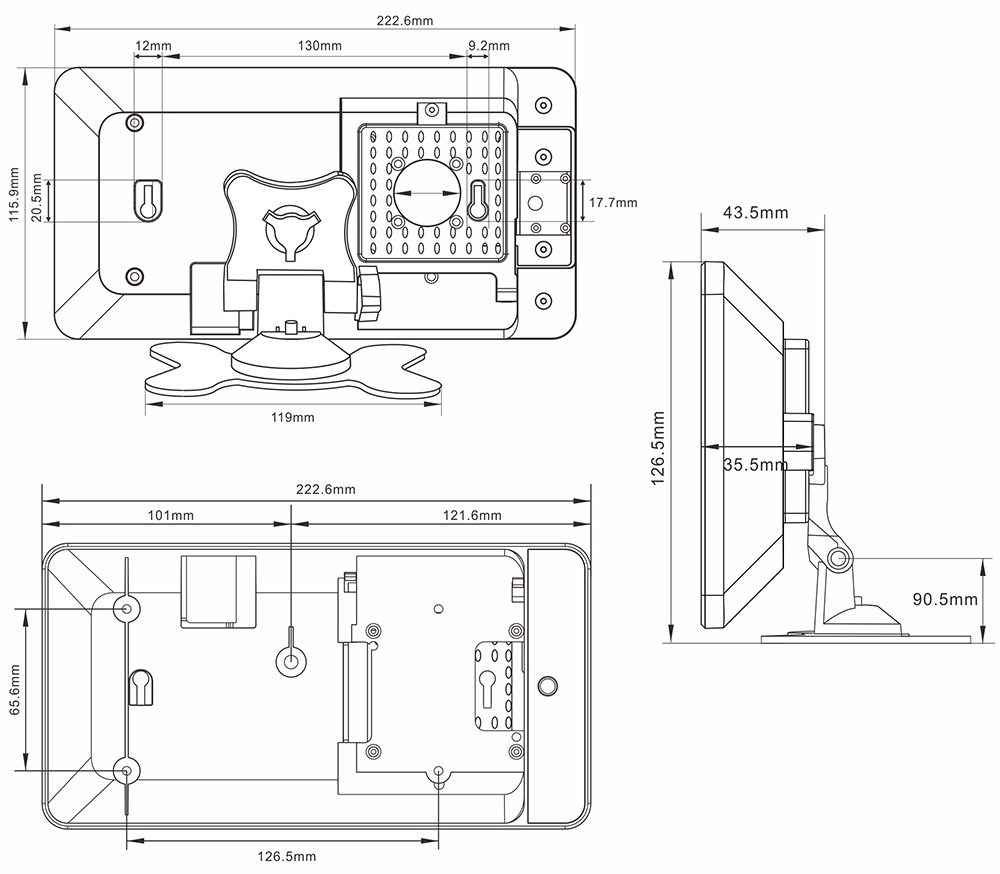
Product Dimensions
Installation Steps
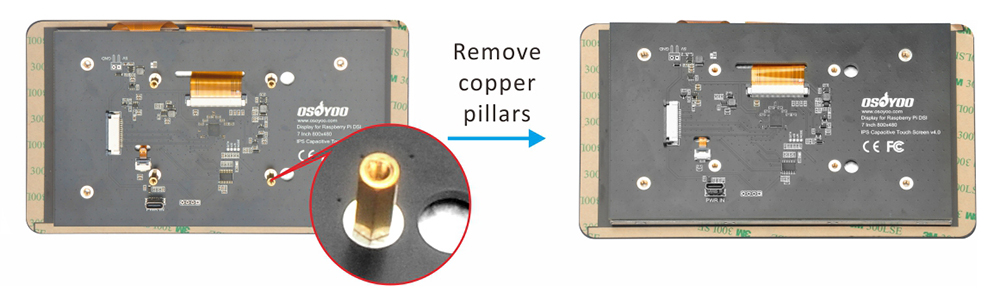
Step 0: If you are using the case with the OSOYOO 7-inch IPS V4.0 DSI screen, remove the copper standoffs from the back of the screen.
Step 1: Insert the 15-pin 1 mm end of the DSI cable into the OSOYOO 7-inch IPS V4.0 DSI screen. (Note: The metal contacts must face upward.)
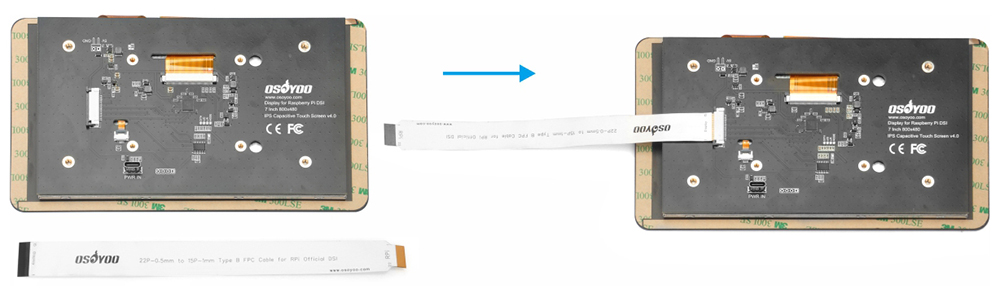
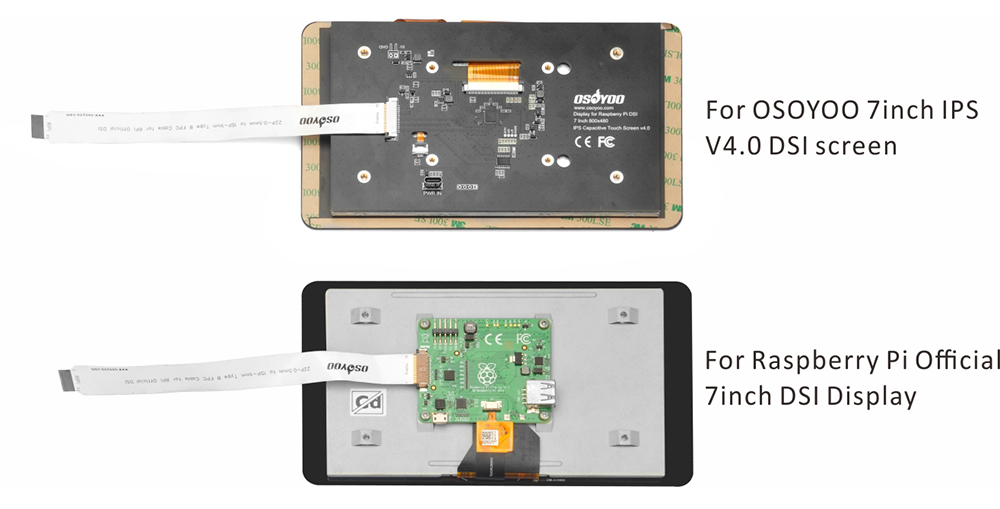
Step 2: Mount the display into the case as shown:
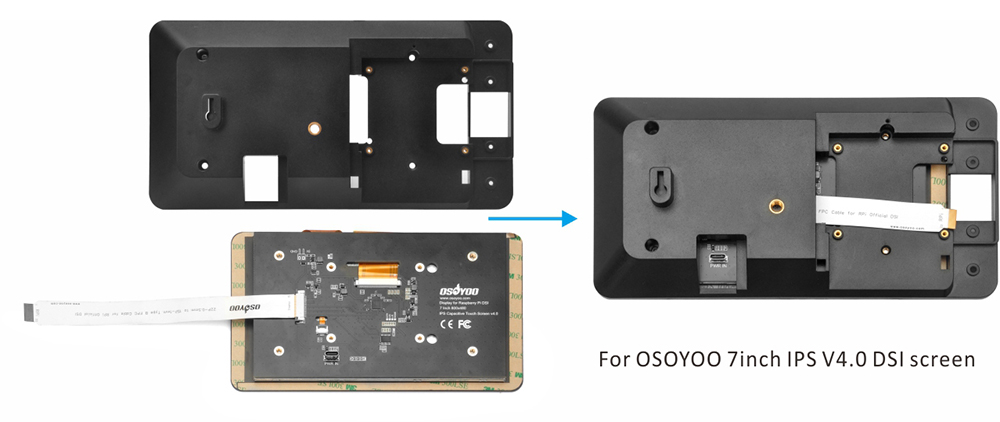
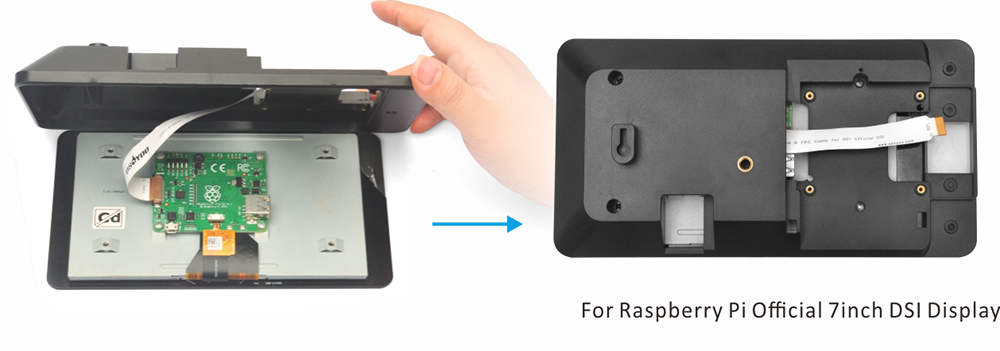
Step 3: Secure the display with the 4× M3×6 screws.
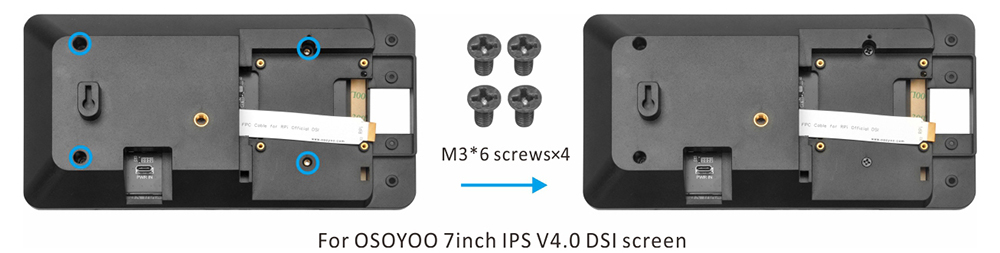
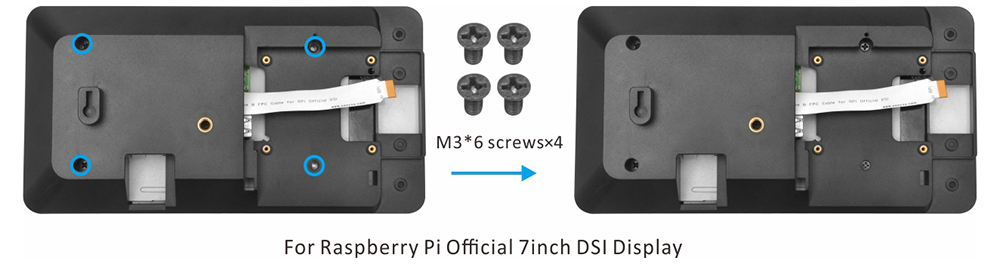
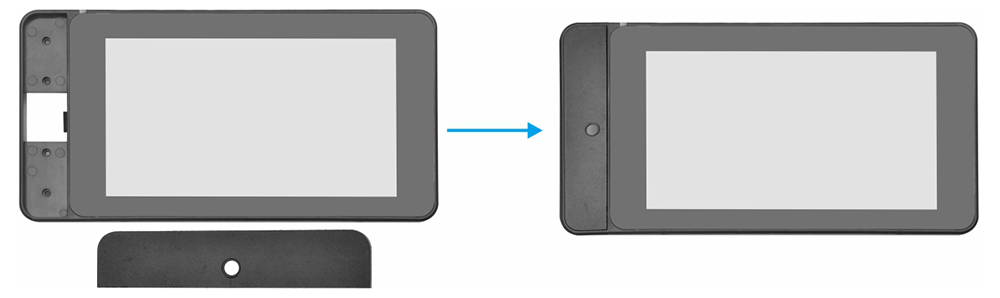
Step 4: Install the front plate into the case as shown:
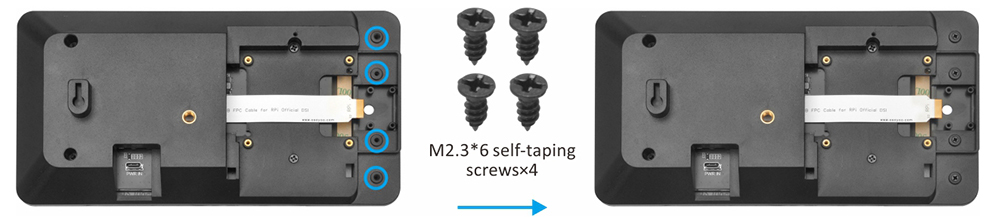
Step 5: Secure the front plate with 4× M2.3×6 self-tapping screws from the back:
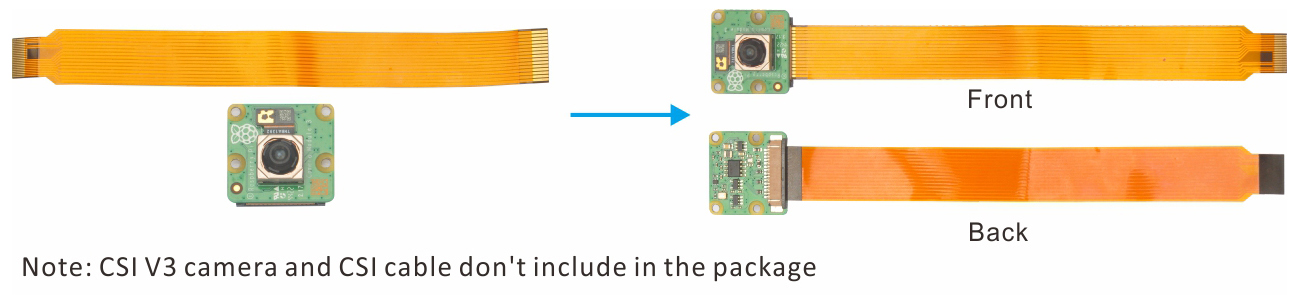
Step 6: Insert the CSI cable into the V3 camera (use a cable approximately 15 cm long):
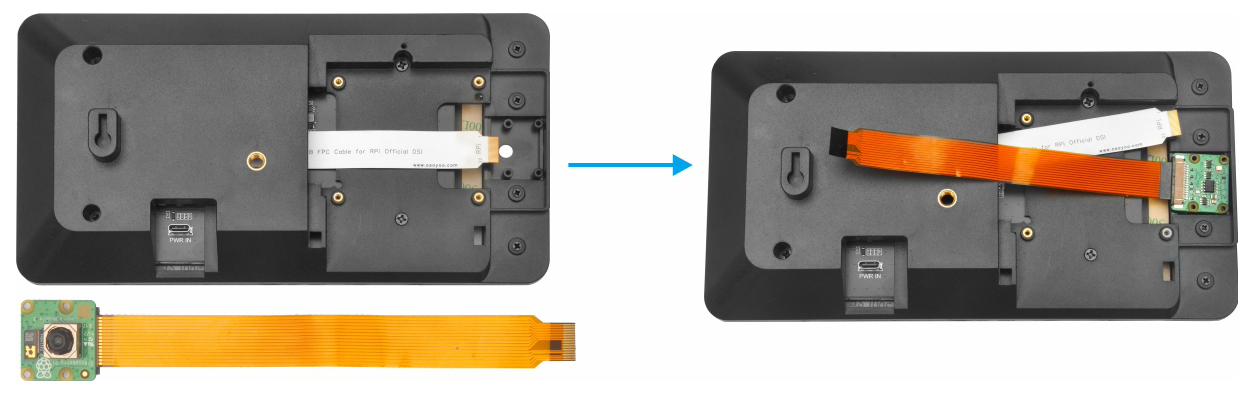
Step 7: Place the V3 camera at the back of the front plate as shown, then secure it with M2.3×6 self-tapping screws:
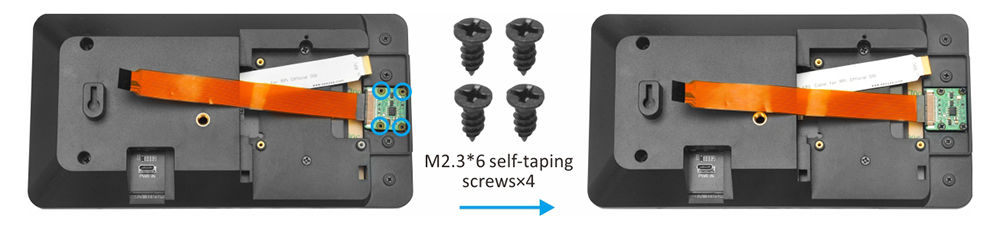
Step 8: Prepare a TF card with an OS image written to it, then insert the card into the Raspberry Pi TF card slot.

Step 9: Connect the DSI and CSI cables to the Raspberry Pi DSI and CSI ports.
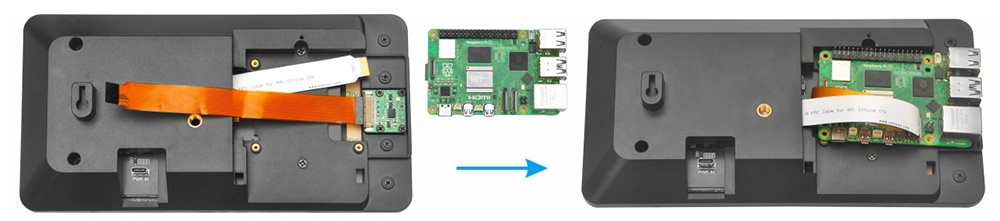
Step 10: Mount the Raspberry Pi board in the case with 4× M2×6 screws:
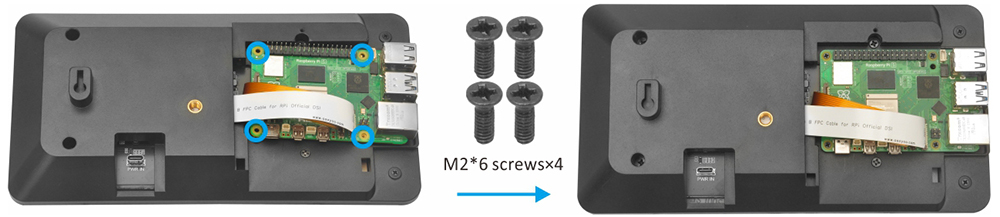
Step 11: Install the fan on the door. (Note: If you are using a Raspberry Pi 5 with an Active Cooler, skip steps 11–12.)
Note: Two door options are included — choose the correct door for your Raspberry Pi model.
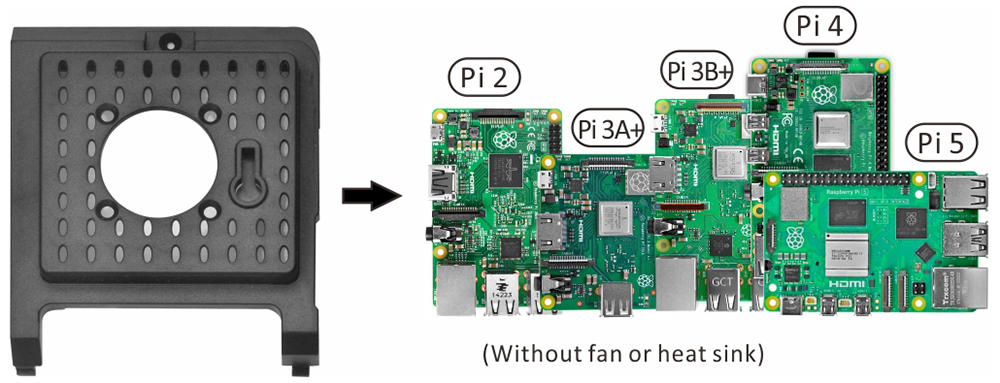
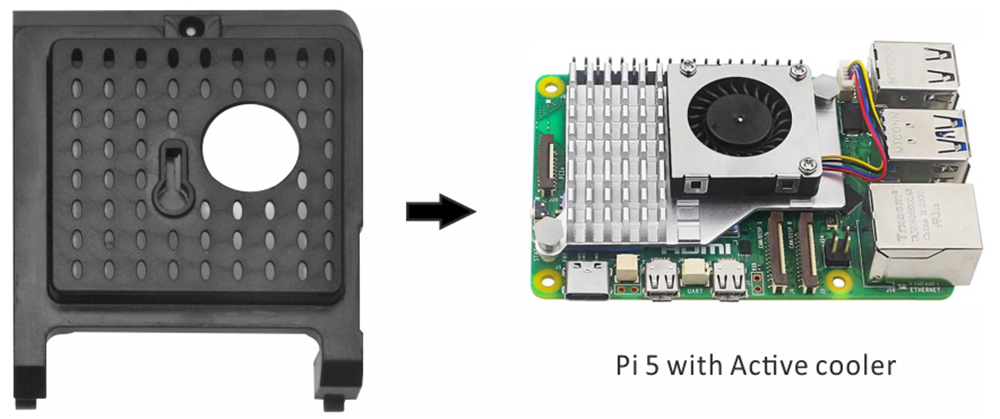
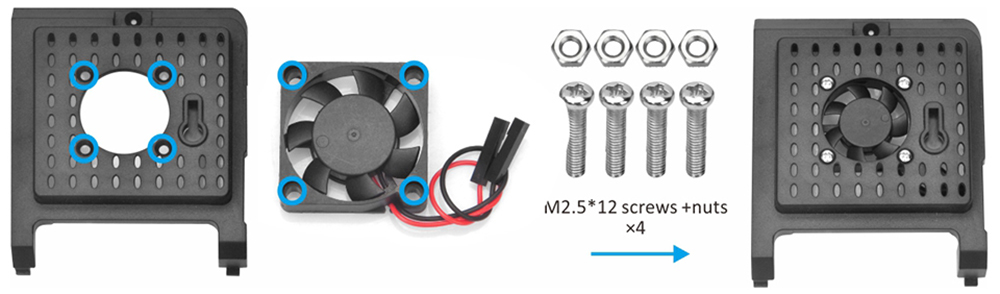
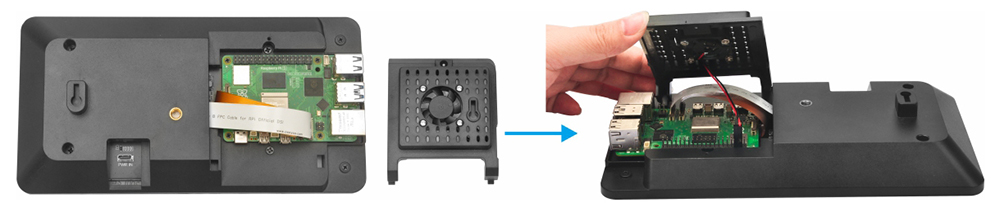
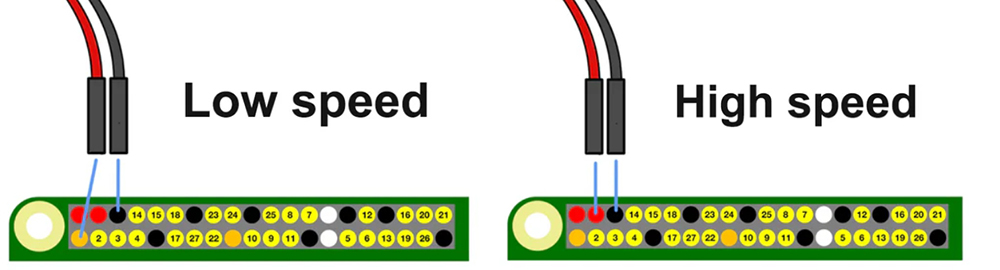
Step 12: Connect the fan wires to the Raspberry Pi GPIO pins as shown. (Note: We recommend starting at low speed for quieter operation. If a temperature warning icon appears on the display, switch to high speed.)
Step 13: Assemble the door. Be careful not to pinch any cables, then secure the door with M2.3×6 self-tapping screws.
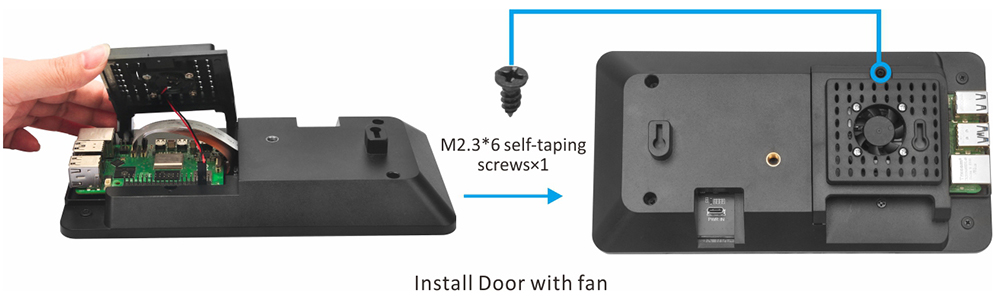
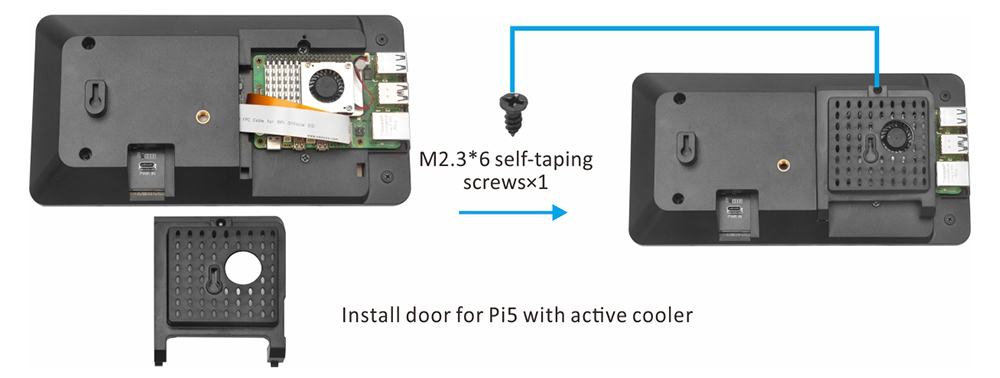
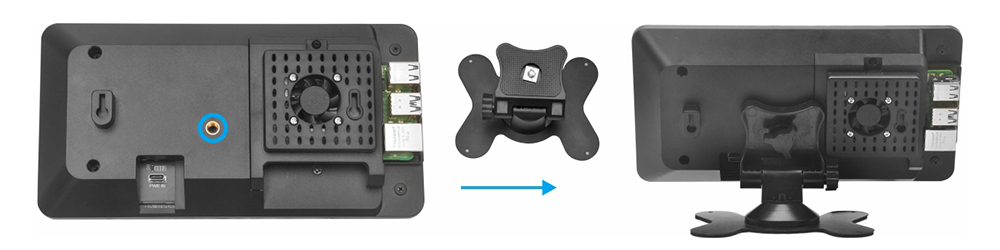
Step 14: Attach the stand holder to the back of the case as shown:
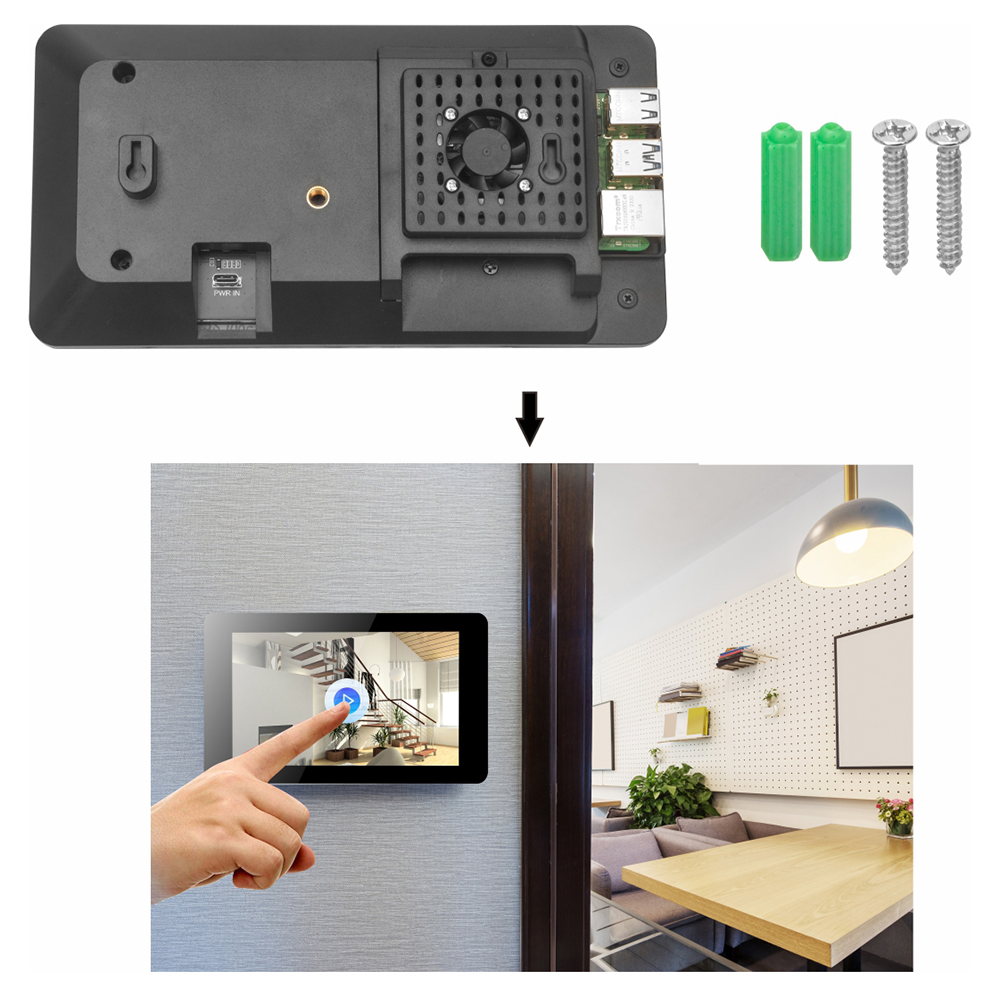
To mount the screen on the wall, first mark the screw positions on the wall using the dimensions shown below.
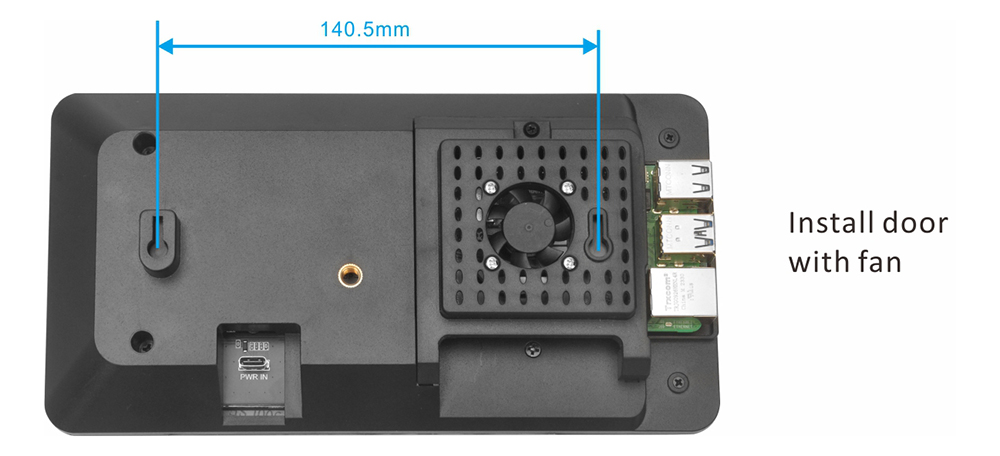
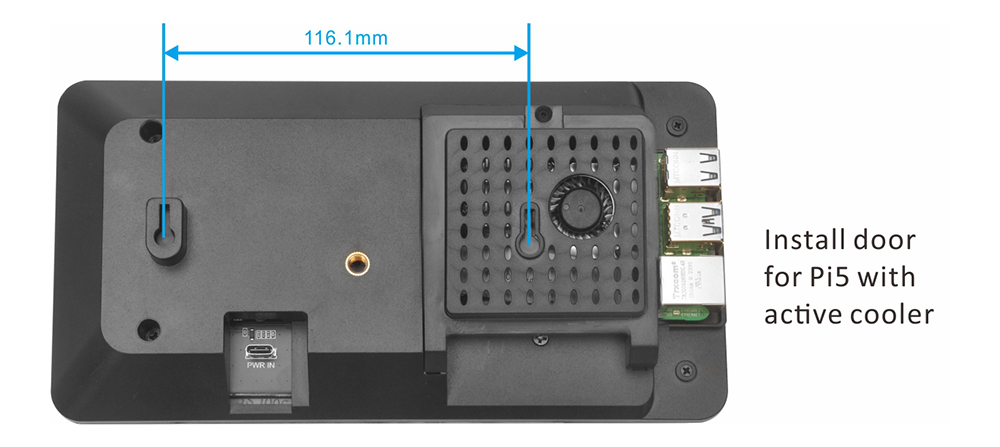
Then use the included expansion screws to hang the screen on the wall. (Ensure the screws are firmly anchored in the wall before hanging the screen.)