






| Buy from US |
Buy from UK |
Buy from DE |
Buy from IT |
Buy from FR |
Buy from ES |
ここでご購入を! |
 |
 |
 |
 |
 |
 |
 |
Introduction
In this project we’ll control LEDs using the LilyPad USB board. With code uploaded to the LilyPad, our projects can have more advanced behaviors, and the interactions are even reprogrammable. We’ll sew the LilyPad components onto a pennant shape and customize the theme and decoration.
• 1x LilyPad USB
• 1x LilyPad Coin Cell Battery Holder
• 1x LilyPad Light Sensor
• 1x LilyPad Tri-color LED
• 4x LilyPad LEDs
• Conductive Thread and Needle
• Pennant Template (1 piece) – see Planning Your Project for printable downloads
• Felt (one 9″×12″ sheet of craft felt will make one pennant; use scraps of felt to add decorations)
• Embroidery or Sewing Thread
Planning Your Project
Follow along with the circuit diagram on the template, or design your own layout and shape on a piece of paper. Trace onto the felt and cut it out. We’ll add the LilyPad USB board to a customized pennant to hang on a wall or sew into a project.
Project 4: Night-Light Pennant Template (PDF)
Understanding Your Circuit
The LilyPad USB is a small computer that can store information and commands to control different sensors and boards connected to it. Programmable boards like the LilyPad USB are called microcontrollers. The LilyPad needs to be programmed in advance with a set of behaviors called code.
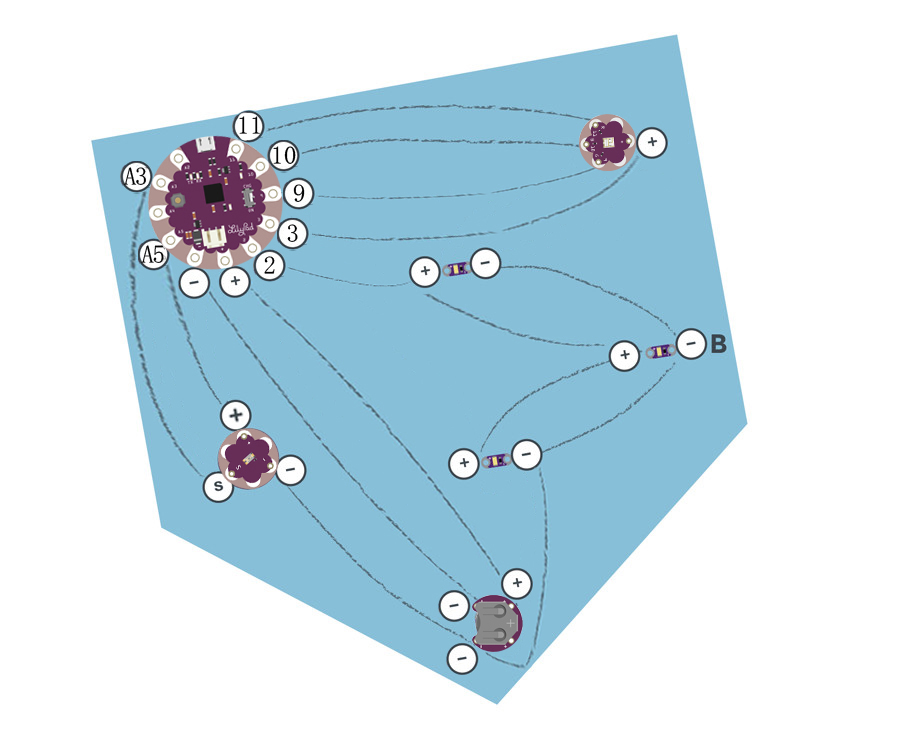
You will need seven LilyPad pieces: the LilyPad USB board, LilyPad Coin Cell Battery holder, three LEDs, a tri-color LED, and a LilyPad Light Sensor. Arrange the pieces on the felt according to the diagram (or your own custom design). Carefully secure each piece with a dab of glue. Double-check the orientation of the LilyPad pieces against the diagram or template before gluing.
Stitching It Together
STEP 1:
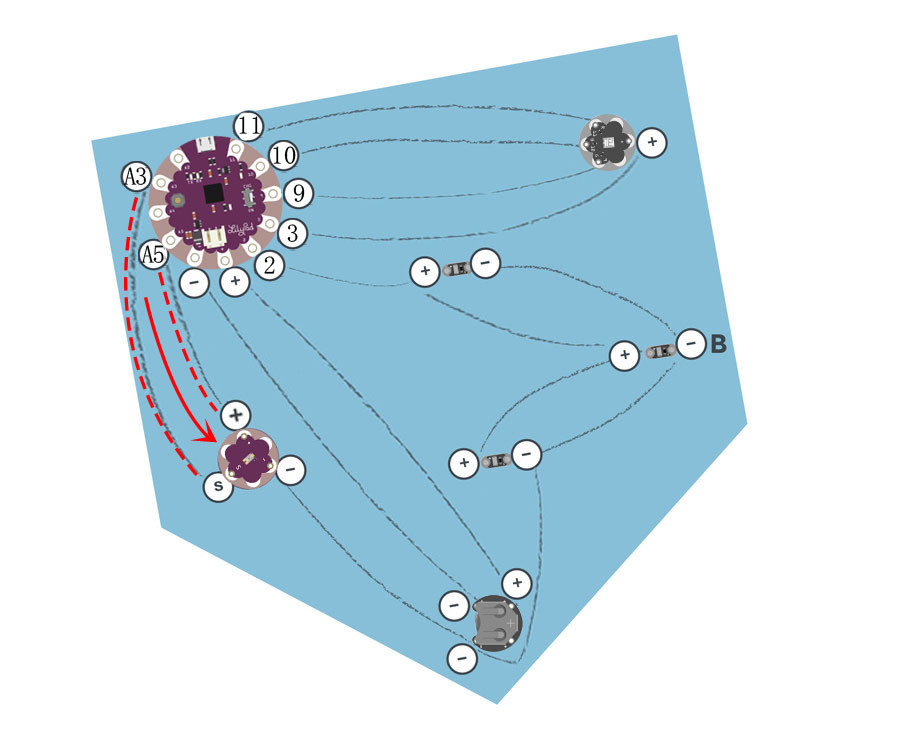
We’ll begin by stitching a connection between the LilyPad USB Board and the LilyPad light sensor. The light sensor board has three connections: sensor (S), positive (+), and negative (–). Use conductive thread to connect the A3 tab on the LilyPad to the (S) tab on the light sensor with three loops at each tab. Connect the A5 tab on the LilyPad to the (+) tab on the light sensor.
STEP 2:
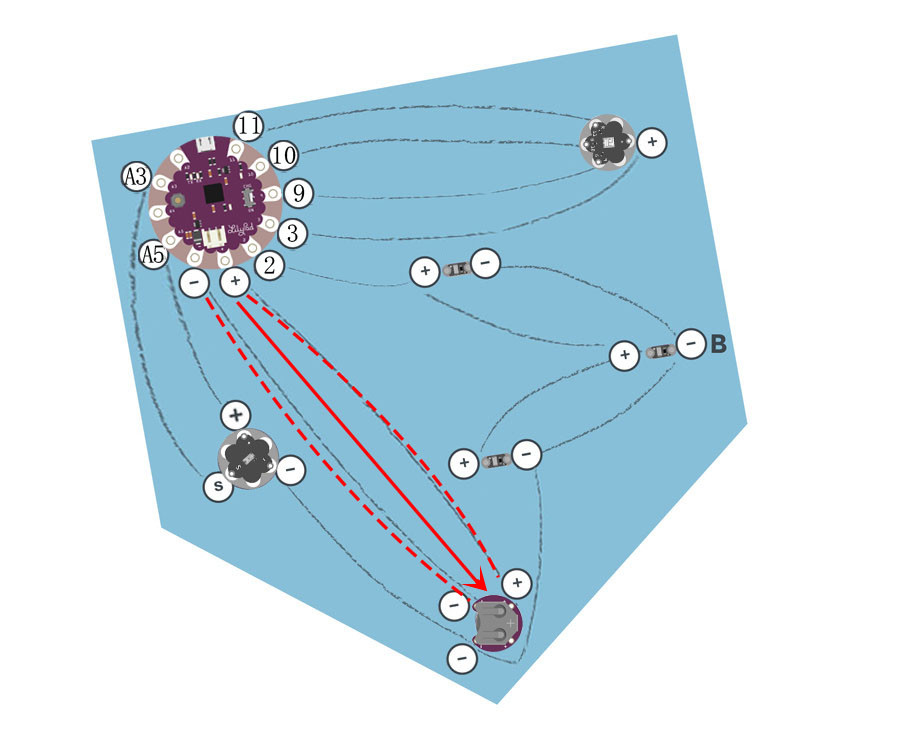
Next, we’ll connect the LilyPad USB Board to the LilyPad Coin Cell Battery holder. Sew three to four loops around Tab (–) of the LilyPad USB Board, then continue stitching to connect Tab (–) of the holder. Tie and cut. With a new piece of thread, sew three to four loops around Tab (+) of the LilyPad USB Board, then continue stitching to connect Tab (+) of the holder. Tie and cut.
STEP 3:
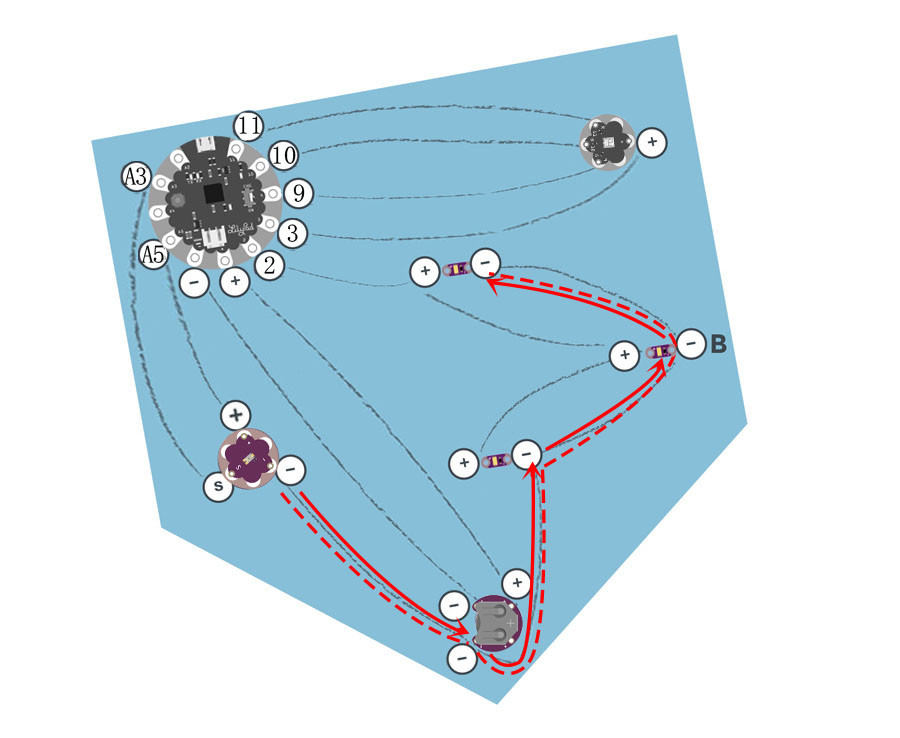
This step will require a much longer piece of thread than the others. Begin at the negative (–) sew tab on the light sensor, and continue stitching along the outside edge of the project, connecting the negative tab of each piece (LilyPad coin battery holder, three LEDs).
STEP 4:
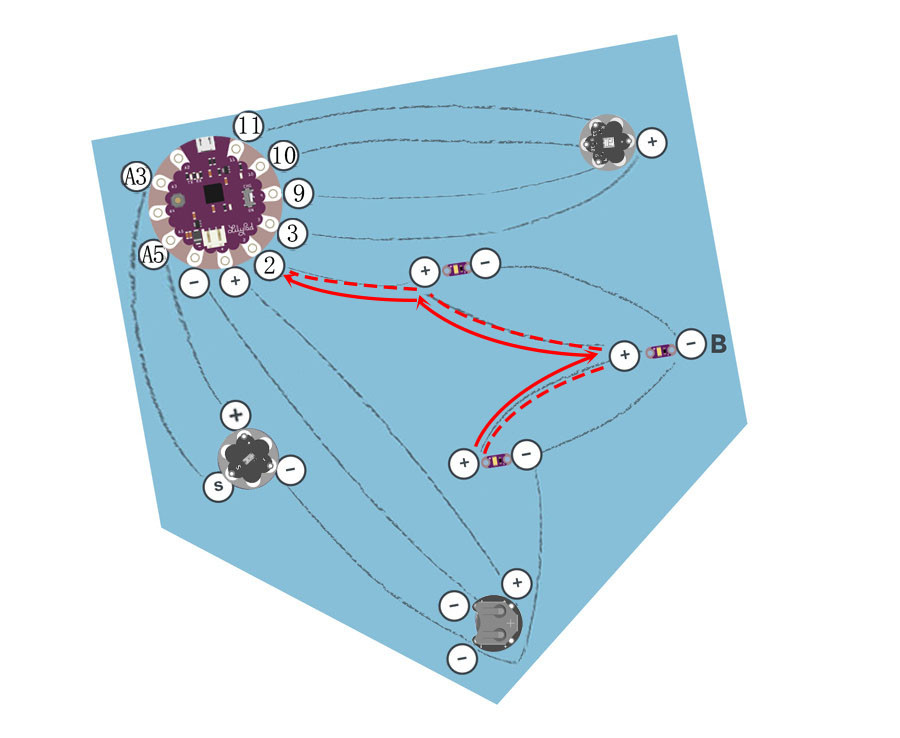
We’ll repeat this process with a new piece of thread to connect Tab 2 on the LilyPad USB Board to the positive tabs of the three LEDs.
STEP 5:
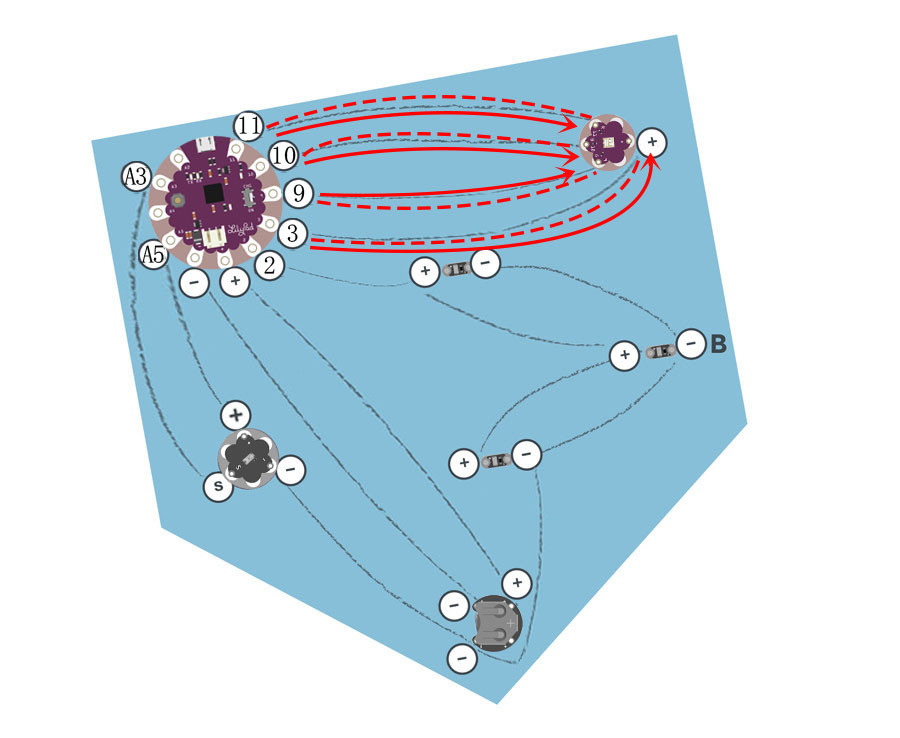
Finally, stitch Tab 9, Tab 10, and Tab 11 on the tri-color LED to Tab 9, Tab 10, and Tab 11 of the LilyPad USB Board, respectively. With a new piece of thread, stitch Tab 3 of the LilyPad USB Board to the positive tab (+) of the light sensor using three to four loops on each tab and a running stitch between. Tie and cut.
After all the stitching is complete, turn the project over and trim any loose thread tails before testing.
Install Arduino
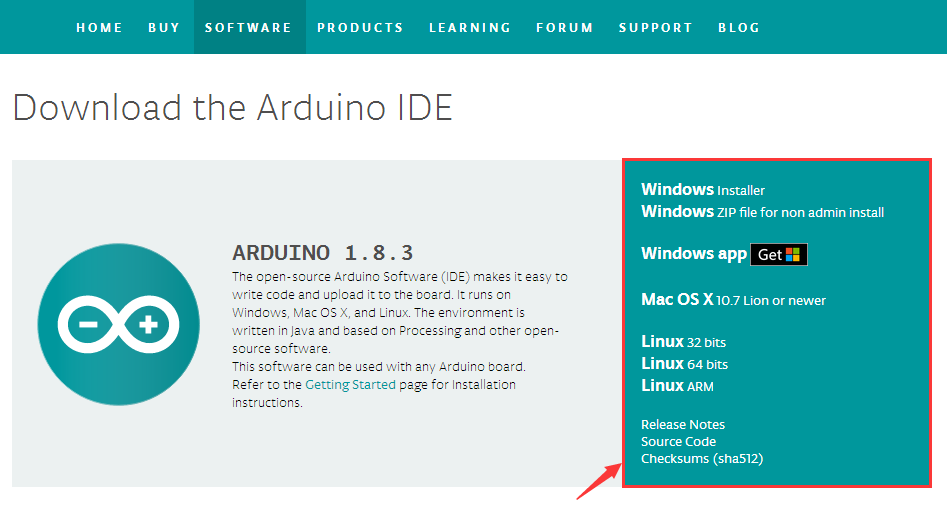
You’ll need to have Arduino IDE installed from this point forward. You can download the most recent version from Arduino’s downloads page (https://www.arduino.cc/en/Main/Software). Check out the Arduino installation guide (Windows, Mac, or Linux) for help installing the IDE.

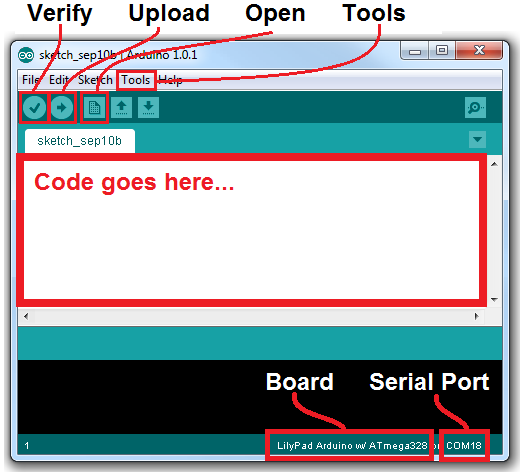
After installing the Arduino IDE, open the software.
Connect to LilyPad Arduino
When you connect the LilyPad Arduino USB board to your computer via the USB data cable (with the battery connected) and slide the switch to “CHG” mode, you should see a red LED light up to indicate the battery is charging. When the switch is in the ON position, the microcontroller receives power and the board runs.
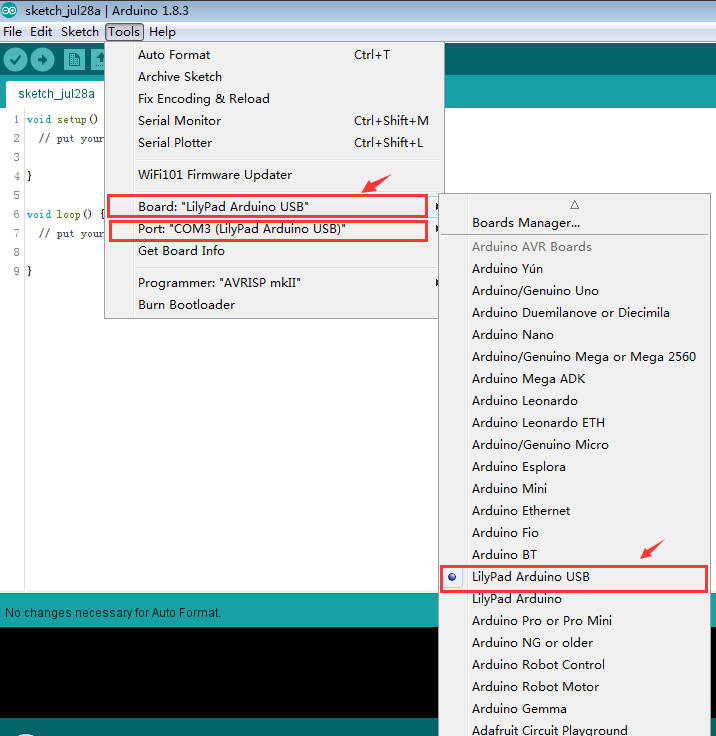
Before you can upload code, there are a few settings to configure. Make sure “Board” is set to “LilyPad Arduino USB”. To change it, go to the Tools menu, navigate to the Boards dropdown, and select LilyPad Arduino USB.
Upload Code
Visit our OSOYOO website to download the example code for this tutorial. Open it, then upload the code by clicking the right-pointing arrow button. Give Arduino a few seconds to compile, then a few more seconds to upload. The following code is for your reference.
Before your test, you need to use the computer to upload the Arduino code to the LilyPad USB Board. Insert the coin cell battery into the LilyPad USB Board’s battery holder with the positive (+) side facing up. Press the power button on the LilyPad USB Board; the tri-color LED should light up. Cover the light sensor — all LEDs should light up and the tri-color LED should change color. If so, remove the battery and continue to the Finishing Touches section.
Click here to download Project 4: LilyPad-Night-Light-Pennant.zip
Finishing Touches
Learn more about uploading code in the Arduino tutorial: Uploading an Arduino Sketch.
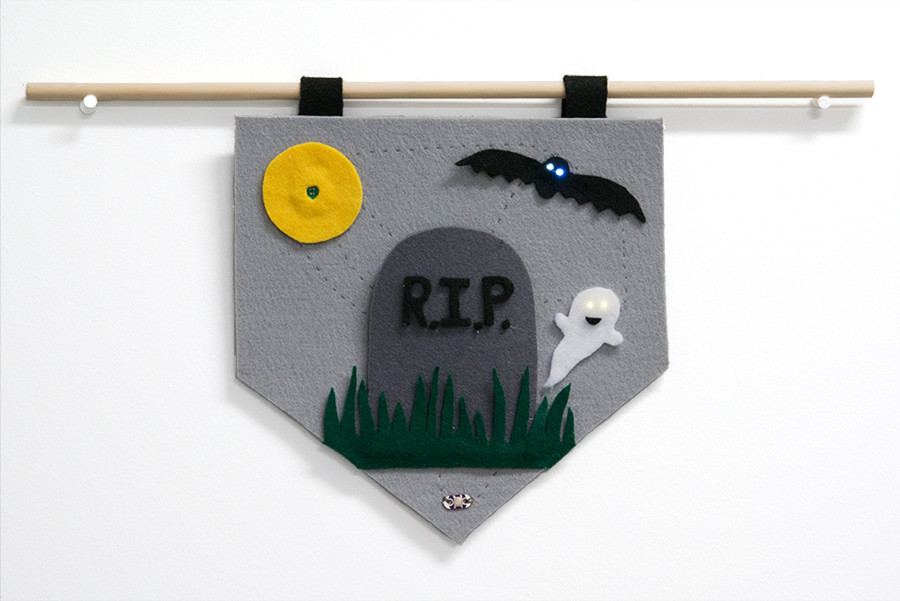
After checking that the circuit works, it’s time to customize your pennant. Adding light-colored felt over the LEDs can hide the boards and diffuse the light. If covering the light sensor with a felt decoration, make sure to cut a hole above the sensor so it is not blocked.

Here are a few examples of finished pennants with creative themes:

~~~~~~~~~~~~~~~~~~~~~~~~~~~~~~~~~~~~~~~~~~~~~~~~~~~~~~~~~~~~~~~~~~~~~~~~~~~
LilyPad Sewable Electronics Projects:
~~~~~~~~~~~~~~~~~~~~~~~~~~~~~~~~~~~~~~~~~~~~~~~~~~~~~~~~~~~~~~~~~~~~~~~~~~~



